
Building rockets can get messy fast-but trimming unnecessary parts in Kerbal Space Program 2 is easier than it looks. Here’s how to clean up your design and keep your craft lean in the Vehicle Assembly Building.
How to delete parts in Kerbal Space Program 2
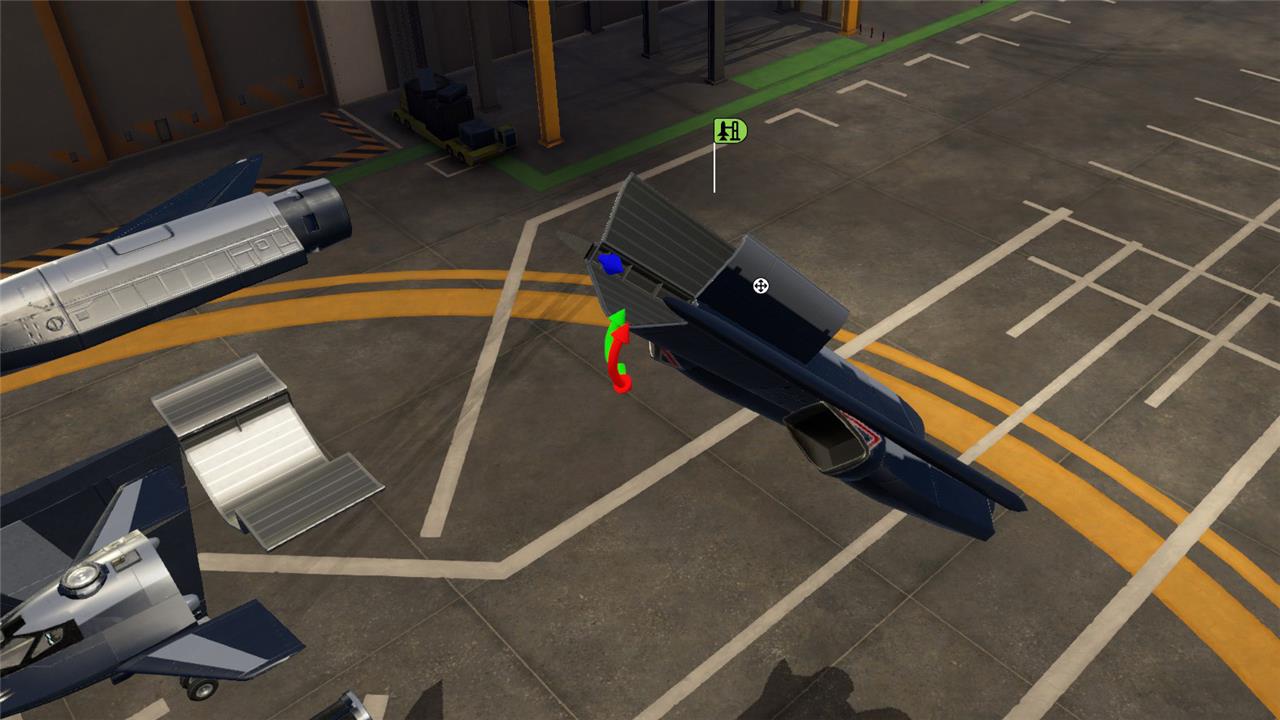
To delete parts while building a craft in Kerbal Space Program 2, select the part you want to remove in the Vehicle Assembly Building and either press Backspace on your keyboard or drag the highlighted part into the large red bin icon in the lower-left corner of the screen. If you remove more than you meant to, use Ctrl+Z to undo the last deletion and restore the accidentally removed components.
Deleting parts or assemblies can be done by hitting backspace on your keyboard or picking them up and placing them in the big red bin in the screen’s bottom left corner. Unlike NASA, the Kerbal Space Program isn’t subject to government oversight or budget limitations, so there’s no penalty to binning parts you don’t need.
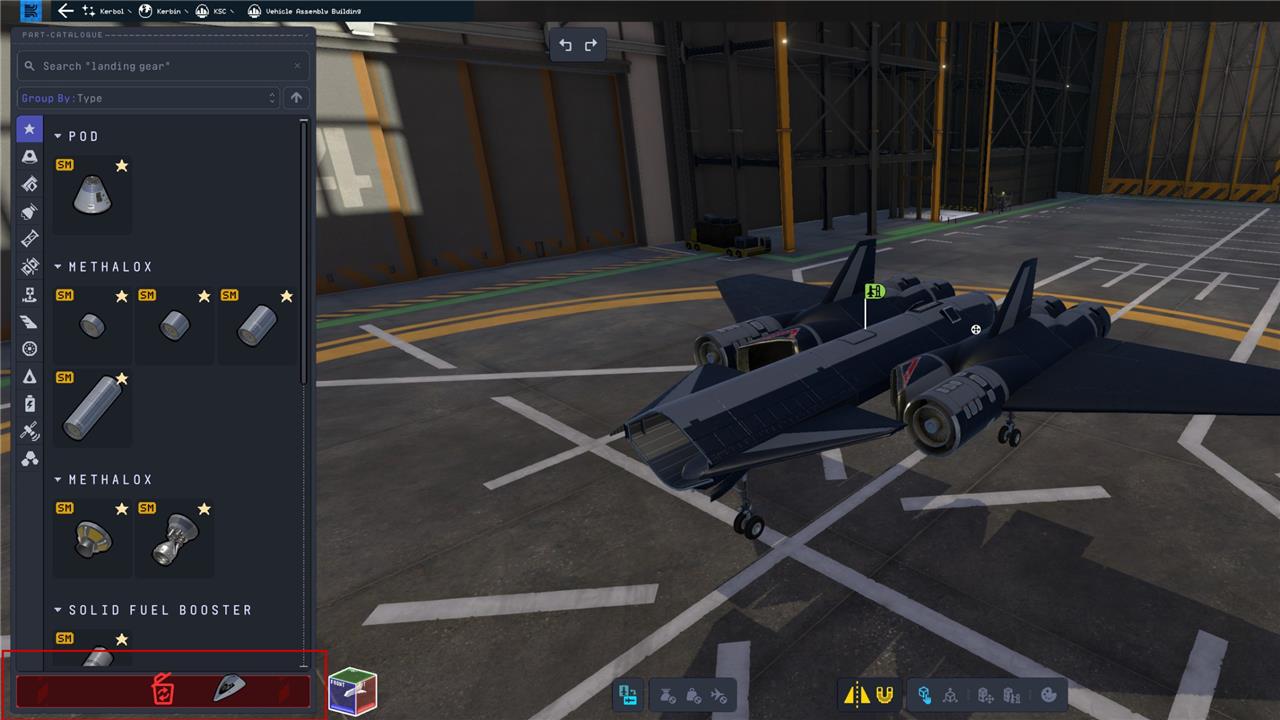
If you find yourself inadvertently getting rid of more than you initially anticipated, you might want to try removing smaller pieces of your specific assembly to get at specific part. Just remember that if you end up binning a huge chunk of your project, hitting Ctrl Z will undo your previous action.
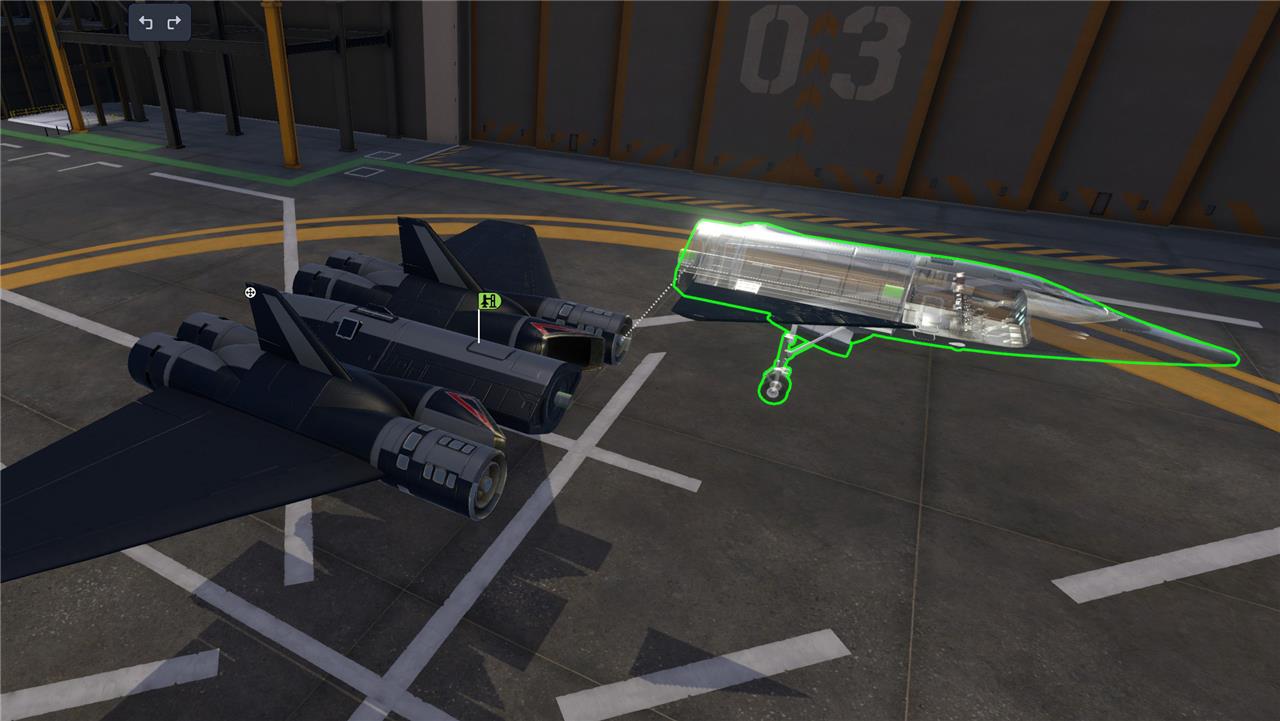
While putting together a space-capable vehicle in Kerbal Space Program 2 is relatively simple compared to the real thing, the Vehicle Assembly Building can still be a challenging aspect of the game to understand, especially when certain parts may not interact the way you expect them to. Here are some helpful tips to get everything to click.
Divide and conquer
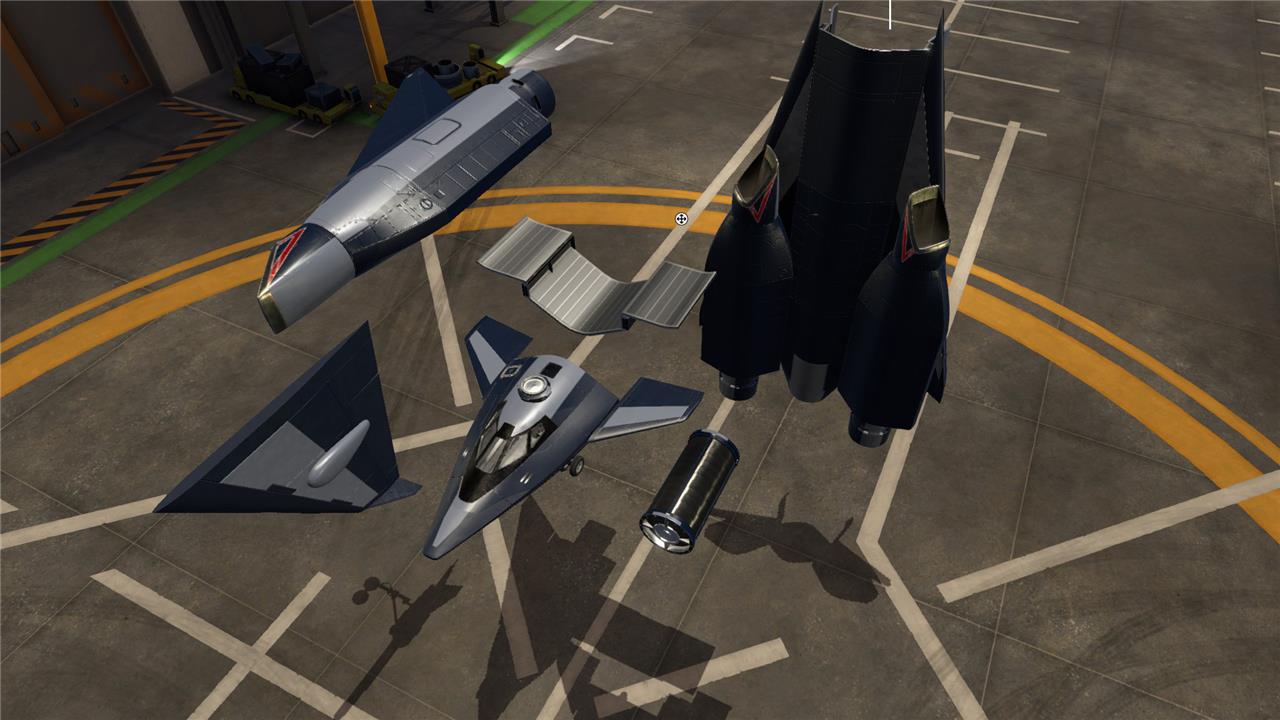
KSP 2 allows you to put together multiple assemblies or vehicles in the VAB simultaneously. So instead of taking on single parts, it sometimes pays off to put together an entire booster assembly by itself before affixing it to your craft.
Rotate objects
Sometimes rotating a part is all it takes to stick to the rest of your vehicle. The WASD keys, as well as Q and E, allow you to spin and rotate a specific part or assembly 45 degrees in any direction. If the alignment is a bit off when a part is attached, you can also use the “translate” tool by pressing the 2 key, which will allow you to make finer adjustments to a parts placement on your craft.
Always be testing
Kerbal Space Program 2‘s hardware requirements are much higher than the original’s, but load times have been drastically reduced. Before you create something too crazy, only to have it fall apart on the launchpad, add a few parts at a time, and take your craft to the runway or launchpad at regular intervals to make sure its structurally sound.
Check the list
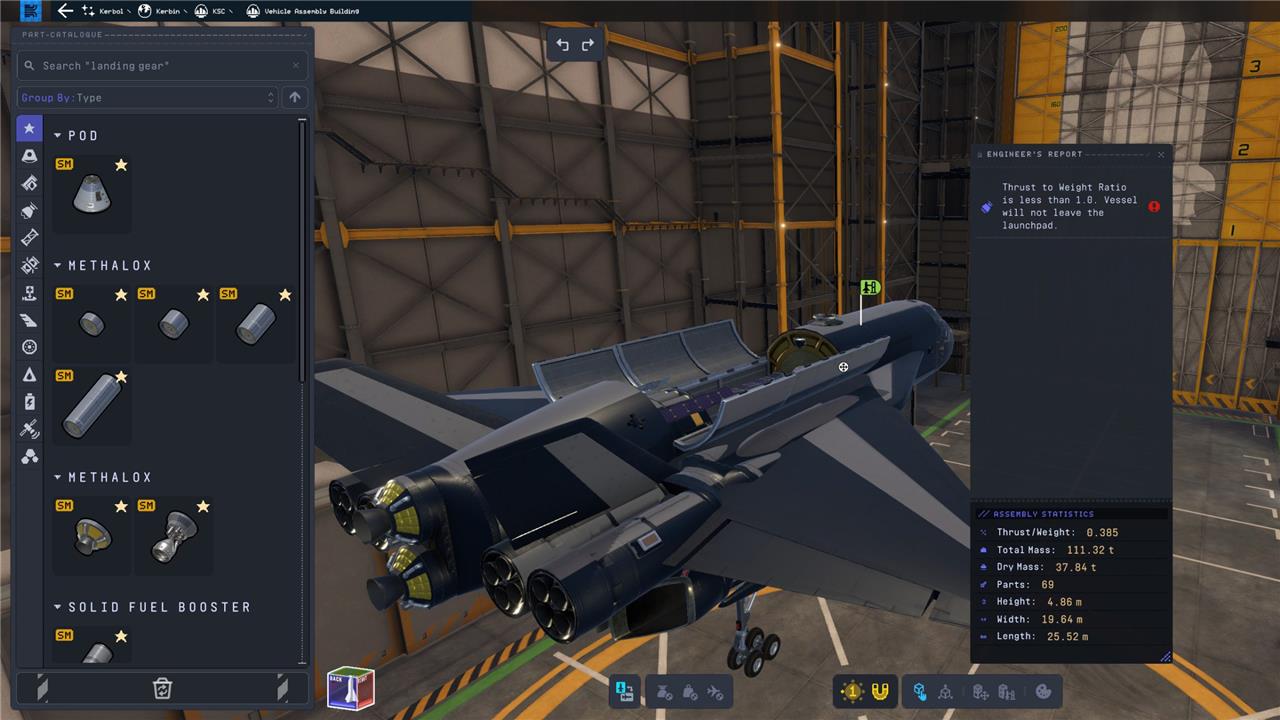
The engineer’s report will flag any outstanding issues you might want to address before taking off. These aren’t always critical, but keeping the engineers happy is rarely a bad idea.
How to undo accidental part deletions in KSP2
In Kerbal Space Program 2’s Vehicle Assembly Building (VAB) on PC, you can undo accidental part deletions quickly. Ctrl+Z is the standard shortcut for this action.
Undo Shortcut
Press Ctrl+Z immediately after deleting a part (via Backspace or the trash bin) to restore it and any affected sub-assemblies. This works for the most recent change, allowing step-by-step recovery of mistakes during builds.
Limitations
Undo only covers recent actions within the current VAB session and may not recover everything if multiple changes occur. Save craft versions frequently or use sub-assemblies to minimize risks, as there’s no multi-step redo function reported.
How to manually edit persistent.sfs to restore deleted parts
Manually editing the persistent.sfs file in Kerbal Space Program 2 is an advanced technique to recover deleted parts from a save, but it carries risks like corrupting your save. Always back up the file first, as KSP2’s file format may differ slightly from KSP1.
Locate the File
Navigate to your KSP2 save directory (typically KSP2/saves/[YourSaveName]/), quit the game fully, and open persistent.sfs in a text editor like Notepad++ for better handling of large files. Search (Ctrl+F) for your vessel’s name or “VESSEL” to find the relevant section near the end of the file.
Restore Parts
Identify the “PARTS” block within your vessel entry-this lists all components with IDs and attachments. To restore a deleted part, copy its data from a backup save, another identical vessel (launched as a reference), or a text editor history; paste it into the list, ensuring correct parent UID attachments and positions match surrounding parts. Adjust fuel levels or states if needed, save, and reload KSP to test.
Precautions
This method works best for simple fixes; complex vessels risk breaking physics or staging. KSP2 updates can change formats, so verify in a test save. Use tools like Save File Editor mods if available for your version to avoid manual errors.
