
Tired of Starfield’s default, narrow field of view? Whether you’re exploring distant planets on PC or Xbox, you can now expand your visual horizons without installing a single mod. Unlock a wider perspective and enhance your gameplay experience with a simple tweak that lets you customize your FOV directly through game settings or a quick file edit-no mods, no hassle, just a fresh view of the cosmos.
If you’re unfamiliar with what your FOV is in games, think of it as how far back your camera is. The further back the camera is (and the wider your FOV), the more you can see on the sides and the further away some locations appear to you. If you feel like Starfield’s camera is zoomed in too far and you’re missing some beautiful scenery on the sides of your screen, you probably need to increase your FOV.
In this Starfield guide, we’ll teach you to increase (or decrease) your FOV without the use of mods.
Note that, as of this writing, you can only change your FOV for the PC version of Starfield.
Can you change your FOV in Starfield?
You can change your Field of View (FOV) in Starfield on PC even though the game lacks an in-game FOV slider or setting. To do this without mods, create a text file named “StarfieldCustom.ini” in the Documents/MyGames/Starfield folder. Inside this file, add the following lines:
text[Camera] fFPWorldFOV=100.0000 fTPWorldFOV=100.0000
You can adjust the numbers to your preferred FOV values for first-person and third-person views. Save the file and launch the game; your FOV will be updated accordingly. This method works only on PC and not on Xbox consoles, which currently have no official way to change FOV.
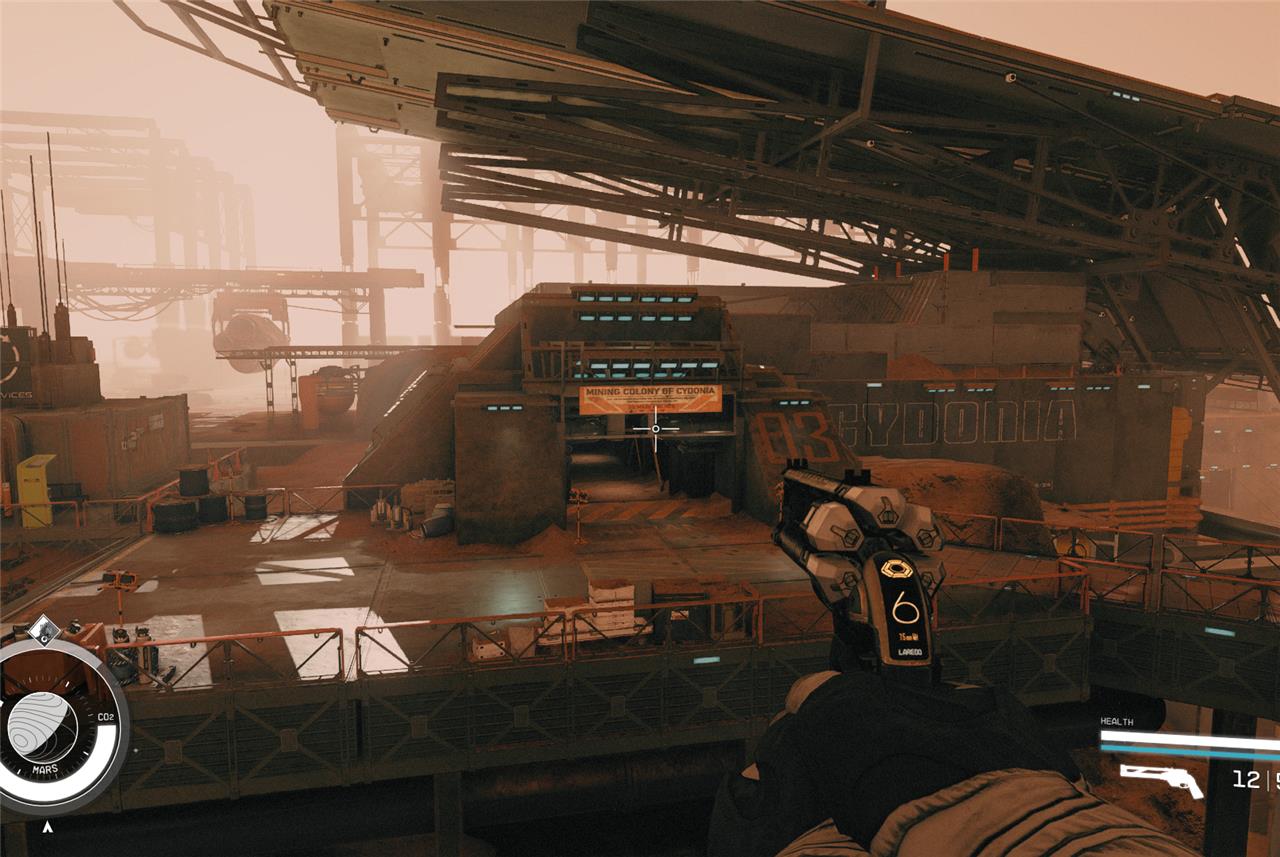
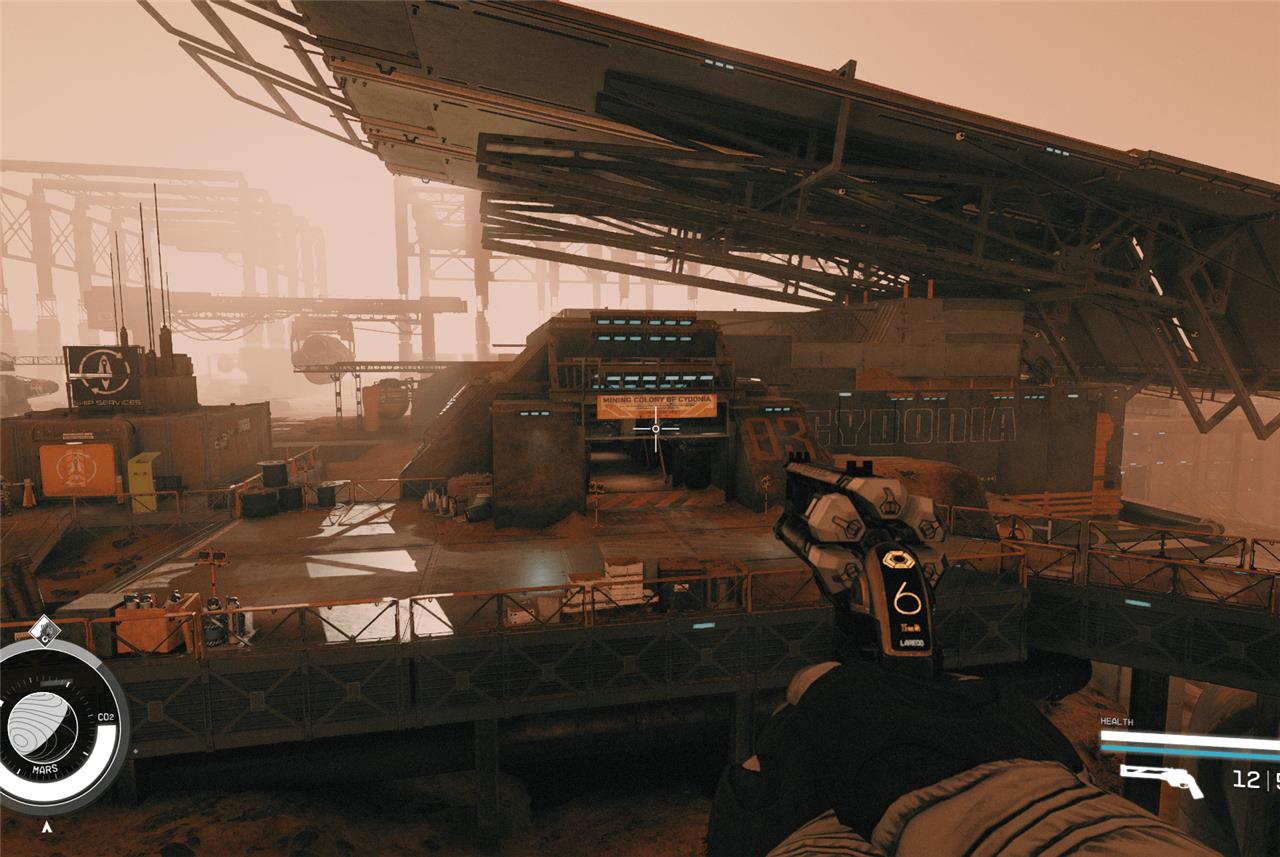
You can change your field of view in Starfield. However, there is no setting for it in-game, as we mentioned, which means you’ll need some external help. You could always go and download a mod and increase your FOV that way. (One popular mod for doing so is the in-game FOV changer, which lets you change the FOV with console commands.) But downloading a mod to change FOV means you’ll be unable to earn Starfield’s achievements.
Luckily, there is a way to change your FOV in Starfield without mods or using the non-existent in-game settings, but you’ll need to make a text file. We can help you with that.
How to change FOV in Starfield without mods
To change the Field of View (FOV) in Starfield without using mods, you need to create a custom configuration file on your PC. First, navigate to the folder Documents > My Games > Starfield. There, create a new text file named “StarfieldCustom.ini” (make sure it does not have a .txt extension). Open this file and add the following lines to set your desired FOV values for first-person and third-person views:
text[Camera] fFPWorldFOV=100.0000 fTPWorldFOV=100.0000
You can adjust the numbers to your preference (default values are 85 for first-person and 70 for third-person). Save the file and launch the game; the FOV will be updated accordingly. Note that this method works only on PC and not on Xbox consoles.
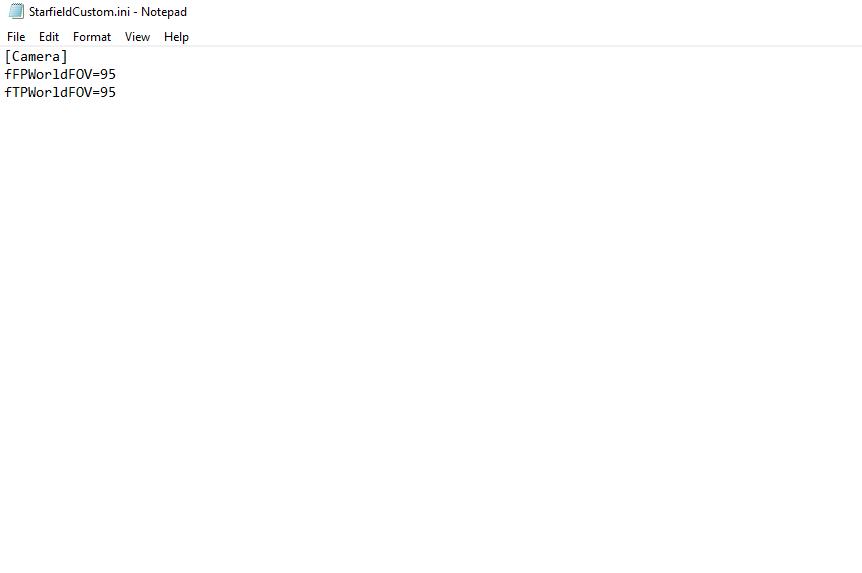
We’re going to break this down into as simple a list as we can, as it can be easy to miss a step and get stuck:
- Open up your File Explorer on your PC
- Go to Documents >My Games >Starfield
- Hit the View button at the top of the screen and make sure the “file name extensions” box is ticked
- Go to the white space under your existing Starfield files and right click. Select New >Text Document
- Name your new text file this exactly (including the correct cases): StarfieldCustom.ini
- Your text file should read “StarfieldCustom.ini.txt” once you hit enter on the rename. Remove the .txt from the end of the file and select “yes” when your PC asks if you’re sure you want to change the extension
- Open the StarfieldCustom.ini document
- On the first line, type this exactly: [Camera]
- On the second line, type this exactly: fFPWorldFOV=x
- On the third line, type this exactly: fTPWorldFOV=x
- Replace the x in either the first person (second line) or third person (third line) or both with the FOV of your choice. Try playing around with it until you find a number that works for you. But just under 100 will give you a more zoomed-out look without making things weird
- Save the file and your changes once you’ve selected your FOV (open it again to make sure it worked)
- Close your file explorer and open Starfield
- Load your last save and bask in the glory of an improved FOV
How can I increase my FOV in Starfield without risking game bans
To increase your FOV in Starfield without risking game bans, you should avoid using mods and instead use the official in-game accessibility settings or a safe manual configuration file tweak.
On both PC and Xbox, you can now adjust the FOV through the in-game Accessibility menu by navigating to System > Settings > Accessibility, where you can change the First Person FOV and Third Person FOV sliders up to 110 degrees. This method is fully supported by the game and does not risk bans or disable achievements.
For PC players wanting more precise control beyond the in-game slider, you can create a custom configuration file named “StarfieldCustom.ini” in your Documents > My Games > Starfield folder. Inside this file, add the following lines, adjusting the numbers to your preferred FOV values:
text[Camera]
fFPWorldFOV=100.0000
fTPWorldFOV=100.0000
Save the file and launch the game. This method changes the FOV without using mods and preserves achievements and online safety, as it only modifies local settings.
Using these approaches ensures you can increase your FOV safely, without risking bans or affecting your gameplay integrity.
What is the safest way to increase FOV without risking bans in Starfield
The safest way to increase your FOV in Starfield without risking bans is to use the official in-game Accessibility settings or create a custom configuration file, both of which do not involve mods and preserve your game’s integrity.
Method 1: In-Game Accessibility Menu (PC and Xbox)
-
Open the System menu in Starfield.
-
Go to Settings > Accessibility.
-
Adjust the First Person FOV and Third Person FOV sliders up to 110 degrees.
This method is officially supported and safe, ensuring no risk of bans or achievement disabling.
Method 2: Custom Configuration File (PC only)
-
Navigate to Documents > My Games > Starfield.
-
Create a new text file named StarfieldCustom.ini (ensure it’s not .txt).
-
Open it and add:
text[Camera]
fFPWorldFOV=90
fTPWorldFOV=90Replace the numbers with your desired FOV values (commonly between 90 and 100).
-
Save and launch the game.
This tweak changes FOV without mods and keeps achievements intact, posing no ban risk.
Avoid using third-party DLL drops or mods that alter save files or game binaries, as these can trigger anti-cheat measures or corrupt saves. The above two methods are the safest and officially recommended ways to increase FOV in Starfield without risking bans.
