
Mastering weapon swaps in Starfield can mean the difference between victory and defeat in the heat of battle. But with Bethesda’s space epic offering a surprisingly subtle quick-switch system, many players find themselves fumbling through menus just when they need to act fast. Whether you’re on PC or Xbox, this guide reveals how to seamlessly equip and switch weapons using quickslots and favorites – so you can stay locked and loaded without missing a beat.
Adding to the ignominy is the knowledge that you’re performing unnecessary labor – because you can equip multiple weapons in Starfield, and if you find something new you want to quickly take for a spin, you can also instantly equip a new weapon too.
How to switch weapons in Starfield
To switch weapons in Starfield quickly, use the D-pad quickslot menu. First, open your inventory and mark your preferred weapons as favorites by selecting them and pressing the designated button (B on PC, A on Xbox controller). This adds them to a quickslot wheel where you can assign each weapon to a slot. During gameplay or combat, press the D-pad (on Xbox) or Q key (on PC) to bring up the quickslot menu, which slows down time, allowing you to select and equip your desired weapon instantly without navigating through menus. This system enables fast weapon swapping, essential for adapting to different combat situations efficiently.
Switching weapons in Starfield means making use of the favorite system and bringing up the quickslot menu with the D-pad.
To switch weapons and have multiple available at once, follow this step-by-step process:
- Open your inventory, then hover over the weapon you want to have readily available (or simply switch to).
- Press the Y button to “favorite” it. This will pull up the quickslot menu: a four-pronged menu with each cardinal direction containing three slots.
- Use the D-pad to select the slot you want your weapon to be in, then press the A button to slot it. (As of this writing, we have not discovered a way to expand the number of slots in your quickslot menu.)
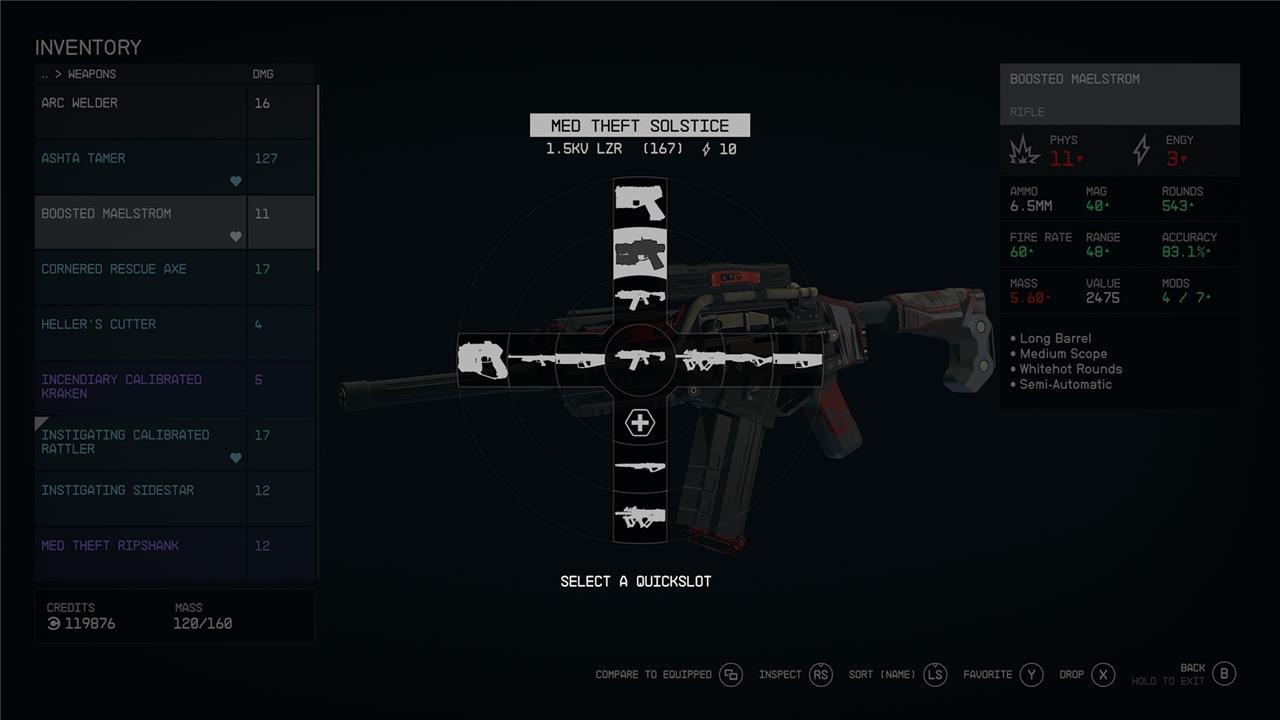
By default, your med pack occupies the first node of the down direction. You can move that around as you see fit, though. You can also add other items, like frag grenades and trip mines, to the quickslot menu. If you’re the type who frequently changes outfits, know that you can add spacesuits, helmets, and other attire as well.
When you’re in the (not-star)field, you can pull up the quickslot menu by pressing the D-pad in any direction, and using it to select which weapon or item you want to wield. Opening the quickslot menu slows down time, but doesn’t freeze it completely. You can still get shot, punched, bitten, stabbed, or otherwise harmed.
How to instantly equip a new weapon
To instantly equip a new weapon in Starfield, simply pick it up by holding the take button (A on Xbox by default), which automatically equips the weapon without needing to open your inventory. For quicker weapon switching during combat, use the quickslot system: open your inventory, select the weapon you want, and mark it as a “Favorite” by pressing the appropriate button (B on PC or Y on controller). This adds the weapon to your quickslot wheel, allowing you to instantly switch weapons by pressing the corresponding key on PC or using the D-pad on Xbox. This method saves time and keeps you ready for any combat situation without fumbling through menus.
Of course, the fastest way to put something new in your hands is to. pick it up. If you see a weapon on the ground you’d like to equip, simply hold thetakebutton (A by default on Xbox) to automatically equip that weapon. However, this does not add it to your quickslot menu, even if you have empty slots.
How can I set my favorite weapons for quick switching in Starfield
To set your favorite weapons for quick switching in Starfield:
-
Open your inventory and navigate to the Weapons section.
-
Highlight the weapon you want to assign as a favorite.
-
Look for the “Favorite” prompt at the bottom of the screen (on Xbox, this is usually the Y button; on PC, it may be B or another key, depending on your controls).
-
Press the Favorite button. A quickslot grid (usually 12 slots, shaped like a D-pad or wheel) will appear.
-
Use the D-pad or corresponding number keys to select the slot where you want to assign the weapon, then confirm your selection.
-
Repeat for each weapon or item you want to favorite.
Once set, you can quickly access your favorite weapons during combat by pressing the D-pad (on controller) or the assigned number key (on keyboard) to bring up your favorites and switch instantly.
How do I assign my favorite weapons to the quickslot menu in Starfield
To assign your favorite weapons to the quickslot menu in Starfield:
-
Open your inventory (press “I” on PC or the Menu button on Xbox).
-
Navigate to the Weapons category.
-
Highlight the weapon you want to assign.
-
Press “B” on PC or “Y” on Xbox to mark it as a Favorite. This action will open the Favorites Quickslot Menu overlay.
-
Use your keyboard or controller to select one of the 12 available slots and confirm your choice (on PC, slots are mapped to number keys 1-9; on Xbox, use the D-pad directions and confirm with “A”).
-
Repeat for each weapon you want quick access to.
You can now quickly switch between your favorited weapons in combat by pressing the corresponding number key (PC) or tapping the D-pad (Xbox).
