
Forget everything you know about Pokémon battles. In Pokémon Sleep, your greatest ally is a good night’s rest-catch rare Pokémon by simply dozing off.
Like other Pokémon games, Pokémon Sleep is about catching ’em all, but instead of individual Pokémon, players will collect sleep types – and yes, fill out a Sleep Type Dex. How long you sleep and how restful your sleep is factors into the game’s collection aspect, but so does feeding and caring for a Snorlax. Players will get one Snorlax each week, which they’ll feed berries and other foodstuffs to in order to make it grow. Other sleeping Pokémon will be attracted to your Snorlax, and the type of sleep players get at night will affect the sleep type of attracted Pokémon.
According to a news release from The Pokémon Company, once players collect a certain Pokémon, they can feed it Poké Biscuits. This will make them friendlier, and they’ll become able to join players as “helper Pokémon.”
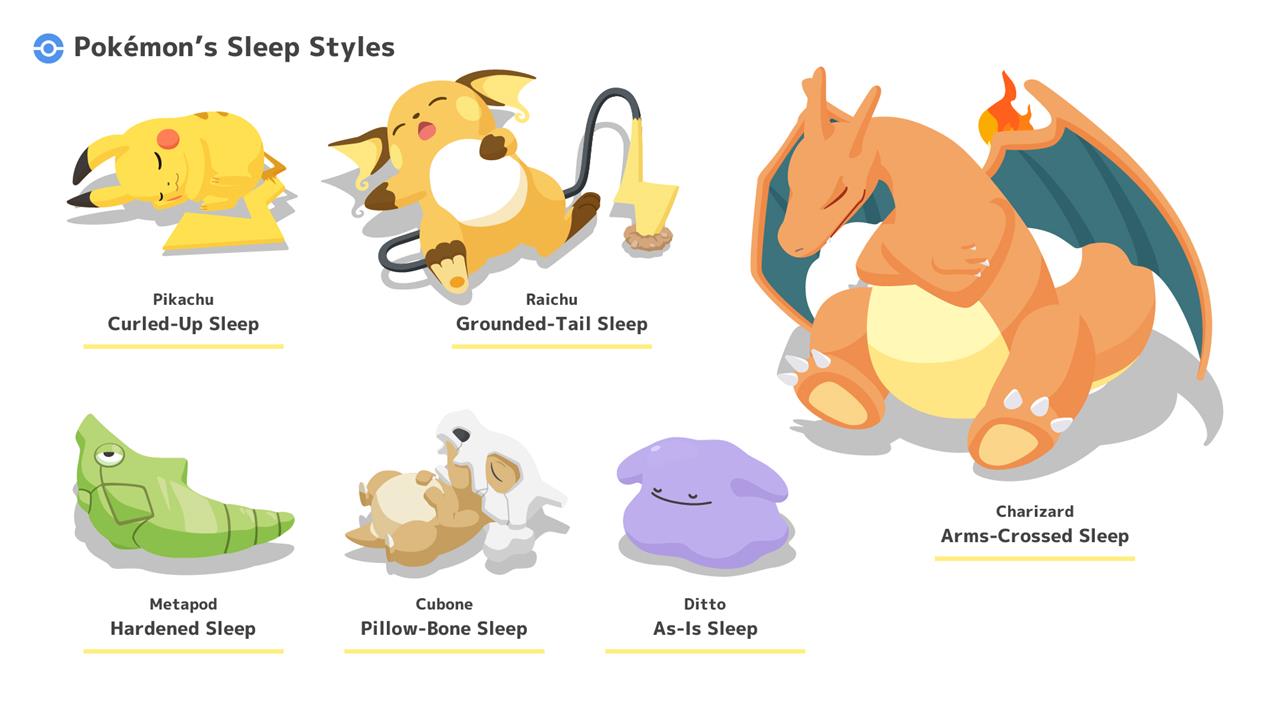
Pokémon Sleep tracks three sleep types: dozing, snoozing, and slumbering. The app’s Pokémon appear to have their own sleep types too; Pikachu has three: Droopy-Eared, Curled-Up, and Electrifying Sleep.
Outside of the collection aspect, Pokémon Sleep also acts as a simple sleep tracker. Users can monitor their sleep patterns and even listen to recordings of their sleep. (While that may sound creepy, and you should definitely carefully read through the app’s privacy policy, you may get a Singing Sleep Jigglypuff out of it. Plus, who doesn’t want to hear their weird nighttime babbling?)
The Pokémon Company also explains how you’ll need to position your mobile device (or, if you have one, the Pokémon Go Plus Plus accessory) for Pokémon Sleep to work. In short, you’ll need to keep your phone by you, in bed, for the app to monitor your snoozing, snoring, tossing and turning, and other restlessness.
How do I sync Apple Watch sleep data with Pokémon Sleep iOS
To sync Apple Watch sleep data with Pokémon Sleep on iOS, first ensure your Apple Watch is set up for sleep tracking via the Health app and Watch app, then link Pokémon Sleep to Apple Health.
Prerequisites
Your Apple Watch must automatically track sleep (wear it snugly to bed within your set sleep schedule or enable Sleep Focus manually). Sleep data syncs to the iPhone’s Health app first, but only data recorded after linking (with sleep stages like REM/light/deep and at least 90 minutes) works in Pokémon Sleep.
Enable Apple Health Access
Open iPhone Settings > Health > Data Access & Devices > Pokémon Sleep, then tap “Turn On All” and “Allow” to grant read access to sleep data.
Pair in Pokémon Sleep
In the app, tap “Pair Device” > “Pair Smartwatch” > “Pair a Device” > “Turn On All” > “Allow,” then confirm pairing is complete (screen says so).
Sync After Sleep
After waking, open Pokémon Sleep, go to title screen or home screen > “Sync/Settings” or “Synchronize” (or “Apple Health” > “Synchronize”), select data to use (delete unwanted sessions), and tap “Start” for research. Wait if Health data lags; avoid manual edits in Health.
Troubleshooting
If “Sleep Data not found” appears, verify data shows in Health with stages, re-link Health, or ensure tracking started post-pairing-older data won’t import. Unpair via Sync/Settings > Other > Unpair if needed.
Enable Sleep tracking on Apple Watch and Health steps to check
To enable sleep tracking on Apple Watch, set up a sleep schedule in the Health app on your paired iPhone first, then confirm tracking settings in the Watch app.
Setup Steps on iPhone
Open the Watch app > My Watch tab > Sleep > toggle “Track Sleep with Apple Watch” on.
Then open Health app > Browse > Sleep > Get Started (or Full Schedule & Options) > Set Up Sleep > Set your sleep goal (e.g., 8 hours), bedtime/wake times, and enable “Use Schedule for Sleep Focus.”
Tap Add Schedule if needed for different days, and turn on Wind Down for pre-bedtime reminders.
Confirm on Apple Watch
Wear the Watch snugly to bed (battery above 30%), open Sleep app on Watch > Full Schedule to verify or edit times directly by turning the Digital Crown.
Enable Sleep Focus on iPhone (Control Center > tap moon icon) before bed to start tracking automatically.
Check Data in Health
After waking, open Health app > Browse > Sleep to view total time, stages (REM/Core/Deep/REM), and consistency.
Data appears within minutes; if missing, ensure Watch was worn 4+ hours and check Settings > Sleep > Track Sleep Using Apple Watch.
