
Looking to start fresh in the vast Settled Systems? Whether your outpost isn’t quite working out or you’ve found a better spot to claim, deleting an outpost in Starfield is easier than you think-and it even refunds your materials to help you rebuild smarter. Here’s the quick and simple way to wipe the slate clean and make room for new galactic adventures on PC and Xbox.
When you first start out in Starfield, you’ll only be able to build a handful of outposts on planets, and you won’t be able to increase that limit until many hours into your save. Trying to figure out how to get rid of an existing outpost so you can replace it with a new one can be a bit frustrating, as the game doesn’t make it immediately obvious to you.
In this Starfield guide, we’ll tell you how to delete outposts so you can clear up a spot for another.
How to delete an outpost in Starfield
To delete an outpost in Starfield, approach the outpost beacon you initially placed and interact with it to bring up the options panel. At the bottom, you will see a ’Rename’ option; by holding down the button assigned for renaming (default “R” on PC or “X” on Xbox), a ’Delete’ prompt will appear. Confirm the deletion to remove the outpost permanently. Deleting an outpost refunds all the materials used to build it back to your ship’s cargo, allowing you to start fresh or relocate your outpost without losing resources. Note that you must unassign any crew or delete robots assigned to the outpost before deletion is possible.
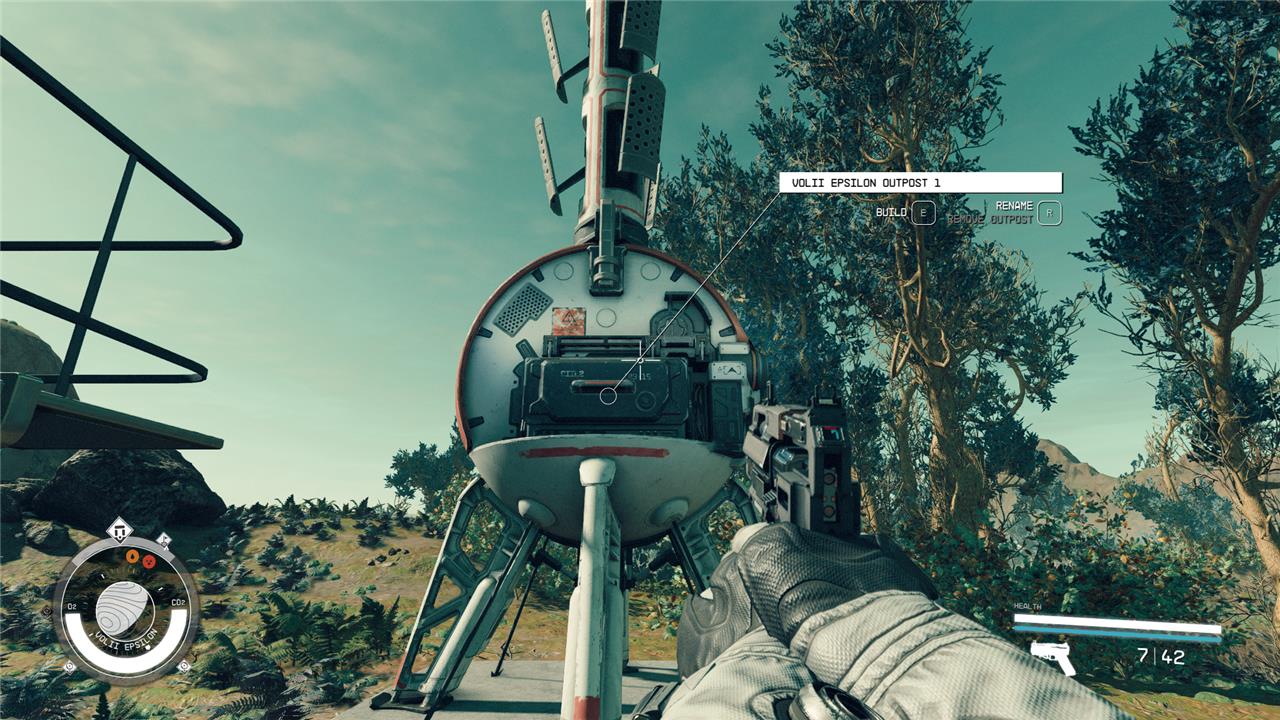
There are two main reasons you’d want to delete an outpost in Starfield. The first is that your planetary map is getting cluttered with outpost icons, and you want to simplify things to ease your memory. The second – and most important reason – is that you want to build another outpost at a different location, but have already used too many outpost slots.
To delete an outpost, you need to physically go up to that outpost’s beacon. When looking at the beacon, you’ll see two options: build (A on Xbox and E on PC) and rename (X on Xbox and R on PC). However, if you look closely, you’ll also see small, dark text under the rename option, which says “remove outpost.”
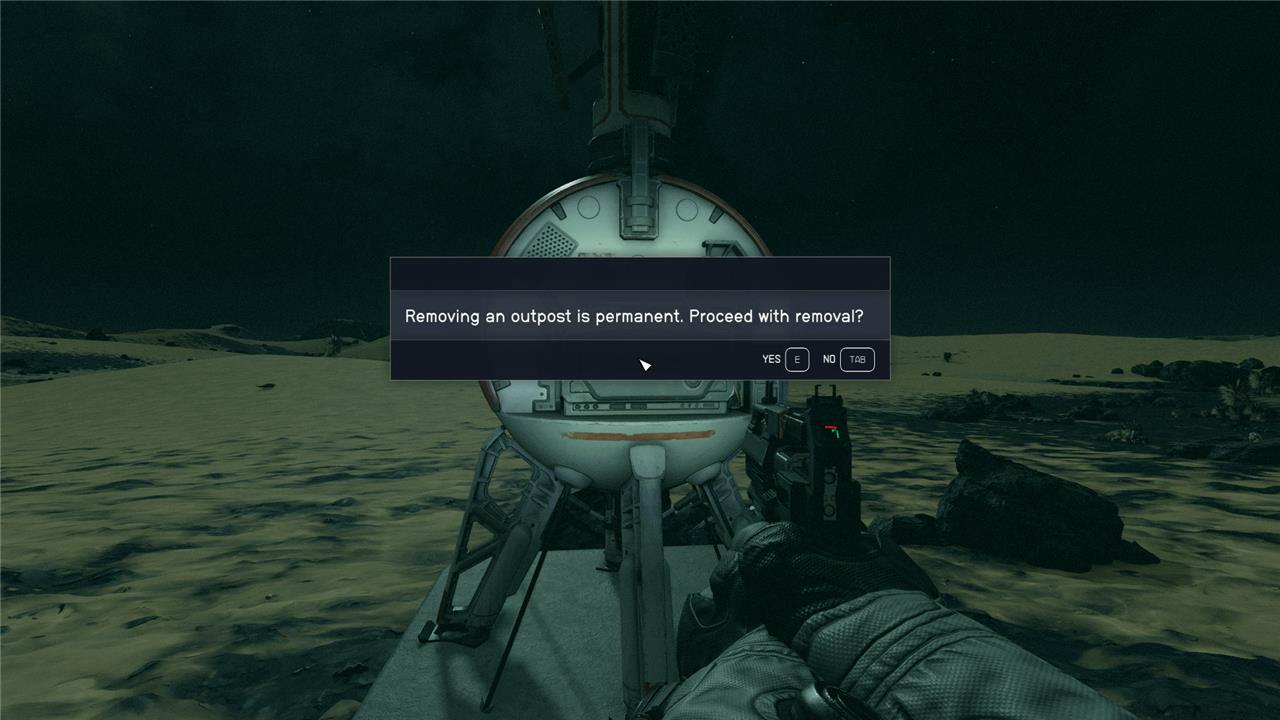
Instead of just clicking it, hold down the button to rename your outpost and the game will ask you if you want to delete your outpost instead. Hit confirm and your beacon and all nearby buildings will disappear.
Some players have reported seeing small material refunds when deleting recent buildings, but in our testing, you won’t see any of your materials back when you destroy an outpost.
How to make more outposts in Starfield
To make more outposts in Starfield, start by using your scanner on a planet to locate a suitable spot and place an Outpost Beacon by pressing [H] on PC or [X] on controller. Initially, you can have up to 8 active outposts, but you can increase this limit by investing points in the Planetary Habitation skill tree, which also unlocks the ability to build outposts on planets with extreme conditions. Each rank of this skill not only allows outposts on more challenging planets but also raises the maximum number of outposts you can build, potentially up to 48 with the highest rank. Additionally, ensure you have enough resources to construct buildings like Resource Extractors and Power Sources, and consider building defenses such as turrets to protect your outposts from hostile threats. Setting up cargo links between outposts can also help manage resource transfer and storage efficiently across your network of bases.
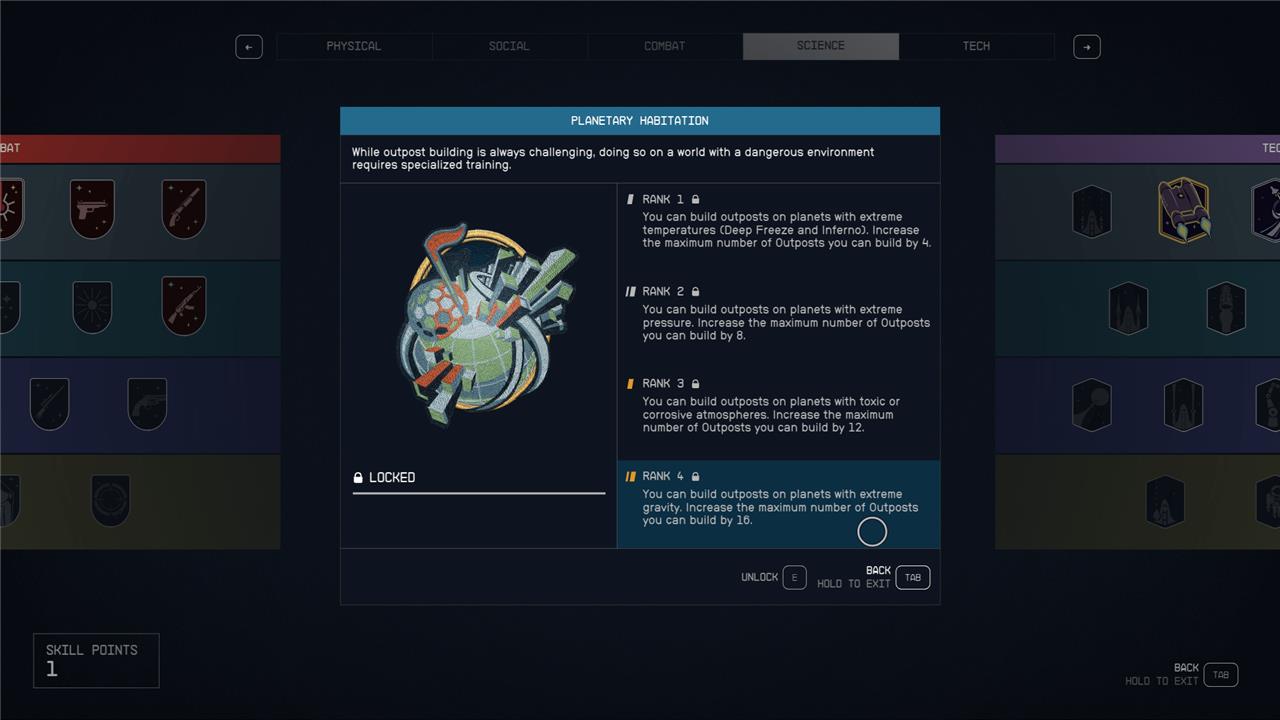
If you want to build another outpost but are all full, you may be wondering if there’s a way to increase your maximum. Luckily for all the factory fanatics out there, there is a way to increase the number of outposts you can have active at once.
The Planetary Habitation skill is on the bottom of the Science tree – meaning you’ll need to unlock branches two and three first – but is all but mandatory for those that want to take outpost building seriously.
Planetary Habitation allows you to build outposts on worlds with extreme conditions and hazards. And each level also increases the maximum number of outposts by a certain number. For example, level one will give you four more outpost slots, while level four will give you 16 more outpost slots. You’ll need to invest a lot of points into the science tree to get there, but it’s a no-brainer pickup for building enthusiasts.
Want to learn the secret method to delete outposts without losing progress in Starfield
To delete an outpost in Starfield without losing progress, first make sure to unassign all human crew members and delete any robots assigned to the outpost, as you cannot delete an outpost while it still has crew assigned. On PC, approach the outpost beacon, look at it directly, and hold down the R key; on Xbox, stand near the beacon and hold down the X button when the option to remove the outpost appears on screen. Confirm the deletion when prompted-this will remove the outpost and all its structures permanently, but note that you will not get back the resources used to build it. By transferring your crew back to your ship before deletion, you preserve their progress and avoid losing them. This method ensures you can delete an outpost cleanly while keeping your crew and overall game progress intact.
How can I delete an outpost without losing my crew and resources
To delete an outpost in Starfield without losing your crew and resources, follow these key steps:
-
Unassign all crew members: You must first unassign every human crew member from the outpost; otherwise, the game will prevent deletion. You can do this by accessing the outpost management and unassigning them individually.
-
Delete all robots physically: Robots cannot be unassigned remotely. You need to locate each robot at the outpost and delete them manually by targeting them and holding the delete key (F + R on PC).
-
Delete the outpost beacon: Once no crew or robots remain, approach the outpost beacon and hold down the “Rename” key (default R on PC, Y on Xbox) until the option to delete the outpost appears. Confirm the deletion.
-
Resources and materials are refunded: When you delete the outpost, all building materials and stored resources are returned in full and transferred to your ship’s cargo hold. This means you do not lose your invested materials, but be prepared for potential over-encumbrance if you have a lot of items.
-
Crew progress is preserved: Since you unassign your crew before deletion, they remain with you or your ship, preserving their progress and avoiding loss.
By carefully unassigning crew, deleting robots, and then removing the outpost beacon, you can cleanly delete an outpost without losing your crew or resources, allowing you to relocate or rebuild elsewhere without penalty.
