
Unlocking the mysteries of Starfield’s locked doors and safes isn’t just about brute force-it’s a cerebral puzzle that tests your spatial skills and patience. Armed with digipicks, players must carefully match intricate pin patterns to concentric ring slots, clearing each layer to crack open treasures and secrets hidden across the Settled Systems. Mastering this unique lockpicking mini-game is essential for accessing the best loot and advancing your Security skill, making every successful pick a satisfying blend of strategy and precision on both PC and Xbox.
The first thing you’ll need is a digipick – a lockpicking tool. You’ll find these on enemies you loot, randomly laying around, or you can buy them from vendors (under the Misc category of their inventory).
Our Starfielddigipick and lockpicking guide will explain how to unlock things with the digipick (including hacking into computers) and walk you through the baffling mechanics of the minigame.
What can you unlock with a digipick?
With a Digipick in Starfield, you can unlock a variety of locked doors, chests, safes, and computers scattered throughout the game world. These locked containers and access points often hide valuable loot, rare items, and contraband that can be sold for a high price or used to enhance your gameplay. The lockpicking mini-game involves fitting Digipick keys into circular lock layers, and successfully completing it grants access to these secured areas. Increasing your Security skill rank improves your ability to pick more advanced locks and makes the process easier, allowing you to unlock more challenging and rewarding targets as you explore the galaxy.
Locked things in Starfield have a difficulty associated with them – Novice, Advanced, Expert, or Master. Anyone can attempt to open a Novice lock with a digipick. More advanced locks require you to put points into the Security skill – more on this below.
Each attempt consumes a digipick from your inventory. If you restart a lock, it requires one more digipick. You’ll also see an undo option with a number next to it – that’s the number of digipicks you have remaining. Each undo consumes one.
How to use a digipick in Starfield
To use a Digipick in Starfield, first ensure you have at least one Digipick in your inventory. When you interact with a locked door or container, the lockpicking mini-game will appear, showing concentric rings with slots that need to be filled. On the right side, you’ll see several Digipick keys, each with different pin patterns. Your goal is to rotate and align these keys so that their pins fill all the slots in the outermost ring, then slot the key in place by pressing the appropriate button (F on PC or A on controller). Once the outer ring is cleared, move inward to the next ring, repeating the process until all rings are cleared and the lock opens. It’s important to plan your moves carefully, as some layers require combining multiple keys to fill all slots without leaving unmatched holes. Upgrading your Security skill can highlight which keys fit which layers, making the process easier and faster.
Interacting with a lock will pull up a new screen: a representation of the lock, and a set of keys.
In the center, you’ll see a set of rings with slots missing. On the right, you’ll have a set of keys you can use for that lock. The keys have pins on them that you’ll have to rotate and slot into the missing spaces on the lock’s rings. Which is a lot easier said than done.
Starfield lockpicking: How to lockpick in Starfield
Lockpicking in Starfield requires a Digipick, a special tool you can find or buy throughout the game. When you encounter a locked door or container, the lockpicking minigame begins, showing concentric rings with slots that need to be filled by matching pin combinations called keys. Your goal is to use the available keys to fill all the slots on each ring, starting from the outer ring and moving inward. Each key can be rotated and slotted into place, but you must carefully plan your moves to ensure the pins fit perfectly without leaving unmatched slots, or you may get stuck. Higher-level locks have more rings and fake key combinations, and upgrading your Security skill helps by highlighting where keys fit and granting auto-attempts. Taking your time, testing combinations, and using undo options wisely will help you successfully pick locks and access valuable loot in Starfield.
Picking a lock with a digipick can go sideways fast, so the best tip is to just take your time and plan ahead. Especially since undoing a step or restarting the puzzle costs you a digipick. It’s not a bad idea to create a quicksave before you tackle a particularly tough lock.
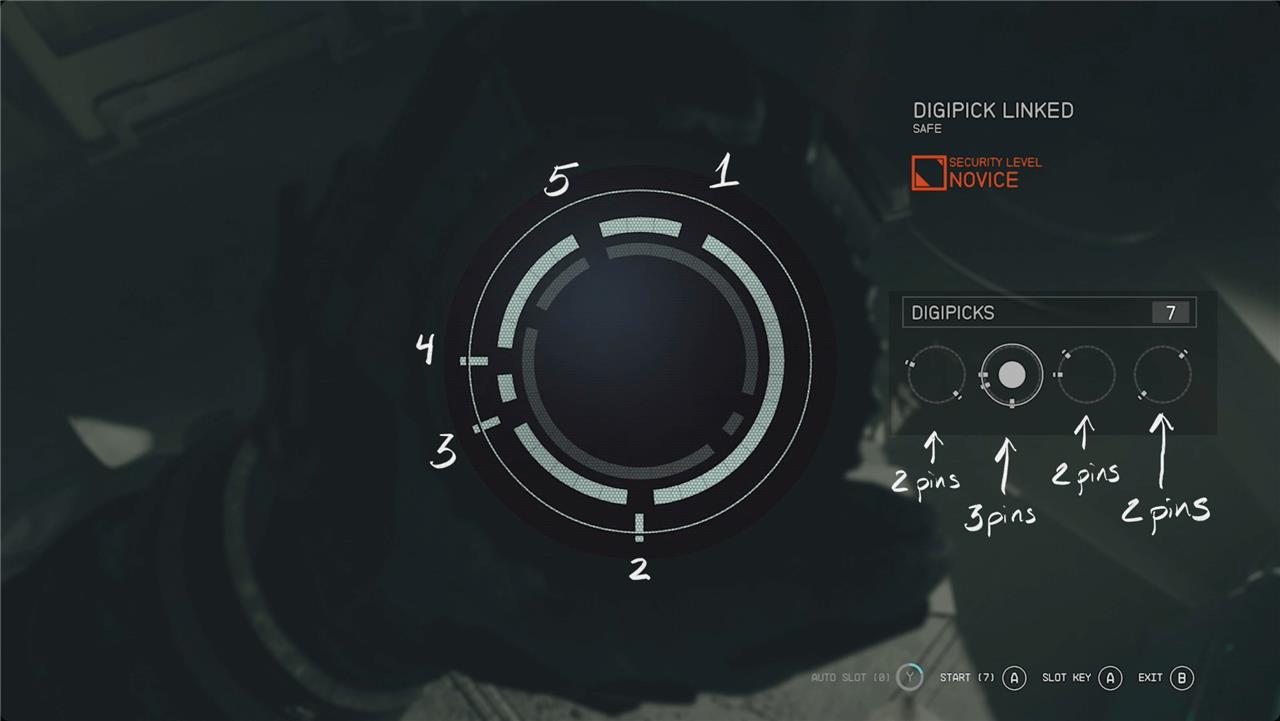
After that, set up a process of elimination to know what keys you won’t be looking at. Start by counting the slots on the ring – in the example above, there are five slots missing on the first ring.
Over on the right, you can see that the keys only have two or three pins. And that actually gives us our first answer – since no combination of two-pin keys add up to five, the solution has to include the three-pin key and one other.
For the above example, the three-pin key (luckily) can only fit in one orientation. And there’s only one two-pin key that fits in the rest of the slots.
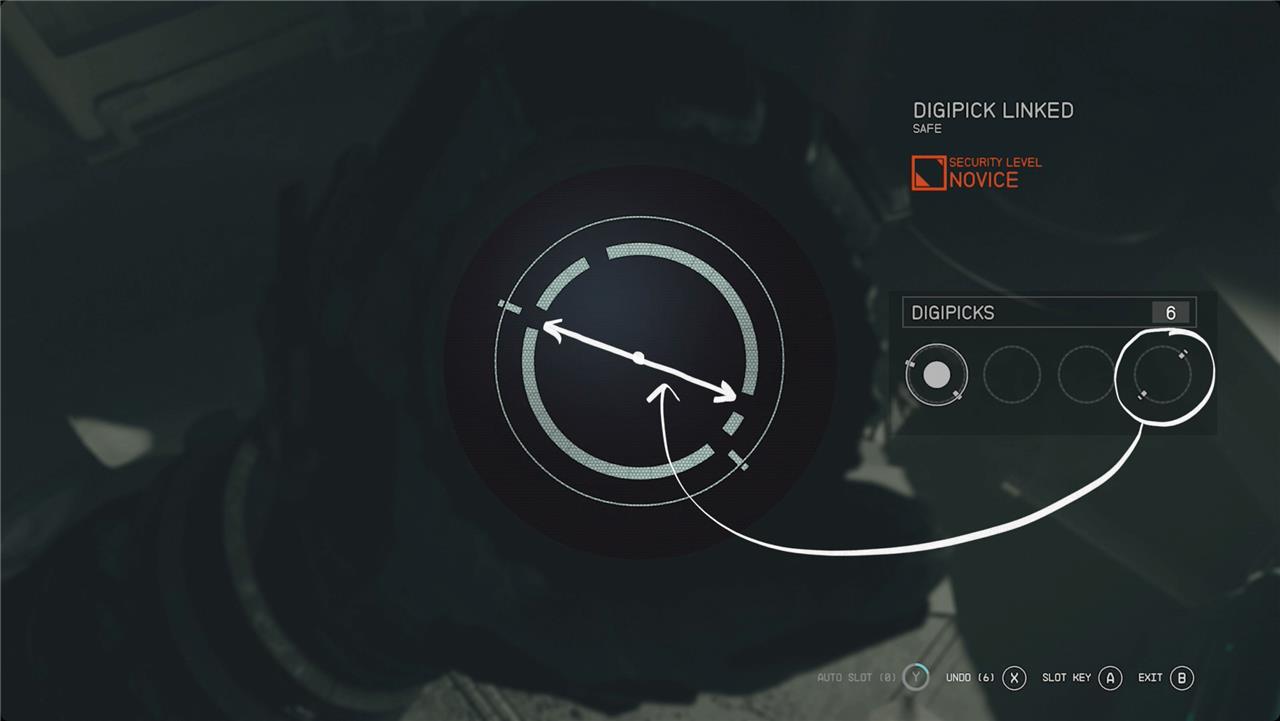
For the next ring of this example, we’ve got two two-pin keys left and a ring with four slots – so far, so good. The problem is that one of the keys will fit in multiple orientations. For this part, our tip is to look for obvious shapes in the keys. The key on the right, for example, has its pins situated directly across from each other. When you compare that to the lock, there’s only one place it can fit – meaning the only other key doesn’t go there.
This was a fairly easy example, but the process works for more complicated locks throughout the game.
What do auto-attempts do?
Auto-attempts in Starfield’s lockpicking system are special assists earned by successfully picking locks. Each time you manually solve a lock, you gain an auto-attempt point, which you can store up to a limit determined by your Security skill rank. When used during the lockpicking minigame, an auto-attempt automatically reveals the correct key shape that fits the current ring, making difficult sections easier to solve without fully completing the entire lock for you. Higher ranks in the Security skill increase both the number of auto-attempts you can hold and offer additional lockpicking perks, helping to streamline the process and reduce the risk of wasting Digipicks.
On the first tier of the Tech skill tree, you’ll find a skill called Security. Each rank of the Security skill lets you tackle harder levels of locks – through the list of Novice (no ranks), Advanced (rank 1), Expert (rank 2), and Master (rank 3).
If you read the description of the skill, putting skill points into Security gets you is the ability to bank auto-attempts. Each time you successfully (manually) solve a lock, you’ll bank one auto-attempt – up to the limit set by the rank.
The thing is, auto-attempts don’t actually appear to be a thing on the digipick interface. Instead what you’ll see is auto slot. Auto slot will automatically rotate the key you have selected to a position where it fits in the current lock ring.
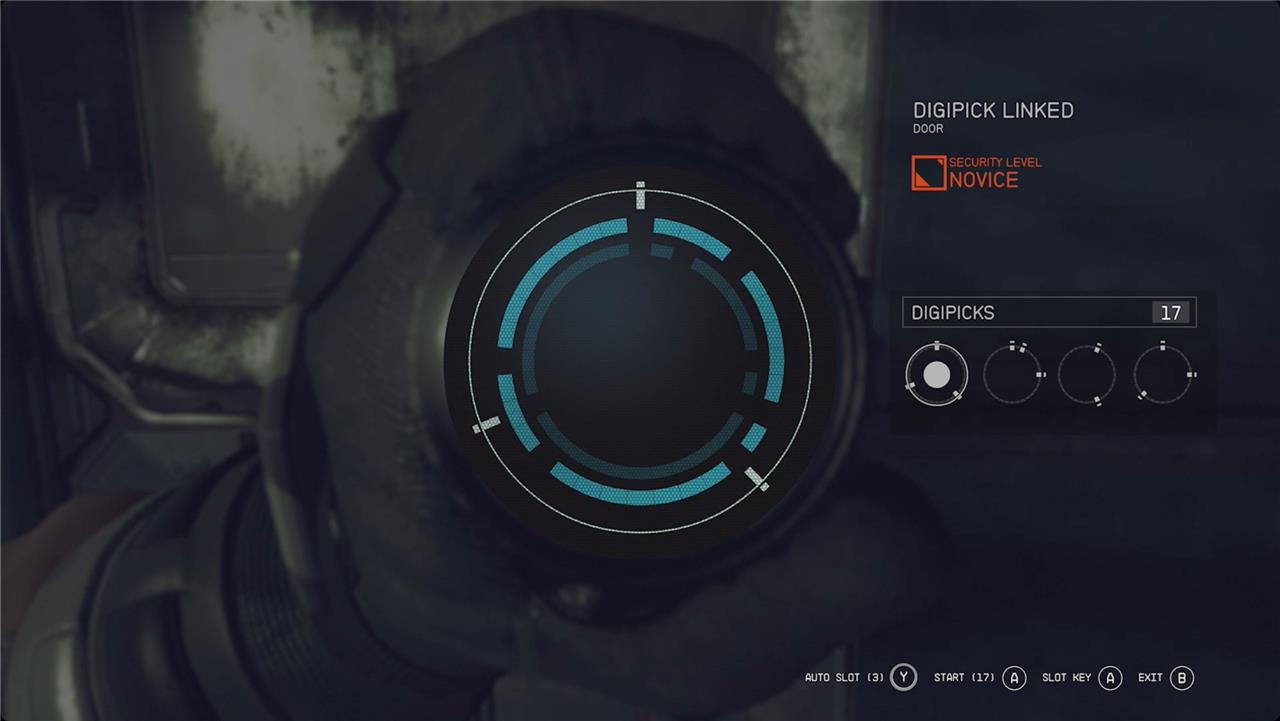
At rank 2 of the Security skill, a lock’s ring will turn blue (well, a brighter shade of blue) when the key you’re using will fit in it. That doesn’t mean you should use it, though. Just because a key can fit doesn’t mean it’s part of the solution. But it’s a helpful hint, and makes the lock-picking mechanic way easier – especially when using auto slot.
How do the rings and pins interact in Starfield’s lockpicking mini-game
In Starfield’s lockpicking mini-game, the lock consists of multiple concentric rings, each with missing slots that need to be filled. Players have a selection of digipick keys on the right side, each composed of pins arranged in specific patterns. The goal is to rotate and slot these keys so their pins perfectly fill the holes in the current ring. Successfully filling all holes in the outer ring removes it, allowing you to progress inward to the next ring. Some rings require multiple keys to fill all slots, and the order and orientation of keys matter because keys that fit one ring might not fit another. Planning ahead is crucial, often starting from the innermost ring and working outward to ensure the remaining keys fit subsequent rings. Colors help indicate which keys fit which rings: blue means a key fits in that ring, grey means it doesn’t. The puzzle is essentially about matching pin patterns to ring slots in the correct sequence to unlock the entire lock.
How do the colors indicate which keys fit in each ring in Starfield’s lockpicking
In Starfield’s lockpicking mini-game, colors indicate whether a selected key fits the slots of a particular ring. When you select a key, any ring where the key’s pins can fit the slots will highlight in blue, signaling compatibility. Conversely, rings that cannot accommodate the key’s pins remain white or grey, indicating the key does not fit there. Notably, a key can fit multiple rings, so several rings may turn blue simultaneously, but this doesn’t guarantee the key should be used in all those rings-careful planning is required to avoid blocking further progress. This color-coding helps players quickly identify which keys are potential fits for each ring, streamlining the puzzle-solving process.
