
Protect your Fortnite account from intruders and keep your cosmetic items safe by enabling two-factor authentication – a quick security feature that adds an extra layer of protection every time you log in through Epic Games.
Enabling that second layer of protection is a good habit to get into for all of your accounts, really, but Fortnite gives you some in-game rewards for doing it. Our Fortnite 2FA guide will explain how to turn on two-factor authentication and then we’ll explain the rewards you’ll get once you’ve done so.
How to turn on 2FA in Fortnite
Log into your Epic Games account on the official website. Go to the Account Settings page and select Password from the left menu. Scroll to Two-Factor Authentication and click Enable. Choose an authenticator app like Google Authenticator or Authy, then scan the QR code with it. Enter the six-digit code generated by the app to confirm setup, and save the backup codes in a secure place for recovery.
To turn on 2FA for your Fortnite account (more specifically, for your Epic Games Store account), log into your account on the the Epic Games site and click on Password & Security – it’s the sixth link down.
This is where you can change your password or sign out everywhere. Scroll down to the bottom section to find the Two-Factor Authentication settings.
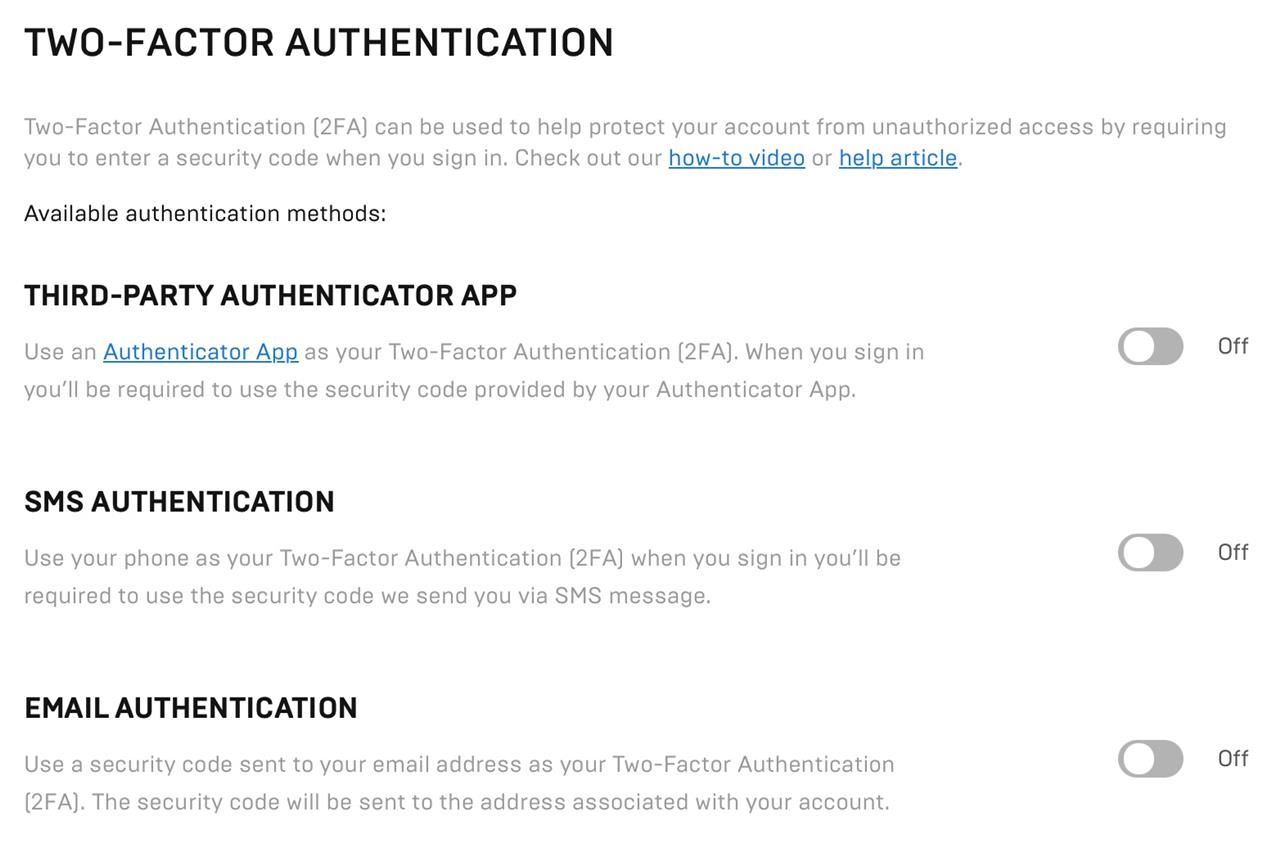
You’ll have three options:
- Third-party authenticator app. This uses a dedicated app like Authy, or the Google (Apple and Android), LastPass (which is a paid service), or Microsoft Authenticator apps.
- SMS authentication. This sends a code to your phone for you to enter when you log in.
- Email authentication. Similarly, this ends an email with a code for you to enter.
SMS and email are pretty straightforward – when you activate the option, it will send a code and you enter it. That turns on the 2FA and you’ll just repeat that process whenever you sign in.
The authenticator apps are a little different. When you first activate it, you’ll have to either scan a QR code or enter a (very long) manual key to add Epic Games to the app. After that, when you log in, you’ll just have to open the app to grab the code. These apps generate new codes every minute or so, so you’ll have to have it open while you’re logging in.
You’ll only need to use these 2FA codes when you log in to your Fortnite (Epic Games) account from a new device or haven’t logged in within 30 days.
Fortnite 2FA rewards
Enabling 2FA on your Epic Games account does not just improve security; it can also grant access to special in-game bonuses. Players who turn on two-factor authentication often receive perks such as the Boogie Down emote, occasional cosmetic items like wraps or banners, and eligibility for certain tournaments that require 2FA. Rewards can change over time, so it is worth checking the official Fortnite news page or your Epic account notifications to see which bonuses are currently offered for accounts with two-factor authentication enabled.
Aside from peace of mind, Fortnite gives you a few in-game rewards for activating 2FA.
What authenticator apps work best with Epic Games 2FA
Epic Games supports standard TOTP-based authenticator apps for 2FA on Fortnite accounts, with several reliable options recommended directly by them.
Recommended Apps
Epic Games explicitly lists these third-party apps as compatible and commonly used:
-
Google Authenticator (simple, widely available on iOS/Android).
-
Microsoft Authenticator (supports backups, cross-platform sync).
-
LastPass Authenticator (secure, with easy setup).
-
Authy (cloud backup, multi-device sync).
Epic’s Own Option
Their built-in Epic Authenticator (in the Epic Games Store/Launcher app) uses number-match prompts for quick approvals, ideal if you prefer no extra downloads.
Any TOTP app works since Epic uses standard protocols, but stick to these for best reliability and support. Setup involves scanning a QR code during Epic’s 2FA enablement.
Step by step guide to set up Google Authenticator with Epic Games
Google Authenticator works seamlessly with Epic Games 2FA as a standard TOTP app, generating time-based codes after scanning their QR code.
Prerequisites
Download and install Google Authenticator from the Google Play Store (Android) or App Store (iOS).
Step-by-Step Setup
-
Log into your Epic Games account at epicgames.com, click your profile icon (top right), and select Account >Password & Security.
-
Scroll to Two-Factor Authentication, click Set Up next to Authenticator App.
-
Choose Use an authenticator app; Epic displays a QR code and a manual setup key (backup).
-
Open Google Authenticator on your phone, tap the + icon (bottom right), and select Scan a QR code.
-
Point your camera at the QR code on-screen; “Epic Games” (or your account) appears in the app with a 6-digit code refreshing every 30 seconds.
-
Enter the current code from the app into Epic’s verification field; setup completes with backup codes shown-save these securely.
Verification and Tips
Test by signing out and back in; enter the app’s code when prompted. If you lose access, use backup codes or recovery options in Password & Security.
