
Switching between platforms doesn’t have to mean losing your progress. With The Witcher 3’s cross-save system, you can continue Geralt’s adventures seamlessly across PC and consoles-no restarts, no repeated quests, just uninterrupted monster slaying.
How to cross-save in The Witcher 3’s next-gen update
To cross-save in The Witcher 3’s next-gen update, pause the game and access the Load or Save menu. Enable cross-progression there, which requires logging into a GOG account on each platform-create one if needed using any valid email. Make a manual save or trigger an autosave (like fast travel); it uploads to the cloud with a cloud icon visible, letting you access the latest save across PS5, Xbox Series X|S, and PC, but only one active per platform and matching game versions.
No matter how many versions of The Witcher 3 you own, you’ll be able to continue using the same save file everywhere now.
Note that this currently applies only to The Witcher 3 on PlayStation 4, PlayStation 5, Windows PC (Epic Games Store/GOG/Origin/Steam), Xbox One, and Xbox Series X. As of Dec. 22, developer CD Projekt Red has not released the v4.0 update on Nintendo Switch. However, because cross-save functionality previously existed between the Switch and PC versions, it remains possible to do a one-way transfer from Switch to PC via Steam Cloud or GOG.
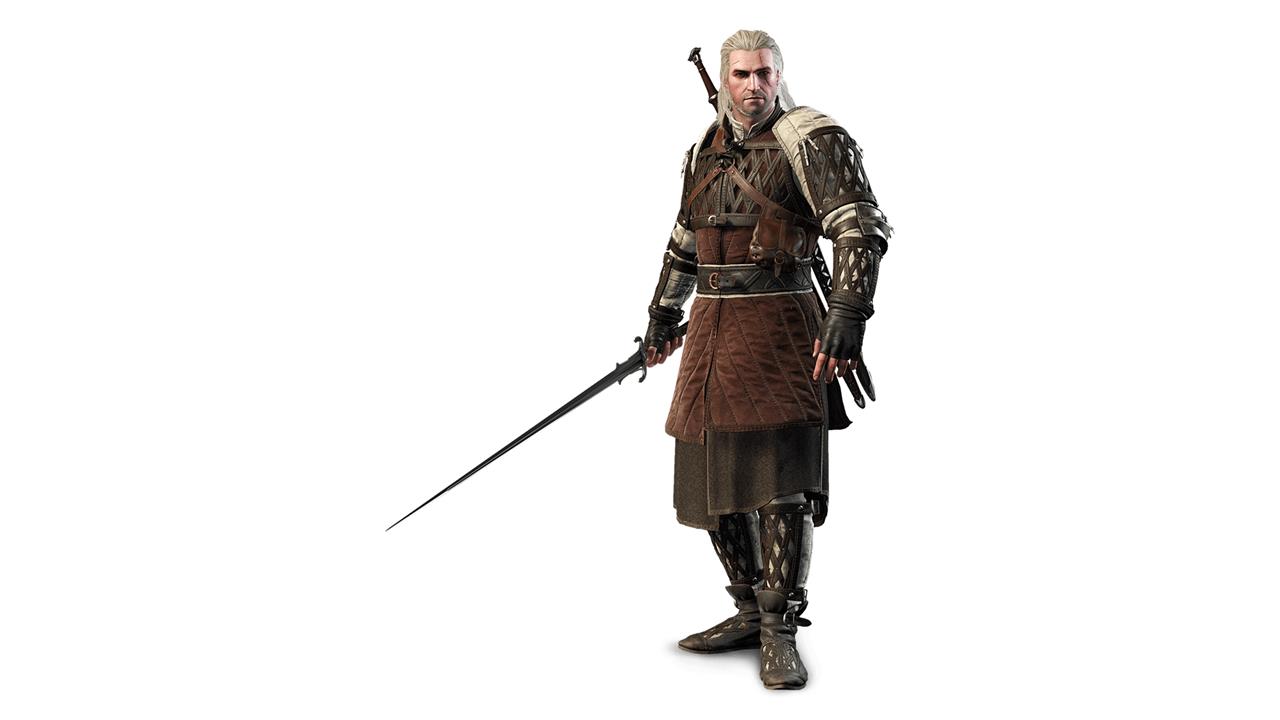
All you need to do is sign in to your GOG account from within The Witcher 3, which you can do from the save or load menus – press the left trigger on console, and the C key on PC, to access cross-progression. Once you’re logged in, you’ll get the Dol Blathanna and White Tiger of the West gear sets.
Connecting your GOG account to your game won’t upload any of your existing save files, so you have two options: You can manually create a new save, or do something in the game that will autosave (like using fast travel). In both cases, this new save – created in The Witcher 3 v4.0, after enabling cross-save – will automatically get synced to the cloud. From there, you can access that save on any other platform, once you sign in to the same GOG account there.
There are some caveats here. First, you can only have one cloud save active on any given platform, so you won’t be cross-platform save-scumming. It’s easy to tell which file is the active cloud save – you’ll see a cloud icon on it.
More importantly, there are restrictions on compatibility between save files from different releases of the game: Namely, you should have the same content installed on the two platforms that you’re switching between. You can also go from a version of the game with less content to one with more content, but not the other way around.
To be specific, we’re talking about The Witcher 3‘s downloadable content. There are two major expansions for the game, Hearts of Stone and Blood and Wine, along with more than 15 other DLC packs. The game was rereleased in 2016 with all of its add-ons in a bundle known as the Complete Edition or Game of the Year Edition (the name varies depending on region). Because that package was a separate product from the stand-alone game, its save files were not originally compatible with save files from the base game. The next-gen update finally makes them compatible, regardless of platform. However, we did run into an issue that prevented us from using cross-save.
At the time that The Witcher 3‘s v4.0 update was released, we owned the game and its Expansion Pass (which grants access to both expansions) on Xbox One, whereas on PC, we only owned the game itself. We were able to take a PC save and load it in the Xbox One version of the game, but when we tried to bring an Xbox One save to PC, the game gave us an error message saying, “You are missing the following downloadable content required to open this save,” and listing Hearts of Stone and Blood and Wine.
As such, we went ahead and purchased the Expansion Pass on PC, bringing that version of the game to content parity with our Xbox One copy. Doing so allowed us to, at long last, import our Xbox One save file into the PC version. This is perhaps a weird edge case, but you might be in the same boat as us, so it’s something to be aware of.
Will The Witcher 3 cross-save transfer my achievements or trophies?
Cross-save in The Witcher 3 only transfers your game progress, not your platform-specific achievements or trophies. This means that while your quest completions, gear, and character level move across devices, you’ll need to earn achievements or trophies again on each new platform. For example, if you played on PlayStation and then continue your save on PC, your trophy list on PC will be blank despite your in-game progress being carried over.
No, unfortunately. These are platform-specific (achievements on Xbox, trophies on PlayStation, etc.), so they won’t make the jump with a cross-platform save transfer, CD Projekt Red global community director Twitter. That’s true even when staying within a console family – the PS5 version is a free upgrade if you own The Witcher 3 on PS4, but each version has its own set of trophies.
Update (Dec. 22): We’ve fleshed out this guide with additional information, as well as details on the state of the Nintendo Switch version’s cross-save support.
Which platforms support cross-save in The Witcher 3
Cross-save (cross-progression) in The Witcher 3 is supported only on certain versions and platforms, and only between those that participate in the system.
Platforms that support cross-save
These platforms support the official cross-progression cloud system (via a GOG/CDPR account):
-
PC (GOG version)
-
PC (Steam version)
-
PlayStation 5 (The Witcher 3: Wild Hunt – Complete Edition / next-gen build)
-
Xbox Series X|S (next-gen / Complete Edition build)
-
Nintendo Switch (current patched version with cross-progression menu)
How they interact
-
Cross-save works freely among PC, PS5, and Xbox Series X|S in both directions (for matching editions of the game).
-
PC ↔ Nintendo Switch works with restrictions: after PC is updated to patch 4.0, you can transfer saves from Switch to PC, but not reliably from updated PC back to Switch because the versions differ.
-
Older PS4 and Xbox One versions do not participate directly in cross-progression to/from other platforms via the official system; the feature targets the current-gen versions plus PC and Switch.
Always ensure both platforms use the same game edition (base vs Complete Edition) and are fully updated, or cross-saves will fail to load.
Step by step how to enable cross-save between PC and PS5
Here is a clear, step-by-step way to enable cross-save (cross-progression) for The Witcher 3 between PC and PS5, based on how the feature works in the game’s menus and CDPR’s account-link system.
Before you start
-
Make sure you are using the next-gen / Complete Edition build on PS5 and a fully updated copy on PC (GOG or Steam).
-
You need a CD PROJEKT RED / GOG account, and you must use the same account on both PC and PS5.
Part 1 – Set up and link on PC
-
Create or log into a GOG/CDPR account in a browser
-
Go to GOG.com or CD PROJEKT RED’s account page and sign in or create an account.
-
-
Launch The Witcher 3 on PC and update
-
Start the game on Steam or GOG and let any patches install so you’re on the version that supports cross-progression.
-
-
Open the rewards / account menu
-
From the main menu, look for “My Rewards” or a similar CDPR online/rewards option.
-
Select it; the game will show you a code, QR, or web link to log into your GOG/CDPR account.
-
-
Link the game to your account
-
On your phone/PC browser, follow that link/QR and log into the same GOG/CDPR account as in step 1.
-
When it succeeds, the game will indicate that online features / cross-progression are connected.
-
-
Enable cross-progression in settings
-
From the main menu or in-game, go to Options → Gameplay.
-
Find the cross-progression / cross-save toggle and turn it On (it is usually on by default once you link, but check).
-
-
Create a new save to upload
-
Start or load your game on PC.
-
Make a new manual save (or play until an autosave happens).
-
Check the save list: a cloud icon next to that save means it’s now in the cross-progression cloud and will be visible on PS5.
-
Part 2 – Enable cross-save on PS5
-
Install and update The Witcher 3 on PS5
-
Install The Witcher 3: Wild Hunt – Complete Edition / PS5 version and let it fully patch.
-
-
Launch the game and open the rewards / account menu
-
On the main menu, again choose “My Rewards” (or similar CDPR online option).
-
The game will prompt you to sign in with a GOG/CDPR account.
-
-
Log into the same GOG/CDPR account
-
Use the same login method (QR or code + browser) and the same account you used on PC.
-
Wait for confirmation that the accounts are linked.
-
-
Turn on cross-progression on PS5
-
Go to Options → Gameplay.
-
Make sure cross-progression / cross-save is set to On.
-
-
Load your PC save on PS5
-
From the main menu, choose “Load Game.”
-
Look for saves that have a cloud icon next to them; that icon marks cross-progression saves uploaded from PC.
-
Select that cloud save to continue your PC progress on PS5.
-
If you don’t see the cloud save yet, do this: reopen the game on PC, make another fresh manual save (to force a new upload), wait 1-2 minutes, then go back to the PS5 load screen and check again.
