
Minecraft Legends has huge potential, but clunky controls and confusing pacing can make it feel harder than it should. Tweaking just a few hidden settings and adjusting how you command your mobs can completely change how smooth and satisfying every battle feels.
Whether you use the classic keyboard and mouse combination or your trusty Xbox controller, we have some suggestions about the best control options in Minecraft Legends, as well as a few ideas for further tweaks that can improve the overall experience.
Enable Toggle Mode for the banner, sprint, and build views
Switching on Toggle Mode for the banner, sprint, and build views makes controlling units and structures far smoother. Instead of holding buttons down for each command, a single tap can switch actions on or off, helping you focus on tactics rather than wrestling with controls. This small change can make large-scale battles and complex builds feel far more responsive and natural.
In the Controller and Keyboard/Mouse menus, under the Controller and Keyboard Features tab, you’ll find three options related to toggled mode. This makes it so actions like sprint, build, and banner no longer require you to hold the designated button, and instead activate them with a simple press.
Activating this option will considerably reduce the strain of having to hold down the designated buttons, as per usual. In Minecraft Legends, it also helps you to focus on the battlefield alone.
If you’re just trying to decide what to deploy or build, it’s best to go for a single button press. You’re already required to do other button prompts on top of this, while also staying on movement and defending yourself from attacks, so it’s best to go for toggle mode as soon as you start. That way, you’ll get used to it from the get-go.
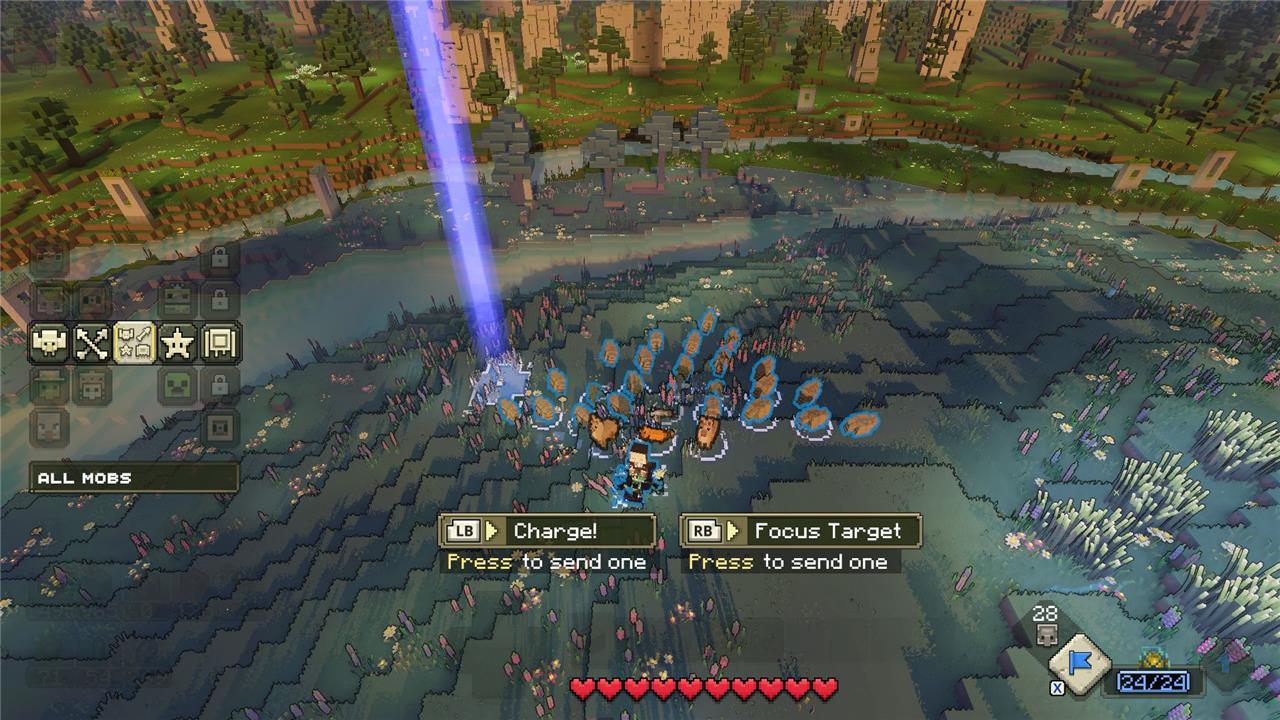
Best Minecraft Legends controller setup
A comfortable controller layout makes a huge difference in Minecraft Legends. Swap builder commands to the triggers for quicker structure placement, and map army control actions-like gather and send-to the bumpers so you can manage units without losing movement control. Keep camera and hero movement on the sticks, but lower camera sensitivity slightly to maintain precision during hectic battles. Lastly, set the D-pad for quick access to rally points or commonly used structures to keep your flow smooth during combat and base building.
Playing Minecraft Legends with a controller can be overwhelming at first. While the tutorial is fairly straightforward, you’ll soon find yourself giving orders, rallying units, attacking Piglins, and switching between your tabs to build structures on the go. It’s a lot.
It’s likely that you’ll get used to the natural setup after a few hours. But, if you’re looking for some suggestions and tweaks, you can head over to the Controller menu on settings, and switch the bindings to your liking. If the game displays a prompt saying that the controls aren’t the ones intended, don’t fret – as long as you don’t leave any of them unassigned, it’ll work just fine.
Here are the best controller options for Minecraft Legends that I’ve come across:
Under the Hero & Hud tab…
- Melee: Switch B for X
- Lure: Switch X for RS
- Open Songbook: Switch RS for B
Under the Banner View tab…
- Charge: Switch B for LB
- Focus Target: Switch Y for RB
Your hero’s melee attack is fairly standard, but that doesn’t diminish its importance. As your units as focused on specific enemies or structures, it’s key to help them by repelling any reinforcements that might be trying to interrupt their siege. X is a much more natural place for it, too, and you’ll have your finger closer to the right analog stick.
Speaking of which, lure is an action that you’ll perform often to add units under your banner so they can tag alongside you. I found RS to be fine spot for it, as you’ll be moving your camera often. With a single button press, you’ll be able to move the camera and rally any nearby units simultaneously. Note that you can also opt for the Auto Camera Turn option here, too, under the Controller Features tab of the Controller menu, so the right analog can be designated only for rally.
Lastly, you won’t open the songbook that often, so switching it over to B is a nice way of having it on-hand without it being completely intrusive.
As for the Banner View options, using B and Y to give directions can be cumbersome, especially during heated battles. Since you’re already pressing RT to open up the menu, it feels natural to opt for the LB and RB buttons instead.
But mouse-and-keyboard is best for Minecraft Legends
Mouse-and-keyboard setup shines in Minecraft Legends for its pinpoint control over unit commands and precise building. You rally mobs with quick hotkeys, switch squads instantly, and aim attacks without thumbstick drift slowing you down. Combat flows smoother since clicks register every swing accurately, and menus snap open without laggy navigation. Casual players stick to controllers, but serious sessions demand this input method for full command grip.
Okay, so, I get the appeal of sitting comfortably on your couch after a long day at work and focusing only on using a controller. That said, Minecraft Legends is far from the likes of Halo Wars. Controls are decently enough for a real-time strategy game on a console. But if you want a better experience, especially for multiplayer, a keyboard and mouse will feel much better.
Right off the bat, the mouse wheel makes a difference when interacting with the hotbar. Using the cursor to build structures and command units to specific points around the map feels natural and straightforward. Overall, it’s the ideal way to play once battles start to get hectic and more convoluted. But if you just want to explore the overworld in the campaign, you might not need to plug a mouse and keyboard into your Xbox.
On a keyboard, get used to the numbers
Numbers play a bigger role in Minecraft Legends than most players realize. Many useful commands, map selections, and quick slots rely on the number keys, so getting comfortable with them can speed up your reactions. Whether assigning units or cycling through abilities, using numbers instead of the mouse wheel keeps your control flow smooth and consistent. It might feel awkward at first, but after a few sessions, muscle memory takes over and gameplay feels far more natural.
If you’re not a fan of using the mouse wheel, or you’re just looking for a method with more precision for heated battles at big scales, remember you can use the numbers of your keyboard. When you’re in banner view, you can use them to select between classes (melee, ranged, all, special, firsts) by moving horizontally. To do so vertically, you can either use the mouse wheel or arrow keys.
This is perhaps more useful when you’re using the hotbar, as you can use numbers one to nine on your keyboard to select between all available slots. This is sure to come in handy in multiplayer, where you’ll need a faster reaction. Remember that you can open the songbook and customize the hotbar shortcuts to your liking. Thus, you can memorize a specific number with a unit type, resource, or structure to build, making it easier to strategize.
Best keyboard and mouse settings for Minecraft Legends
Here’s a solid “plug-and-play” keyboard-and-mouse setup for Minecraft Legends, plus how to tweak it for comfort and speed.
Core mouse settings
-
Set mouse DPI around 800-1200 and start with in-game sensitivity in the middle of the slider; lower if you overshoot buildings or units, raise if you can’t turn 180° with one smooth mouse swipe.
-
Disable mouse acceleration in your OS if possible so movement feels consistent and predictable.
Essential keyboard options in settings
-
Enable toggle modes for Sprint, Banner View, and Build View so they work on tap instead of hold; this makes long sessions and busy fights much less tiring.
-
Keep WASD for movement, Space for jump, and Shift for sprint or sneak (whichever feels more natural), then leave those alone so your muscle memory stays clean.
Hotbar and number keys
-
Use number keys 1-9 for your main hotbar slots and mentally “lock in” what each number usually means (for example: 1 = basic spawner, 2 = ranged, 3 = support, 4-5 = buildings).
-
In Banner View, use number keys to move horizontally between unit classes and the mouse wheel or arrow keys to move vertically, so you aren’t “scroll-fishing” for the right unit mid-fight.
Smart remaps near WASD
Try to keep important keys within easy reach of your left hand’s home position (WASD).
-
Use Q, E, R, F, X, C, V for frequent commands such as: Rally/Recall, Focus Target, Charge, Lure, or quick-selecting specific unit types.
-
Put rarely used menus (map, settings, cosmetic things) on farther keys like M, J, K, or on extra mouse buttons so they never get hit by accident in combat.
Comfort and refinement
-
If you have big hands, you can comfortably stretch up to 6 and down to C; if you have smaller hands, keep everything clustered around 1-5, R, F, X, C, V.
-
Play a few PvE fights and only change one or two binds at a time; once a layout feels natural for 30+ minutes without thinking about keys, stop tweaking and stick with it.
If you tell me your hand size (small/medium/large) and whether you have side buttons on your mouse, I can give you a specific per-key layout to try.
Best toggle mode settings for keyboard in Minecraft Legends
Toggle modes make Minecraft Legends far less tiring on keyboard by letting you tap once instead of holding keys during fights or building.
Enable these toggles first
In Keyboard & Mouse settings under Controller and Keyboard Features (yes, it applies to keyboard too), turn ON these three options:
-
Sprint Toggle: Tap Shift once to sprint continuously instead of holding it-perfect for riding around without finger strain.
-
Banner View Toggle: Tap the default Tab (or your remap) to open the unit menu and keep it up; no more holding while spawning armies.
-
Build View Toggle: Tap the default B (or remap to F) to enter building mode persistently; place structures without re-pressing every few seconds.
Why these matter most for keyboard
-
Banner and Build Views are your busiest modes-toggling them frees your left hand for WASD movement and number keys (1-9 for hotbar swaps).
-
Sprint toggle shines in open-world exploration; pair it with auto-jump (if enabled) for buttery movement.
-
Result: You spam fewer keys overall, so your pinky rests more during 1+ hour sessions.
Quick access tweaks
Keep toggles near WASD:
-
Banner View → Tab or Q (easy thumb stretch).
-
Build View → E or F (index finger).
-
Test in a calm prairie biome first, then ramp up to piglin fights.
Disable any other toggles (like attack hold) to avoid accidental over-spawning units. These three alone transform clunky RTS controls into something that actually flows.
