
Before you rush into Athia’s chaos, a few small tweaks can change how Forspoken feels right from the start. From smoother parkour flows to sharper spell combat and cleaner visuals, these settings can make your first hours far more fluid and satisfying.
Prioritize the frame rate
Smooth gameplay should always take priority over flashy visuals. Forspoken’s fast-paced movement and spell effects demand a stable frame rate to keep combat responsive and exploration fluid. Choosing a performance mode or lowering certain settings like shadows, reflections, and ambient occlusion can significantly reduce stutter, especially in dense environments. A consistent frame rate not only makes the game feel better to control but also helps you time dodges and attacks more accurately.
Like many modern big-budget games, Forspoken allows you to prioritize either a sharper resolution or a higher frame rate at the expense of the other. You can access both visual modes in the display settings menu. (You’ll also see options to reduce the motion blur and, if you have a compatible display, to activate the 120 Hz mode.)
These things are always a matter of preference, of course, but those at AELGAMES who’ve been playing largely agree the performance-focused option is the way to go. What you’ll lose in fidelity you’ll more than make up for with a (mostly) smooth frame rate – all but essential given Forspoken‘s visually chaotic combat and traversal mechanics.
Get Cuff to speak less
Cuff talks a lot during exploration and combat, which can distract from the action. To tone this down, go to the Accessibility Settings and adjust the “Cuff Chat Frequency” option. Setting it to “Minimal” keeps his commentary limited to key moments while reducing repetitive remarks, making the experience feel cleaner and more focused.
If you know anything about Forspoken, you know about Cuff, a talking bracelet who delivers – and this description comes directly from an in-game menu – “seemingly endless sarcastic commentary.”
First up, make sure Cuff doesn’t talk to you through the speaker on your controller. By default, on PS5 at least, this feature is activated, but you can deactivate it in the sound settings menu. Your pets will thank you.
You can also adjust how frequently Cuff speaks up. The ambient dialogue in Forspoken doesn’t vary much, and repetitive quips in combat can quickly get tiring. In the accessibility settings menu, you can turn Cuff chat frequency from high (Frey and Cuff more or less run a podcast) to low (Frey and Cuff engage in a standard amount of video game banter) to minimal (Frey and Cuff are limited to story-essential chatter).
Automatically pick up loot
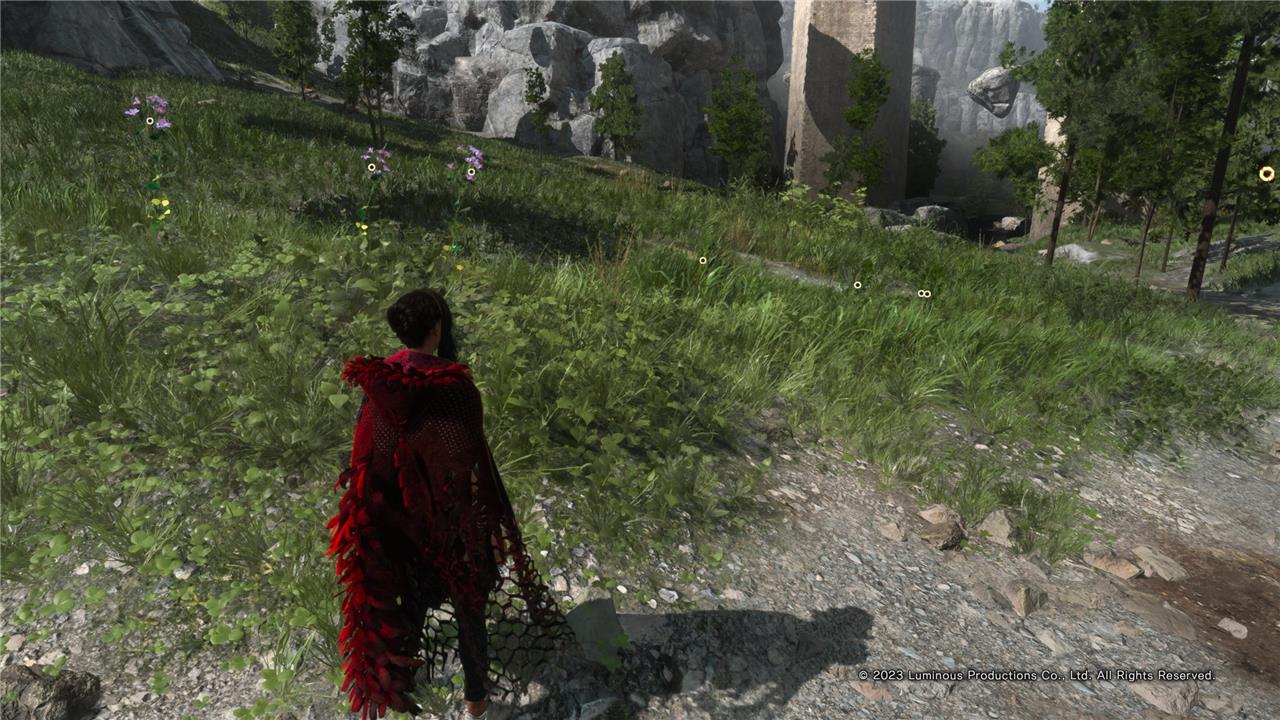
Automatically picking up loot saves you time during exploration and battles. Instead of stopping to gather dropped items manually, this setting collects them as you move through the area. It keeps your pace fluid and reduces the chance of missing valuable resources scattered around the terrain. This option helps you focus more on combat and movement rather than constant item management.
Forspoken absolutely showers you with resources – dozens of varieties of flowers, feathers, rocks, and fungi, all used for crafting different upgrades. It’s a lot. (For reference, your carrying capacity starts at 100 slots per item.) And worst of all, to get this stuff, you have to stop and pick each item up.
The easy fix: In the accessibility settings menu, under world settings, you can turn on automatic item gathering. This will make it so any crafting materials you’re near will instantly go into your inventory.
Note, though, that the setting doesn’t apply to any chests you’d need to open or archive entries you’d need to read. You’ll still need to manually interact with those.
Make it easier to switch spells
Switching spells quickly can make combat flow much smoother. Open the settings menu and assign each spell type to easily reachable buttons or shortcuts. Adjusting sensitivity and layout allows faster selection without pausing the action, which helps maintain rhythm during tough fights. Experiment with different mappings until switching spells feels natural and fluid.
In the gameplay balance menu, you’ll see options that can reduce how much damage you receive, increase your stamina recovery speed, or extend how long toppled enemies remain immobile. (You can essentially unlock of these perks throughout normal gameplay.) But the setting to tweak is spell-switching slowdown.
By default, this setting is set to “slow,” which puts Forspoken into bullet time whenever you pull up the ability carousel. During Forspoken‘s opening hours, you’ll only have access to two such wheels. As you play, though, you’ll unlock more types of elemental magic, with each element adding two more ability wheels. During the mid- and late-game battles, when you’re frantically swapping between spells on nine different carousels, you’ll want the full pause.
Switch waypoint distances to the metric system
Switching waypoint distances to the metric system makes exploration clearer and more consistent for most players, especially outside the US. Distances measured in meters and kilometers give a better sense of scale when planning routes or estimating how far objectives are. This change helps align what you see in the game with real-world familiarity, making your movement across Athia feel more intuitive.
Come on, we all know it’s the one true indicator of telling you how far you are from your objective. If you also agree with the constituents of the 192 countries who primarily use the metric system, you can make this swap in the accessibility settings menu – it’s listed, for some reason, under the subtitle settings section.
Best graphics settings for high-end PC
Forspoken on a high-end PC (e.g., RTX 40-series GPU, modern CPU, 32GB+ RAM) can hit 4K at 60+ FPS with nearly maxed settings, prioritizing visual fidelity over raw performance since hardware bottlenecks are minimal.
Recommended Graphics Preset
Use the highest preset (Very High or Ultra if available) as a baseline, then tweak individually. Prioritize native resolution (4K or 1440p) with VSync off and frame generation/DLSS on Quality mode for sharp images without blur.
Key Settings Breakdown
| Setting | Recommendation | Reason |
|---|---|---|
| Resolution Scale | 100% (native) | Maximizes clarity on high-end displays. |
| Anti-Aliasing | TAA or High | Smooths edges effectively with low FPS hit. |
| Textures | Ultra/High | VRAM-rich GPUs handle it effortlessly. |
| Shadows | High/Ultra | Big visual upgrade; minor perf cost. |
| Reflections/Global Illumination | High | Enhances open-world realism without tanking FPS. |
| Effects/Post-Processing | High | Keeps spell effects vibrant. |
| Motion Blur/DoF | Off | Improves responsiveness and sharpness. |
Additional Tweaks
Enable NVIDIA/AMD sharpening filters post-TAA for crispness, and cap FPS at your monitor’s refresh rate (e.g., 144) via RivaTuner. Test in the open world for stability, as traversal/combat spikes usage.
Best graphics settings for Forspoken on high-end PC
Forspoken on a high-end PC (RTX 40-series or equivalent, 32GB+ RAM, modern CPU) supports stunning visuals at 4K/1440p with 60+ FPS by pushing most settings to Ultra High or max, leveraging DLSS/FSR for efficiency.
Display Settings
Set Resolution to native (4K preferred), Maximum Frame Rate to 120+ FPS or uncapped, VSync Off, and Screen Mode to Fullscreen for lowest latency and highest performance.
Optimal Graphics Preset
| Category | Setting Recommendation | Notes |
|---|---|---|
| Variable Rate Shading (VRS) | Off | Minimal visual gain, aids stability. |
| Dynamic Resolution | Off | Prevents unwanted scaling. |
| Model Memory | High | Leverages ample VRAM (12GB+). |
| Texture Memory | Ultra-High | Crisp textures without stutter. |
| DLSS/FSR | Quality | Best balance for RTX/AMD GPUs. |
| Sharpness | 0.70-0.80 | Enhances clarity post-upscaling. |
| Render Resolution | 100% | Native sharpness. |
| Model Detail Level | High/Standard | Detailed models in open world. |
| Texture Filtering | High | Smooth without excess cost. |
| Reflections | High/Standard | Realistic water/mirrors. |
| Shadows | High (Ray-Traced Off) | Major |
