
Blasting across the cosmos in Starfield isn’t just about piloting your ship-it’s about mastering the art of the grav jump, the game’s signature way to leap between distant star systems in seconds. Whether you’re charting unexplored worlds or fast traveling to familiar outposts, knowing how to grav jump efficiently can mean the difference between a smooth voyage and being stranded in the stars. Here’s how to harness your ship’s Gravity Drive and unlock the true speed of space travel on both PC and Xbox.
Our Starfield fast travel, navigation, grav jump, and Starmap guide will explain everything you need to know about how to use your handscanner to fast travel, using your Starmap to grav jump systems, and how to know when you can’t fast travel. We’ll also explain how the grav drive works and what “grav jump pending” means.
How to fast travel in Starfield
Fast travel in Starfield is essential for quickly navigating the vast Settled Systems. To fast travel, open the menu and select the map in the upper-left section of the screen. On planets or moons, you can choose a landmark, landing area, or your ship to instantly travel there-provided you’re not in combat, over-encumbered, or inside certain restricted areas. For broader travel, use the Starmap to select previously visited planets or star systems; you don’t need to be in your ship to do this. If using a controller, hold the pause button to open the Starmap, select your destination, and confirm the fast travel prompt. Alternatively, you can use the Scanner while on foot or in your ship to quickly jump to visible, previously visited locations. Remember, fast travel is limited to places you’ve already discovered, and some situations-like carrying too much or being in combat-will prevent its use.
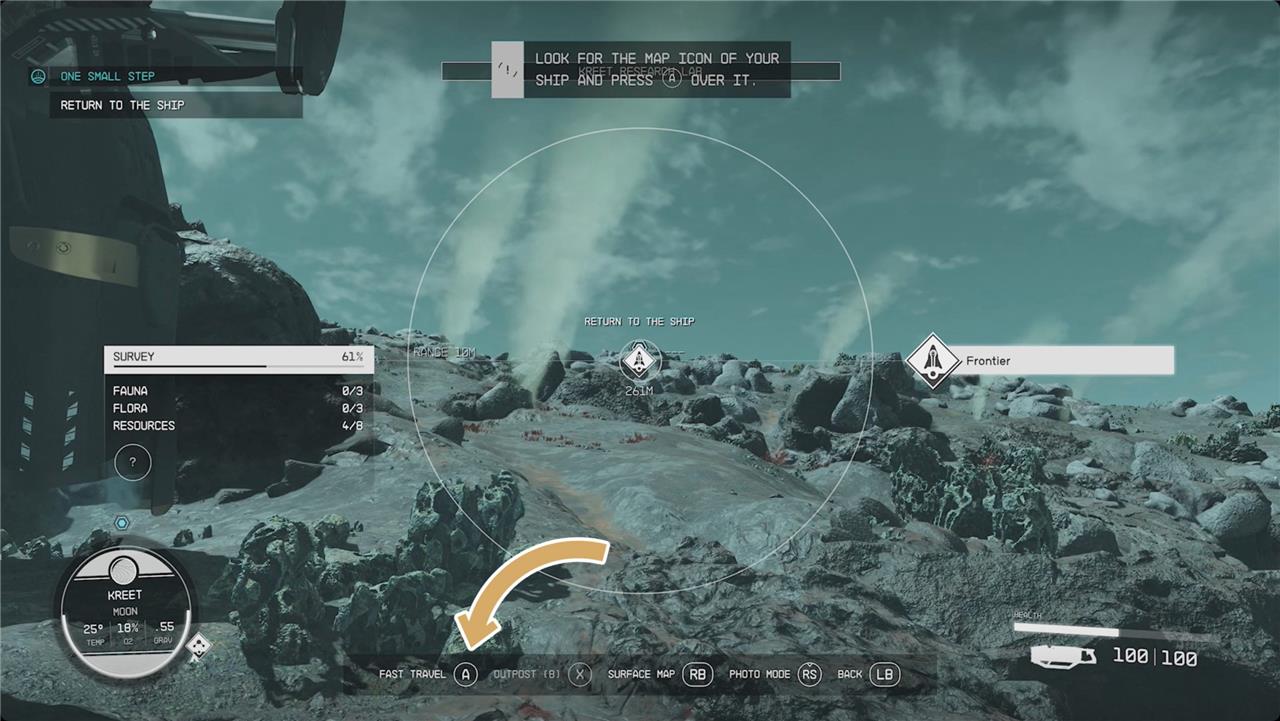
Short answer first (and the thing Starfield explicitly calls “fast travel“):
While on a planet, you can pull up your handscanner with LB to show nearby points of interest. This usually includes your ship and things like other neighborhoods – indicated by large diamond icons. When you point the reticle at a location you’ve visited before, you’ll have an option to fast travel directly to it at the bottom of your screen.
Now, let’s talk about things that work like fast travel, but aren’t called that. But first.
Sometimes you can’t fast travel
Fast travel in Starfield isn’t always available, and there are several reasons why the option might be restricted. You can’t fast travel if you’re over-encumbered, suffering from certain status effects like being crippled, or if your ship is too badly damaged to perform a grav jump. Additionally, fast travel is only possible to locations you’ve already discovered; you cannot instantly travel to unexplored planets or star systems-these require you to manually grav jump to each new system along the route, step by step. If you’re in combat, inside certain interiors, or if there’s an obstruction in your crosshairs (like an NPC or interactive object), fast travel may also be disabled. To restore fast travel, you’ll need to address these issues, such as dropping excess items, healing your character, repairing your ship, or moving to a suitable location.
As much fast traveling as you’ll do, it has some restrictions that are hard to understand at first. In space, you can’t see the planets around a star until you’ve jumped into the system for the first time. And you can’t jump into a system if your route passes through any systems you haven’t already visited. In those cases, you’ll have to take your trip one jump at a time.
While on your ship, you can’t start a grav jump if you’re currently docked with another ship or at a space station. You’ll have to sit down in the cockpit and undock first.
On planets, onboard ships, and on space stations, fast travel is restricted if you’re “inside” – like inside someone’s house or past anything that requires a load screen. We’re calling it “inside” because it’s kind of vague. It also depends on what kind of fast travel you’re trying to do. For example, if you’re in a cave that you accessed from the planet’s surface, you won’t be able to use the scanner to fast travel to your ship (or view the surface map), but you will be able to use the Starmap to jump to a different settlement, planet, or star. Interestingly, this usually includes your ship – look for the caret () shape near where you landed.
How to fast travel with the surface map
To fast travel using the surface map in Starfield, open your scanner (F on PC or LB on Xbox) and then press RB (or G on PC) to bring up the surface map view. This map displays all discovered points of interest on the planet’s surface. Simply hover over the location you want to travel to and select it (A on Xbox or Mouse Button 1 on PC), then confirm your choice (A on Xbox or E on PC) to instantly fast travel there-provided you’ve already visited that spot. You can also use this map to quickly return to your ship by pressing Y. Keep in mind that fast travel is disabled if you’re in combat, over-encumbered, or inside certain buildings or caves.
On foot and with your scanner up, you’ll also have the option to pull up the surface map. It’s, frankly, not particularly useful, but it’s another way to view the various points of interest nearby. If you’ve visited them before, you can fast travel there. If you haven’t, the map will give you a general idea of how to get there. With the surface map open, you can also fast travel directly back to your ship.
You won’t, however, be walking between settlements on opposite sides of a planet. For that, you’ll need to do a different kind of travel.
Choose a different landing target
After performing a grav jump and arriving at your destination system or planet, you aren’t limited to a single landing spot. Open the planet map and select from various available landing zones, including cities, outposts, or specific points of interest. You can also freely choose an unexplored area if you want to land somewhere new, as long as it’s not on water. Simply move your cursor over the desired location and confirm your selection to initiate the landing sequence. This flexibility allows you to tailor your exploration or mission objectives, ensuring you always arrive exactly where you want on the planet’s surface.
The closest zoom on the Starmap focuses on one planet. As you spin it around, you’ll see multiple landing targets – things like settlements and outposts (or just a random spot you choose). Clicking on one of these will take you there.
The first time you do this, you’ll see your ship landing in a cutscene. On subsequent visits, you’ll just show up in the new spot.
This is also how you’ll travel between planets and moon in the same star system.
How to grav jump
To perform a grav jump in Starfield, first enter your ship and take off into space. Open the starmap from the pause menu and select a star system and planet within your ship’s jump and fuel range, indicated by white dots on the map. Set your course, then allocate power to the Grav Drive using the D-pad or power management controls on your ship’s dashboard. The Grav Drive will begin charging, and the more power you allocate, the faster it charges. Once fully charged, hold the jump button (X on Xbox) to initiate the grav jump and travel to your selected destination. After arriving, you can land on the planet by selecting a landing spot on the planet map and holding the jump button again. Keep in mind that you cannot grav jump through unexplored routes or without sufficient fuel, so upgrading your Grav Drive and fuel tanks is essential for longer journeys.
For the most part, traveling between star systems in Starfield is automated and you’ll do it through the menu(s). Sometimes, though, there’s one extra step: the grav jump.
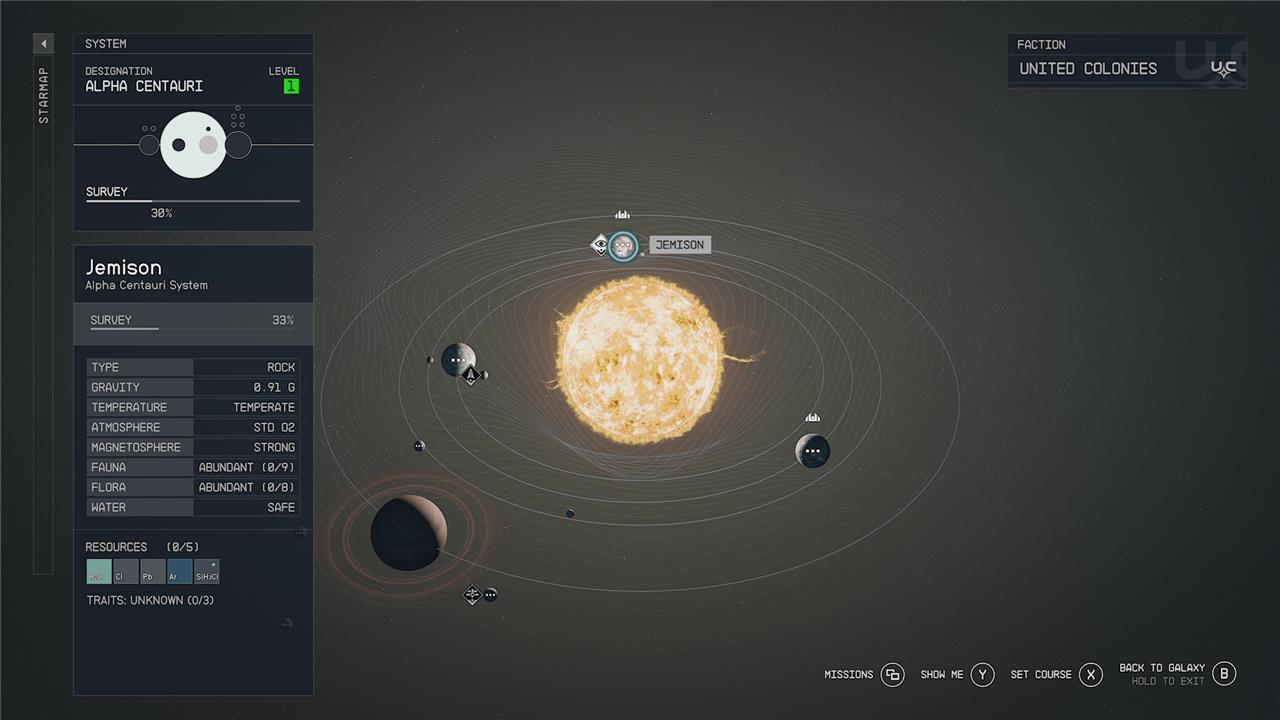
Grav jumping means allocating power to your grav drive, and then Millennium Falcon-ing into the night. Your grav drive can’t pull off a grav jump unless you’ve successfully powered it it up. Our guide on how to power up your grav drive explains everything you need to know about fast traveling via grav jump (and the ways in which you’re limited by it).
Missions let you fast travel without digging through the Starmap
When you select an active mission in Starfield, the game streamlines fast travel by allowing you to set a course directly to your objective, bypassing the need to manually navigate the Starmap’s many menus. Instead of searching for your destination among countless planets and systems, you can simply highlight the mission in your quest log and use the “Set Course” option, which automatically plots the route and initiates the necessary grav jumps or landings. This feature makes traveling to quest locations much more efficient, saving you time and letting you focus on the action rather than map navigation.
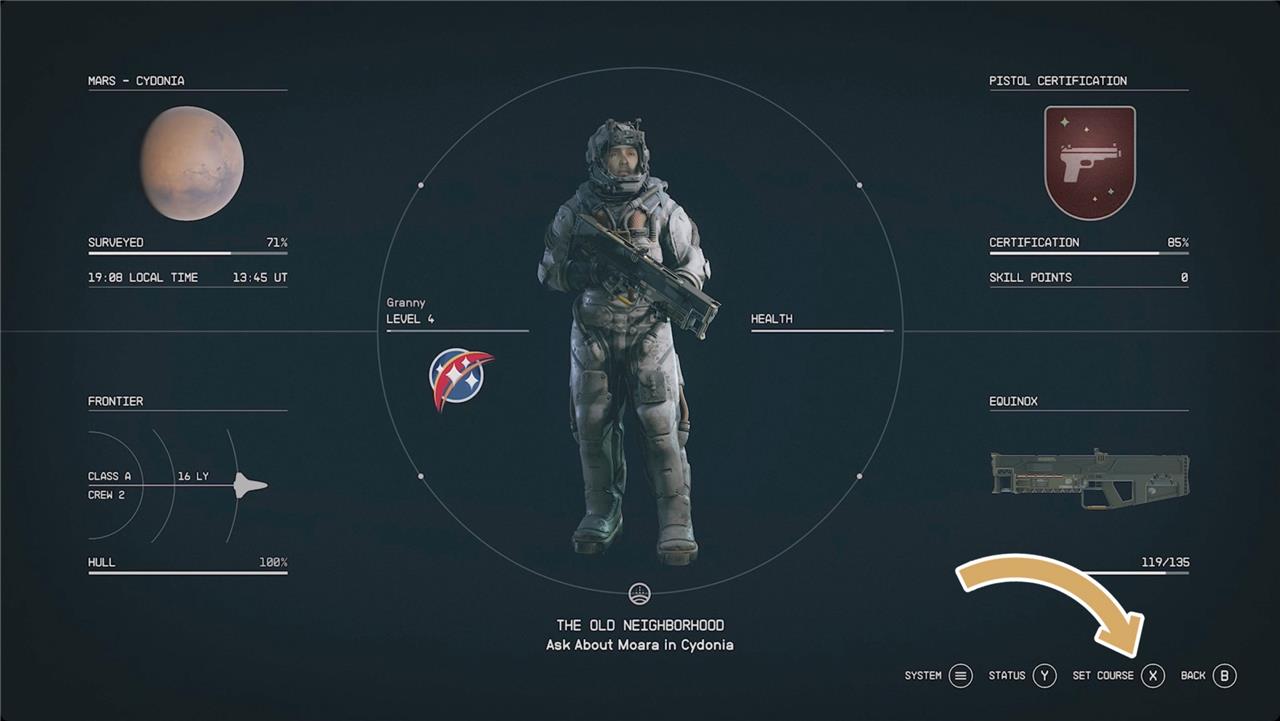
You’ve got a couple options for setting the course to your next mission objective if you have an active mission. In the Missions menu, having an active mission and objective will add a show on map and a set course option to the bottom of the screen – show on map is more useful for places you haven’t visited yet, and set course brings you right to the landing target for places you’re familiar with.
How can mastering grav jumps save me hours of exploration in Starfield
Mastering grav jumps in Starfield can save you hours of exploration by allowing you to bypass the slow, manual travel between planets and star systems. Grav jumping acts as a form of fast travel, letting you instantly reach distant or unexplored worlds with just a few steps, rather than piloting your ship in real time across vast stretches of space.
Once you’ve visited a system or planet via grav jump, you unlock the ability to use regular fast travel to revisit those locations instantly, further streamlining your journeys. Upgrading your ship’s Grav Drive and fuel tanks increases your jump range, reducing the number of stops required to reach far-off destinations and making your routes more direct. This efficiency means less time spent on repetitive travel and more time exploring, questing, and discovering new content.
In short, mastering grav jumps turns the daunting scale of Starfield’s universe into a navigable playground, letting you focus on adventure instead of transit.
How does mastering grav jumps reduce the time spent traveling between systems
Mastering grav jumps in Starfield significantly reduces the time spent traveling between systems by allowing you to instantly traverse vast distances that would otherwise require a series of manual, time-consuming flights. Grav jumps act as a form of fast travel, letting you leap directly from one star system to another, provided your ship’s Grav Drive and fuel tanks are sufficient for the distance. Upgrading these components increases your maximum jump range, enabling you to reach farther systems in a single jump and avoid the need for multiple short jumps through intermediary systems.
Additionally, once you’ve grav jumped to a new system, you unlock the ability to use regular fast travel to revisit explored locations instantly, further streamlining future journeys. This efficiency means you spend less time navigating menus and piloting your ship, and more time exploring planets and completing missions. Ultimately, mastering grav jumps transforms interstellar travel from a lengthy process into a quick, seamless experience.
