
Step into the cosmos with style and strategy: discover how to equip your helmet for survival and seamlessly hide it to flaunt your character’s look in Starfield. Whether on PC or Xbox, mastering this simple yet clever trick lets you toggle your helmet’s visibility automatically-keeping it on in hazardous space and off in safe, breathable zones-so you can explore the galaxy without sacrificing your interstellar fashion.
How to equip a helmet in Starfield
To equip a helmet in Starfield, open your inventory from the main menu or by pressing the appropriate key/button (I on PC or Menu on Xbox). Navigate to the Helmets section, where you will see all the helmets you have collected. Select the helmet you want to wear, and it will automatically equip on your character, replacing any previously worn helmet. This provides protection and allows you to breathe in hazardous environments. Additionally, there is an option in the inventory to auto-hide your helmet in breathable areas, so it only appears when necessary without manual toggling.
Before you can hide a helmet, you first need to wear a helmet. You’ll almost certainly loot some from defeated Spacers and pirates. (You’ll find several during “One Small Step,” the first campaign mission.) If you’re out of luck, you can loot helmets from display cases, or buy one from a gear vendor.
Once you have a helmet, go to your inventory, scroll to the helmets submenu, select the helmet you want to wear, then press A (on Xbox) to equip it.
How to hide a helmet in Starfield
To hide a helmet in Starfield, open your inventory and navigate to the Helmets section. Select your equipped helmet and use the toggle option labeled “Show/Hide Helmet in Breathable Areas”-this is done by pressing RB on Xbox or the T key on PC. When enabled, your helmet will automatically be hidden in safe, breathable environments like settlements and your ship, but it will reappear in hazardous or non-breathable atmospheres. This feature is purely cosmetic and does not affect gameplay or protection bonuses.
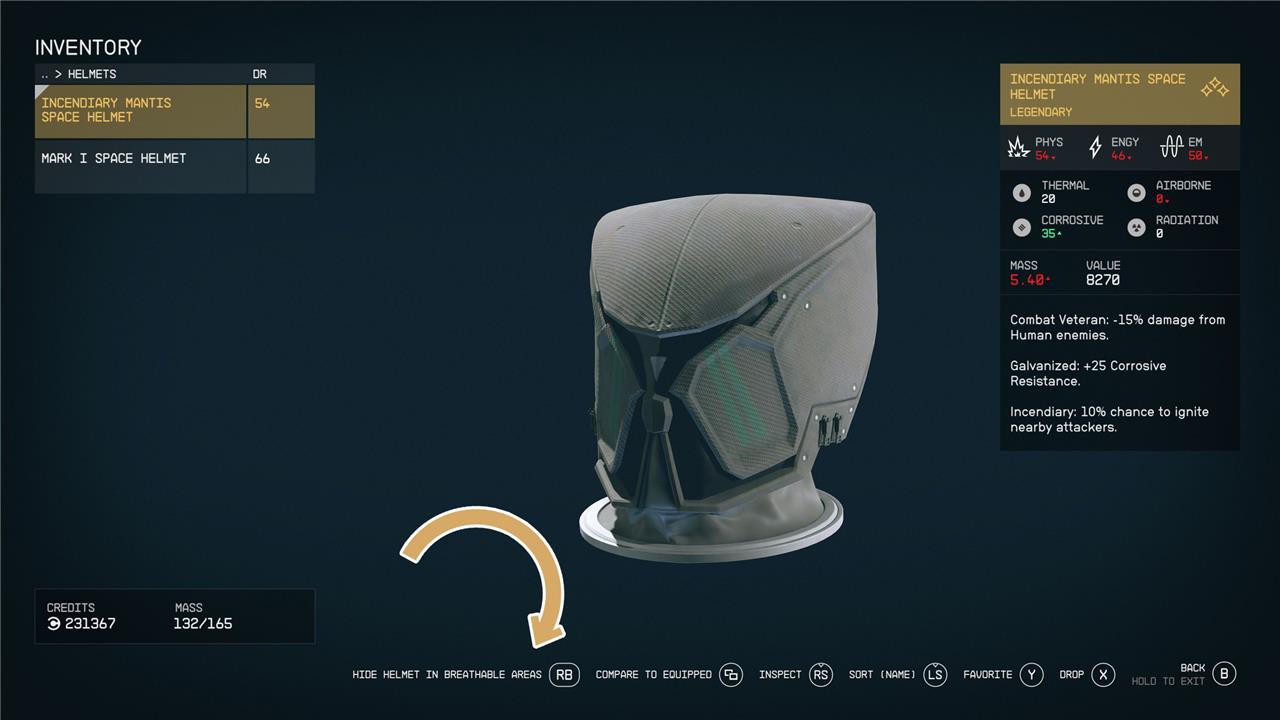
To hide a helmet in Starfield, go back into the helmets submenu of your inventory. Press RB (on Xbox) to hide the helmet in breathable areas. It’ll automatically show back up when you’re in non-breathable atmosphere. (Note that you can only see your helmet in the first place if you’re also wearing a spacesuit.)
You can also hide your spacesuit in settlements, like New Atlantis or Neon, by following the same prompt in the spacesuits submenu of your inventory. Your spacesuit will automatically display when you’re on your ship or exploring a planet, whether or not the air is breathable. If you’ve toggled your helmet to hide, it won’t show up.

How can I hide my helmet seamlessly in safe areas of Starfield
To seamlessly hide your helmet in safe, breathable areas in Starfield, open your inventory and navigate to the helmets submenu. There, select your equipped helmet and press the designated button-on Xbox, it’s RB; on PC, it’s the T key-to toggle the option “hide helmet in breathable areas.” This setting will automatically hide your helmet when you enter settlements or other safe zones with breathable atmospheres, while it will reappear when you venture into hazardous, non-breathable environments, ensuring both protection and style without manual switching.
What are the exact steps to hide my helmet in breathable areas of Starfield
Here are the exact steps to hide your helmet in breathable areas in Starfield:
-
Open your inventory.
-
Navigate to the Helmets section.
-
Select your equipped helmet.
-
Look for the prompt to toggle the option “Hide Helmet in Breathable Areas.”
-
On PC, press the T key.
-
On Xbox, press the RB button (or sometimes LB depending on the controller layout).
-
-
Once toggled, your helmet will automatically hide whenever you enter breathable areas such as settlements or your ship.
-
The helmet will reappear automatically when you enter non-breathable, hazardous environments.
This feature is purely cosmetic and allows you to show off your character’s face without manually removing the helmet each time.
