
Steam’s new Notes app adds a clever twist to gaming sessions-letting you jot down tips, track progress, or manage tasks without leaving your game’s screen. It’s part journal, part to-do list, and it might quietly change how players organize their time in virtual worlds.
But it’s a little more than just that. It’s an overlay that can hover on your in-game window (with adjustable opacity), so your to-do list is always within view, if you want. It can store new notes on a per-game basis, and better yet, those notes are synced across PCs that you’re logged into, even when you’re in offline mode.
To turn it on, simultaneously press the Shift and Tab keys while in-game, then find it along the new taskbar along the bottom of the interface that pops up. Then, press the thumbtack icon in the top right of the Notes app to pin it at a desired position on your screen.
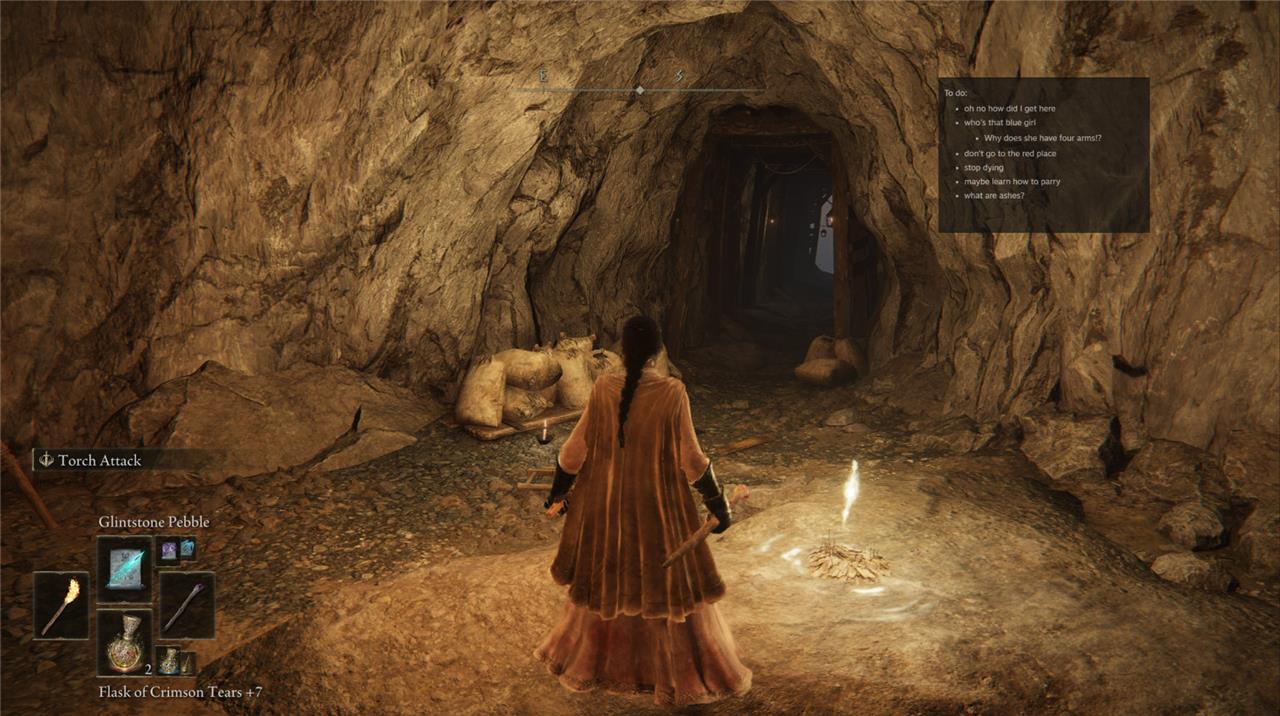
Paper and pen may still win out for you, especially for games where you need to draw solutions to puzzles. But this is just what I need for most of the games that I play. It’ll be great for when I need to remember the safe code that was written in blood on the wall in The Last of Us Part 1 on PC. Or to remind me how many items I need to upgrade a tier in a skill tree, so I don’t have to flip through a game’s user interface for the hundredth time. Now, there’s an easy place to keep it all in view for later.
It could really come in handy in games that have day-night cycles, like Stardew Valley, or the more recently released Dredge, where some quests are only achievable during certain times of the day. I really don’t think I could play another Persona game without this notes feature to let me remind myself which relationship or activities I need to prioritize.
The new Steam update lets you pin even more stuff to your game window, including game guides written up by Steam users, the Discussions forum for each game, or a full web browser so you can watch videos while you play. If you want to enroll in the Steam beta, there are some instructions on how to do so here.
How to enable Steam client beta for Notes app
To enable Steam’s client beta (which originally introduced the Notes app in 2023 and remains accessible via beta for the latest features), follow these steps in the Steam desktop client.
Step-by-Step Instructions
Open Steam and click Steam in the top-left menu, then select Settings.
Go to the Interface tab (or Account tab in older guides-recent 2025 updates confirm it’s under Interface).
Find Client Beta Participation, click the dropdown, select Steam Beta Update, and confirm-Steam will restart to download the beta.
Notes Status
The Notes app rolled out to the stable client by mid-2023, so you may already have it without beta enrollment.
To exit beta later, repeat steps and choose No beta chosen.
This works on Windows/Linux; Mac/Steam Deck support expanded post-launch.
How to access and use the Notes app in Steam overlay
Steam’s Notes app is accessible via the in-game overlay and game library pages for quick task management during play.
Accessing Notes
While in-game, press Shift+Tab (default overlay shortcut) to open the Steam overlay, then click the pencil/note icon on the toolbar at the bottom.
Outside games, right-click a game in your Steam library, select Properties or view its details page-Notes appear under achievements or in a dedicated section.
On Steam Deck, use the controller’s Quick Access Menu (QAM/home button) during play; Notes are listed below Guides.
Using Notes
Create or edit notes with rich text, paste images/screenshots, and add multiple per game-they sync via Steam Cloud across devices, even offline.
Pin the note window (top-right pin icon) for always-on overlay with adjustable opacity/transparency, ideal for checklists or reminders without alt-tabbing.
Delete old notes via the menu; changes save automatically and persist per game/account.
