
Losing progress in Dragon’s Dogma 2 can be frustrating, especially with its limited save options. Here’s how you can completely erase or reset your save files on Steam and start your adventure fresh.
Our Dragon’s Dogma 2 guide will show you show you where your save data lives on PC and teach you how to delete your Dragon’s Dogma 2 save files on Steam, allowing you to start a new game from scratch.
Before you delete your save file, a word of warning…
Deleting your Dragon’s Dogma 2 save files wipes all progress, characters, and quests permanently with no undo option. Steam Cloud syncs those files across devices, so removal happens everywhere unless you disable it first. Back up manually to an external folder if you want a safety net before pulling the trigger.
This is decidedly an unofficial way to manage your Dragon’s Dogma 2 save files. Doing any of the steps below runs the risk of screwing up your game and forcing you to start over completely.
That said, we’ve gone through this process several times with no problems. But just know you’re tinkering with stuff the game doesn’t really want you messing with.
Additionally, deleting your save breaks the Character Creator import. If you used the standalone Dragon’s Dogma 2 Character Creator to make your first Arisen and main pawn, you only get one chance to import them. If you’ve started a game and imported your characters, deleting the save files doesn’t reset that import.
Once you’ve imported your creations the first time, that’s it. You’ll have to use the in-game character creator the next time.
Step one: Turn off cloud save in Steam
Open Steam and select Dragon’s Dogma 2 from your Library. Right-click the game and choose Properties. Switch to the Updates tab, then uncheck the box labeled “Enable Steam Cloud synchronization” under Steam Cloud. Confirm by clicking Close. This prevents new saves from uploading while you clear local files.
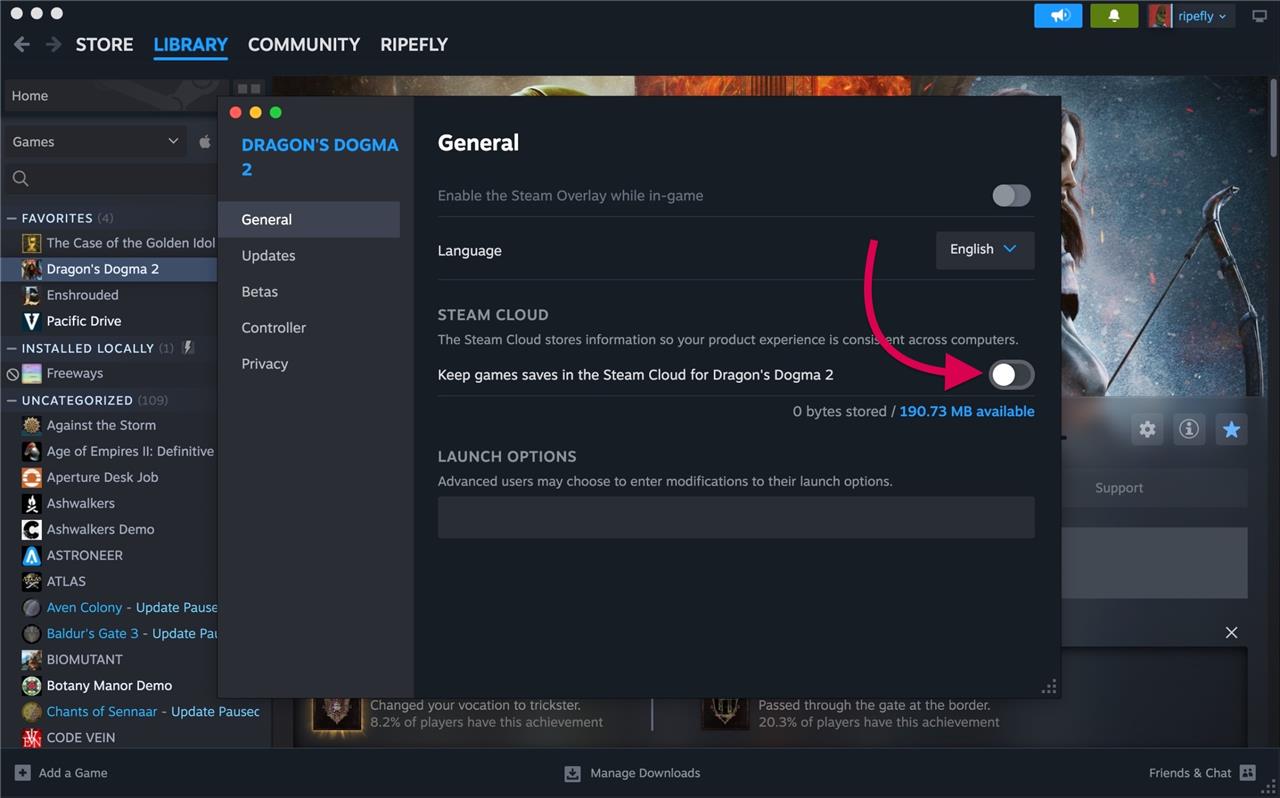
We learned this step the hard (and frustrating) way. In your Steam library, right-click on Dragon’s Dogma 2 and pick Properties. On the General tab, make sure “keep games saves in the Steam Cloud for Dragon’s Dogma 2″ is turned off.
If you don’t do so, Steam will write over any changes you make to the save file. This does mean you won’t be backing up your saves temporarily, but you can turn it back on later.
Step two: Make a Dragon’s Dogma 2 save
Before removing your data, you’ll need to have a save file to work with. Launch Dragon’s Dogma 2 through Steam and begin a new game, progressing until the first autosave occurs. This ensures the game creates the necessary save directory on your system. Once the save has been made, you can close the game and access its folder to identify or delete the files as needed.
Before you can manipulate Dragon’s Dogma 2‘s save files, you’ll need to make sure there’s something there to find.
If you haven’t played at all yet, open the game and change some settings – it doesn’t really matter what. You can even change the settings back right after. Just change something, anything, and then exit out to the main menu so the game asks you if you want to save your settings. That’s going to create a file you can track down.
If you’ve been playing for a while, it’s still easiest to do this with a recent (like, within the last few minutes) save. Open the game, load your save, save the game, and then exit the game.
Step three: Find your save folder
Open your Steam library and right-click on Dragon’s Dogma 2. Select Manage > Browse local files to open the game’s directory. From there, navigate to the folder named remote within the userdata section. This is where your save files are stored. Keeping this window open will make it easier to identify and remove the correct files in the next step.
Easy part first. On your PC, open File Explorer and navigate to C:Program Files (x86)Steamuserdata. This is kind of a dumping ground for Steam’s files – even if you’ve got the game installed elsewhere.
Now, somewhere in these numeral-named folders is your Dragon’s Dogma 2 save file. You can start by sorting the list by “date modified,” with the most recent entry at the top. But to be even more sure, look for a specific folder.
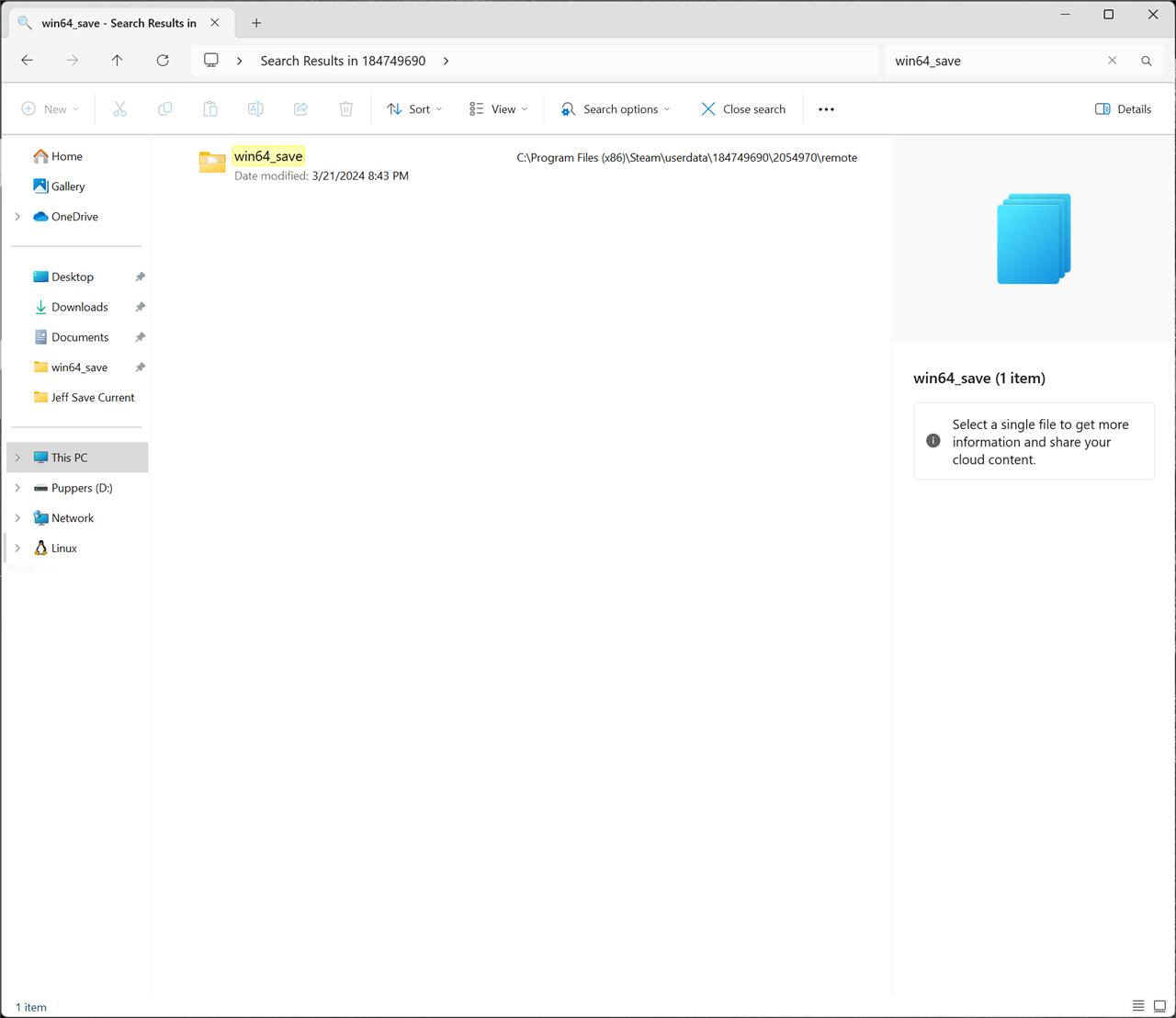
Search inside userdata for a folder named win64_save. It’ll be a few folders down from userdata in [series of numbers][series of numbers]remote.
If you find multiple instances of win64_save, check the date modified on those. You’re looking for the one that matches the last time you saved in Dragon’s Dogma 2. If you updated your save like we suggested above, it’ll be right at the top.
Step four: Delete your save file in Dragon’s Dogma 2 (or back it up)
Before removing your progress, decide whether you want to back up your save file. You can find it in the folder path Steam > userdata > [your Steam ID] > 2054970 > remote. Copy the files to a safe location if you might want to restore them later. To delete your save entirely, remove the files from this directory or right-click the game in your Steam Library, select Properties, open Installed Files, and choose Browse. Then, delete the same files manually to start fresh.
When you find your win64_save folder, there will be some .bin files inside. If you’ve never started a game, all you’ll have is a file called data00-1.bin – that’s the settings save file we told you to make above. If you’ve been playing for while, you’ll have several files in there – that same data00-1.bin file along with other .bins that all have “data00” somewhere in their name.
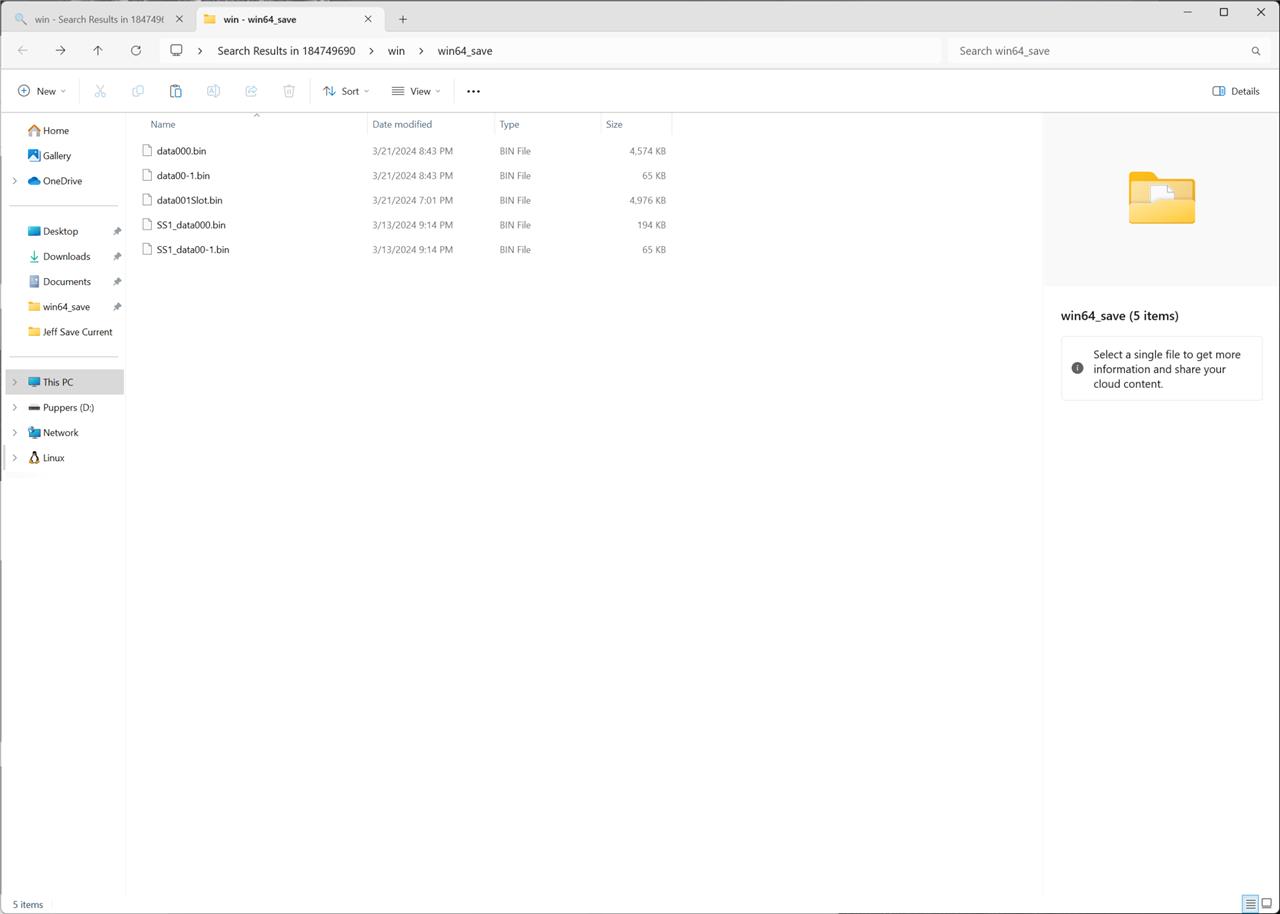
Everything in here other than data00-1.bin constitutes your save file(s). I’m not savvy enough to tell you what each file is or does, but treating all the files as a whole has worked well.
Select everything and copy it out to another folder in a safe place to create a backup. Later, if you want to restore your game to that point, you can just navigate to your save folder, delete everything in it, and replace it with your backup.
Or you can just delete everything (except data00-1.bin) and leave the folder empty. That will start your game from scratch and you can make a new main character and main pawn with the in-game character creator – like we said above, the standalone Character Creator will only work one time.
If you delete data00-1.bin at any point, it’s not a big deal. You’ll just have to reset all the settings the next time you launch the game.
Disable Steam Cloud for a specific game before deleting saves
Disable Steam Cloud for a specific game before deleting saves by accessing its Properties menu in Steam. This prevents cloud data from overwriting your local changes during the process.
Access Game Properties
Open Steam and navigate to your Library. Right-click the game (e.g., Dragon’s Dogma 2) and select Properties from the context menu.
Disable Cloud Sync
In the Properties window, go to the General tab. Uncheck the box labeled “Keep games saves in the Steam Cloud for [Game Name].” Click OK to apply changes.
Verify and Proceed
Launch the game briefly to ensure no cloud sync prompts appear, then exit. Now safely delete local save files, as outlined previously, without cloud interference.
How to disable Steam Cloud for one game only
Disable Steam Cloud for one game only through its individual Properties menu in Steam. This leaves Cloud enabled for all other games while targeting just the selected title.
Access Game Properties
Open Steam Library, right-click the specific game, and select Properties. This works independently for each game without affecting others.
Toggle Cloud Option
Switch to the General tab and uncheck “Keep games saves in the Steam Cloud for [Game Name].” Confirm with OK; the change applies solely to that game.
Global vs. Per-Game
Global disable is under Steam > Settings > Cloud, but per-game overrides it for the chosen title alone. Relaunch Steam to verify no sync prompts for that game.
