
Wandering back through the Mojave has never been easier – with Steam, a few tweaks, and the right Nexus Mods setup, you can turn Fallout: New Vegas into the adventure it was meant to be. Here’s how to get it running smoothly and modded to perfection.
How to play Fallout: New Vegas on Steam
After purchasing Fallout: New Vegas on Steam, install it directly from your game library and wait for the download to finish. Once installed, launch the game to confirm it runs properly before applying any mods. To enhance performance or visuals, install Nexus Mods’ Vortex manager and connect it to your Steam version of the game. Keep your load order organized, and always back up key files before adding new modifications to avoid crashes or conflicts.
First things first, you’ll, of course, need to buy Fallout: New Vegason Steam and install the game. We recommend purchasing the ultimate edition (when it’s on sale), as it includes every available DLC and some of the best mods require you to own them all. Additionally, most mods require you to have the English language package installed, which can be found in the game’s properties on Steam. Furthermore, once you’ve finished modding, it’s highly recommended to start a new game – old save files may no longer work properly.
Of course, you may start playing Fallout: New Vegas right away, without any mods, but the experience is likely marred by bugs, crashes, and outdated visuals. So, to get your New Vegas playthrough up to par with 2025 standards, you’ll need to download a bunch of essential mods first (more on that in the section below).
The easiest way to mod Fallout: New Vegas is to go to Nexus Mods, which has a collection of almost 40K mods to choose from. For some mods, you will need to manually install them by following the instructions listed on their pages, but for most mods, we recommend using a mod manager like Vortex as it can make the modding process a lot easier for a beginner. With Vortex installed, you can click on any mod and press the orange “Vortex” button on the top right (next to “download”) to automatically install the mod.
Best Fallout: New Vegas mod packs
Explore the best Fallout: New Vegas mod packs that smoothly enhance visuals, fix gameplay issues, and expand content, delivering a richer, more stable classic experience for Steam players.
That begs the question: Which mods are essential for a proper Fallout: New Vegas experience, 15 years after the game’s initial release? Although you can select and install individual mods, it’s easiest to choose a mod pack that already contains everything you need, so you can jump into New Vegas without delay. All you need to do is select a mod collection on Nexus and choose the orange “add collection” button in the top right corner.
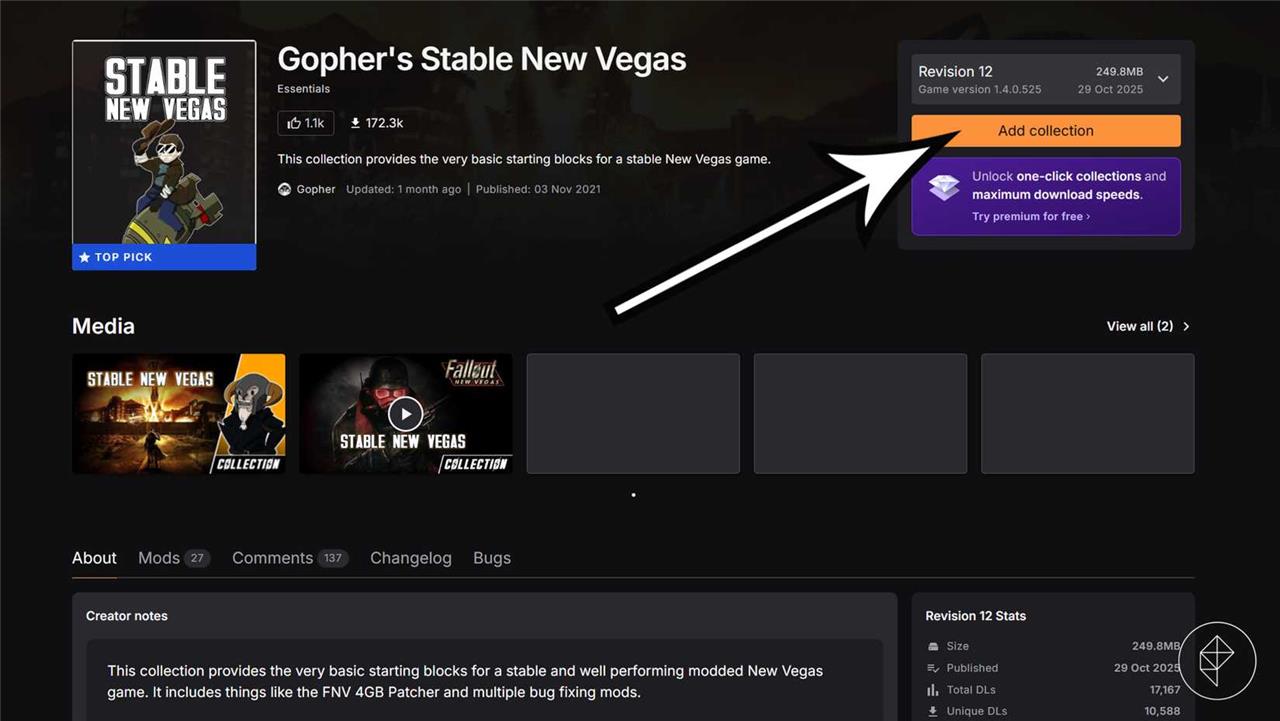
While premium Nexus members can download an entire mod pack in just one click, beware that users with a free account must click every download button individually, so if a mod pack contains 100 mods, that’s 100 clicks for you – you might want to grab a book and have a cup of tea while you wait for each mod to finish downloading.
The Nexus mod collections page offers a few hundred New Vegas mod packs to choose from, but here are the ones we recommend.
Viva New Vegas
This is the quintessential Fallout: New Vegas mod pack, as it contains every performance enhancement you’ll need to run the game smoothly. Viva New Vegas also includes some visual enhancements, such as weather improvements and atmospheric lighting, as well as liveliness improvements, such as additional NPCs.
As of writing this, the Viva New Vegas mod pack on Nexus has not been updated for a while, so it’s best to download it from their website instead. Choose “full guide” if you prefer to download it manually, or choose “Wabbajack” for easier installation (you still need a Nexus account). In short, you must install Wabbajack, create an empty installation folder, find the Viva New Vegas mod pack in the Wabbajack app, choose “download,” and install every Nexus mod that pops up, but be sure to follow the detailed instructions carefully! You do not need Vortex for this download, so be sure to scroll down to the general “download” button for each mod instead of clicking the orange “Vortex” button.
VeryLastKiss’s New New Vegas
If the Viva New Vegas installation process seems a bit daunting, go for VeryLastKiss’s New New Vegas instead. With Vortex installed, you just need to click “add collection” and let Vortex handle the rest.
VeryLastKiss’s New New Vegas contains every essential performance improvement and visual enhancement you could wish for (better weather, atmospheric lighting, smoother animations, etc.). It also offers various quality of life improvements such as sprinting, objective markers, and quick-throwing. On top of that, you’ll get additional fan-made quests. If you’d rather receive the performance, visual, and quality of life enhancements without extra quests, try VeryLastKiss’s New New Vegas Lite instead.
Gopher’s Stable New Vegas
If you don’t want to install dozens of mods, this bite-sized mod pack contains the most essential enhancements only. Just like VeryLastKiss’s New New Vegas, you just need to visit Gopher’s Stable New Vegas’s download page and click “add collection” to download the mods in Vortex.
Gopher’s Stable New Vegas mod pack includes a ton of bug fixes, less lag, and faster loading screens, making it the best option for players who’d like to remain as close to vanilla Fallout: New Vegas as possible. This mod pack, therefore, does not include things like texture upgrades and better lighting. For that, download Gopher’s New Vegas Remaster pack as well – it includes a lovely set of visual upgrades without major gameplay changes, so it’s still fairly close to the vanilla experience.
Essential mods
Don’t want to use a mod pack? If you’d prefer to create your own Fallout: New Vegas mod collection, here’s a list of essential mods to include:
- New Vegas Script Extender
- JIP LN NVSE Plugin
- The Mod Configuration Menu
- FNV 4GB Patcher
- NMCs_Texture_Pack_For_New_Vegas
- Yukichigai Unofficial Patch
- lStewieAl’s Tweaks and Engine Fixes
- LOD Fixes and Improvements
- Combat Lag Fix
- Depth of Field Fix
Best mod manager for Steam Fallout New Vegas (Vortex vs Mod Organizer
For Steam Fallout: New Vegas, Mod Organizer 2 is generally the better long-term choice, while Vortex is easier for a brand-new modder who wants something simple and automated.
Overall recommendation
-
For most FNV players planning a medium or heavy mod list (or following guides like Viva New Vegas), MO2 is usually recommended as “best tool for the job.”
-
If you are completely new, want minimal learning, and only plan a light mod setup, Vortex is more beginner-friendly out of the box.
Key differences
| Aspect | Mod Organizer 2 | Vortex |
|---|---|---|
| Learning curve | Steeper; expects you to understand load order and conflicts, but teaches you more about how mods work. | Easier; very guided interface with automated rules and built-in conflict prompts. |
| Control & power | High control over load order, profiles, and file priority; widely considered superior for large/complex builds. | Good for small-medium setups; automation can feel limiting or confusing when things break in big load orders. |
| How it handles files | Uses a virtual file system that keeps the actual game folder clean and makes testing and reverting very safe. | Deploys files more directly; convenient but can be more prone to breakage or messy setups over time. |
| Profiles & experimentation | Excellent profile system; you can maintain multiple separate FNV setups under one install. | Has profiles, but MO2’s are generally preferred for serious “multiple builds” use. |
| Community preference for FNV | Many New Vegas guides and experienced modders explicitly recommend MO2 over Vortex for stability and control. | Commonly recommended for absolute beginners or people modding many games casually. |
When to pick MO2
Choose MO2 if:
-
You plan to follow a modern FNV guide (like Viva New Vegas) that is written around MO2.
-
You expect to run many mods, experiment with different setups, or care about easy rollback and a clean game folder.
When to pick Vortex
Choose Vortex if:
-
You are new to modding, want a simple click-to-install path, and will keep your mod list modest.
-
You like the Nexus integration and automated rules and are okay with less granular control.
If you say whether you want a light, medium, or heavy modded setup, guidance can be tailored more specifically to which manager (and guide) fits you best.
How to migrate mods from Vortex to Mod Organizer 2 safely
The safest way to move from Vortex to Mod Organizer 2 (MO2) is to (1) purge/disable everything in Vortex so your game folder is clean, (2) point MO2 to Vortex’s existing downloads/mods folders, and (3) rebuild your load order inside MO2 rather than trying to “import” the whole setup blindly.
Before you start
-
Make a backup of your current saves and, if you have space, your entire Fallout New Vegas folder from Steam and your Vortex staging/downloads folders.
-
Plan to treat this as a small rebuild: you keep your archives and installed mod files, but you will re-enable them and set priorities in MO2 yourself for a cleaner, more stable setup.
Step 1: Cleanly disable in Vortex
-
In Vortex, Purge or disable all mods so that the game’s Data folder is returned to a near-vanilla state; this prevents leftover hardlinks and duplicated files when MO2 takes over.
-
Note the paths to Vortex’s Downloads folder (where it stores mod archives) and Mods/Staging folder (where it keeps unpacked mod files) in the Vortex settings, then close Vortex.
Step 2: Install and point MO2 correctly
-
Install MO2 for Fallout New Vegas and, during setup, use the advanced/path options to set:
-
Downloads → your Vortex downloads folder for FNV.
-
Mods → your Vortex mods/staging folder for FNV.
-
-
This lets MO2 see the same archives and unpacked mod folders that Vortex was using, without duplicating them or losing data.
Step 3: Rebuild the setup in MO2
-
In MO2’s left pane, enable your mods in a sensible order, roughly matching your old setup or, ideally, following a modern FNV guide as you go.
-
Use MO2’s priority order and any load-order tools (like LOOT via MO2) to sort plugins, and treat this as a chance to remove outdated or unused mods instead of blindly replicating old problems.
Step 4: Test and then retire Vortex
-
Once MO2 runs New Vegas cleanly (no missing masters, no instant crashes) and you are satisfied, copy or move your Vortex Downloads/Mods folders to a new location and update MO2’s paths to those new locations so they are no longer “shared.”
-
At that point you can safely stop using, or uninstall, Vortex without losing the mod archives or installed files that MO2 now manages.
If you describe your current mod count (rough range) and how stable it is now, a more specific checklist (what to keep, drop, and re-install fresh) can be outlined for your particular load order.
