
The Steam edition of Dwarf Fortress reshapes a legend without losing its soul-new visuals, a rewritten interface, mod integration straight from Mayday and Ironhand, and quality-of-life updates that make its famously deep simulation more inviting than ever.
There’s a tutorial and the help is more helpful
The new Steam version finally includes a clear tutorial that explains the basics of building, mining, and survival without forcing players to read lengthy external guides. Alongside it, the in-game help screens have been expanded with clear explanations and search functions, making information far easier to find. This addition lowers the barrier for newcomers and saves veterans from having to rely on wiki searches for routine tasks.
The addition of a tutorial to Dwarf Fortress is a big deal. There has never been a tutorial before. For nearly 20 years now, players were dumped into the game with no explanation and left to sort through the game’s legendary complexity on their own (or with a lot of help from the official wiki). This is why Dwarf Fortress‘ learning curve is called a learning cliff.
The new tutorial walks you through the first few steps of your first fortress and helps you learn the mechanics. You can even go back to it later.
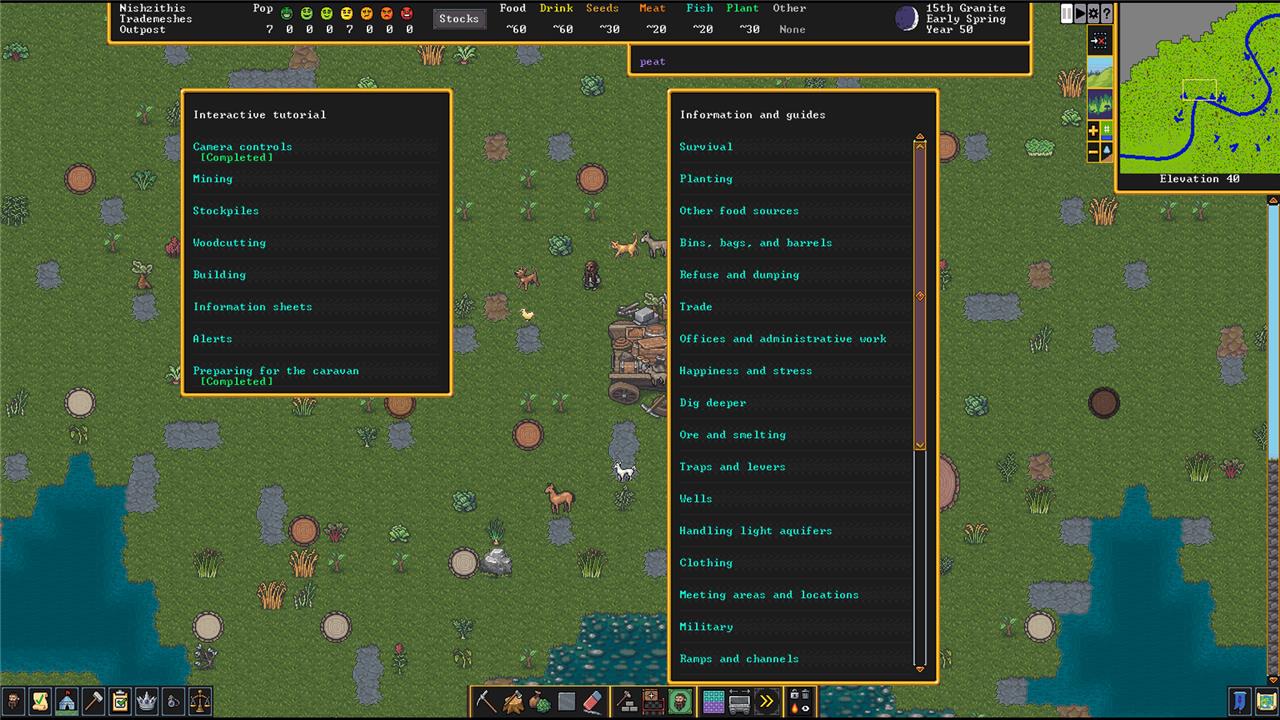
Even if you close it, you can reactivate and interact with the tutorial at any time from the help menu. Beyond that, the help menu has been reorganized into something much more accessible and helpful.
Graphics, obviously
The most obvious upgrade arrives through the new graphical tilesets, transforming the once-text-heavy interface into a richly detailed display of dwarves, creatures, and terrain. Mayday and Ironhand’s classic art styles now have official support, giving players clear visuals without losing the charm of the original ASCII design. Workshops, fortresses, and biomes all appear more alive, making it far easier to grasp what’s happening at a glance while preserving the game’s distinctive personality.
Aside from the addition of a tutorial, the biggest change to Dwarf Fortress is visual – in that there are visuals now. Sure, some of the appeal of Dwarf Fortress has been the. let’s call it quirky nature of the ASCII graphics. But the new graphics – new tilesets provided by Mayday and Ironhand – are a welcome addition.
This graphical redesign extends to the menus as well. Instead of just changing, text-based lists, there are cascading menus with helpful icons. Let’s talk about the menus, actually.
Menus make more sense
Menus are now much clearer and easier to use, thanks to a complete redesign that organizes commands and options into logical groups. Players can now find workshop tasks, stockpile settings, and dwarf management tools without memorizing hotkeys or digging through text lists. Mouse support makes navigation faster, and tooltips explain functions directly on screen. This smoother interface helps both newcomers and returning players manage their fortresses with far less frustration.
Most of Dwarf Fortress‘ menus have been rearranged in logical ways. Frustratingly, this somehow makes it more confusing if you’re used to the old version.
Let’s start with what used to be Designations (d). The subcategories have been broken out into their own menus with their own icons. Now, there’s a separate menu for Digging (m), Tree Chopping (l), Plant Gathering (g), Smoothing and engraving (v), and Removing Orders (x). Designating items for Dumping and Smelting (i) is in it’s own menu as well.
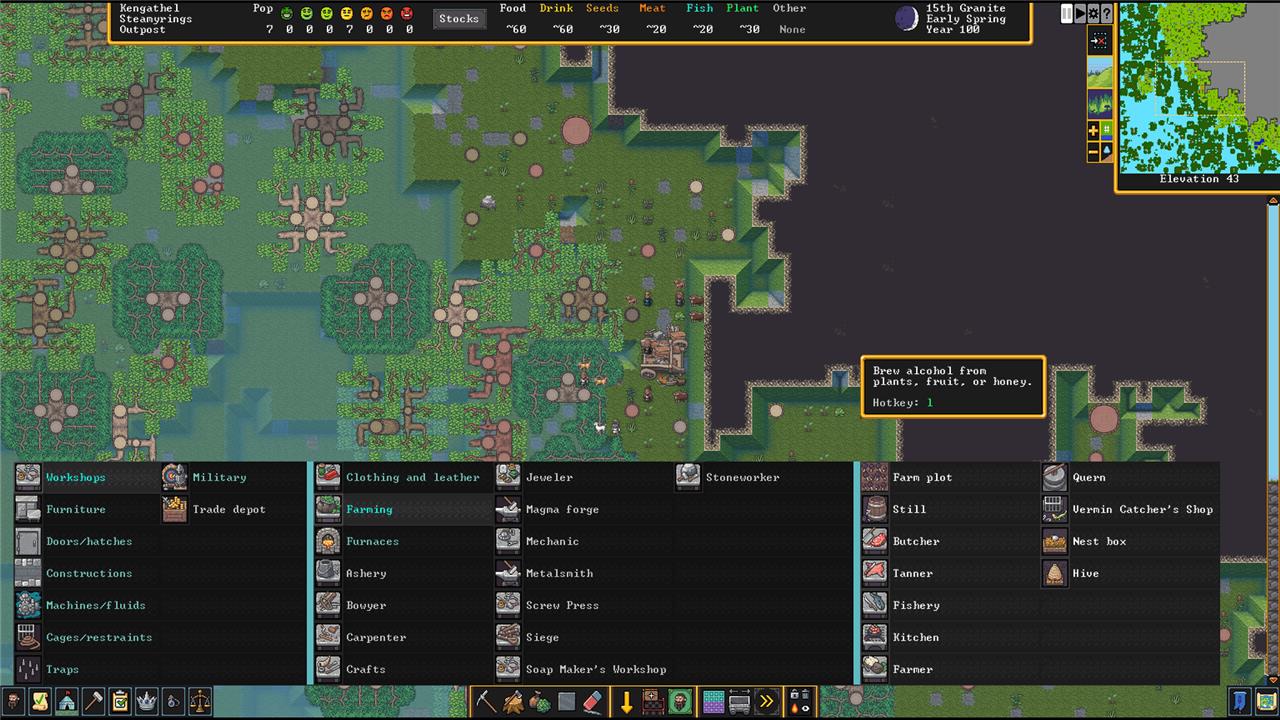
Building things with b is a lot more organized now, in that it’s organized at all. Military constructions like Armor Stands and Archery Targets get their own sub-menu now. Doors and Hatches have their own as well.
Workshops have also been rearranged. Looms and Leather Workshops are filed under their own sub-heading of, logically, Clothing and Leather (even though the Tanner is under Farming). The sub-heading Farming covers everything else food-related like Stills, Kitchens, and Querns. (Interestingly, Millstones are not included in Farming Workshops, and are now located under the Machines/Fluids menu along with Wells and Levers.)
<
Over in the bottom left of the screen, you’ll have icons for Creatures, Tasks, Places, Labor, Work Orders, Nobles, Objects, and Justice – all menus you could access before, but now they’re all in one easy-to-click place.
Some Workshops have changed
Some workshops in Dwarf Fortress now operate differently in the Steam version. Mechanics workshops produce bolts and ammunition directly, skipping old steps. Clothier workshops handle thread from plants or silk, streamlining textile production. Siege workshops build war machines with new material options. These shifts simplify workflows while adding tactical depth to fortress management.
One other simple change under the Workshops menu is that Mason has been renamed to Stoneworker. This doesn’t really change anything – it’ll just take you a second to find it if you’re looking for the wrong name.
A bigger change here is the addition of the Vermin Catcher’s Shop. This new workshop handles the Capture Live Land Animal job that used to be found in Kennels and Butchers.
Speaking of Kennels, those don’t exist anymore.
Many of the keyboard shortcuts have changed
Many of the familiar keyboard shortcuts have been rearranged or replaced in the Steam version of Dwarf Fortress. The new interface uses mouse controls more extensively, reducing the need for purely keyboard-based navigation. Some hotkeys have been streamlined to match modern UI standards, while others were removed entirely to make room for new features and menu layouts. Veteran players may need a bit of adjustment time, but the updated shortcuts make learning and playing far smoother once mastered.
Not every keyboard shortcut in different in the Steam versus of Dwarf Fortress, but enough of them are that it’s going to take a bit to relearn if you’re used to the vanilla version.
The first example you’ll bump into is that mining is no longer d>d – instead, it’s m>m. Or, since Tree Chopping gets it’s own menu now, you designate an area just by hitting l instead of d > l like before.
Many of the Workshops in the build menu (which is o instead of w) have different shortcuts, too – Carpenter is p, for example, and a Kitchen is one menu deeper under Farming (f) and has the shortcut k.
If you’re a Dwarf Fortress veteran, take your time to learn the new shortcuts – there are helpful tooltips that pop up when you hover the mouse over any given icon – instead of trying to forge ahead with the commands you (think you) know.
Un-designating mining is a different command now
Un-designating mining tasks now uses a separate command, making it easier to manage excavation plans without accidentally carving out unwanted areas. Instead of toggling designations back and forth, players can directly remove mining orders with a clear, dedicated tool. This change streamlines fortress planning, especially when correcting tunnel layouts or adjusting resource extraction zones.
We mentioned this earlier, but it bears repeating because it’s an odd sticking point for us: you can’t go straight from designating a mining area to removing that designation. In the Steam version, you have to close the mining menu – by right-clicking or hitting esc – and then open the remove designation menu with x to start erasing those designated blocks.
One reason this is frustrating is that the keyboard-controlled cursor no longer remembers its location between menus, so you’ll have to reposition it every time.
Stairs are simpler
Stairs no longer require the tedious placement of separate up, down, and up/down tiles. A single stairway block now connects levels automatically, simplifying both design and construction. This change makes fortress building smoother and reduces the chance of creating dead ends or mismatched floors. It’s a small tweak that saves time and keeps layouts cleaner, especially in crowded mining areas.
Speaking of mining, stairs have changed a little. Instead of different stairs for up, down, and up/down, there is now only one kind of stair. You start and stop them on different levels, and the appropriate stairs fill in automatically. You do still have the option to build stairs as well with Build (b) > Constructions (n) > Stairs (t). The layout works the same as digging stairs.
Controlling Labor and skills is much different
Managing dwarves now feels far more detailed, as every job assignment and skill level ties directly into visible interfaces and clearer feedback. Labor management has shifted from unintuitive menus to a practical, mouse-friendly system where designations and roles are easier to monitor. You can quickly adjust who mines, hauls, crafts, or farms without juggling multiple screens. Skill growth and preferences are clearer too, making it simpler to balance specialization with general labor needs. This change brings order to what was once a tangle of hidden tasks and guesswork.
Dwarf Fortress‘, frankly, inscrutable Labor and Skills menu(s) have been pretty dramatically redesigned. Instead of managing each dwarf directly – or even indirectly by using add-ons like DFHack or Dwarf Therapist – there’s a simple menu now.
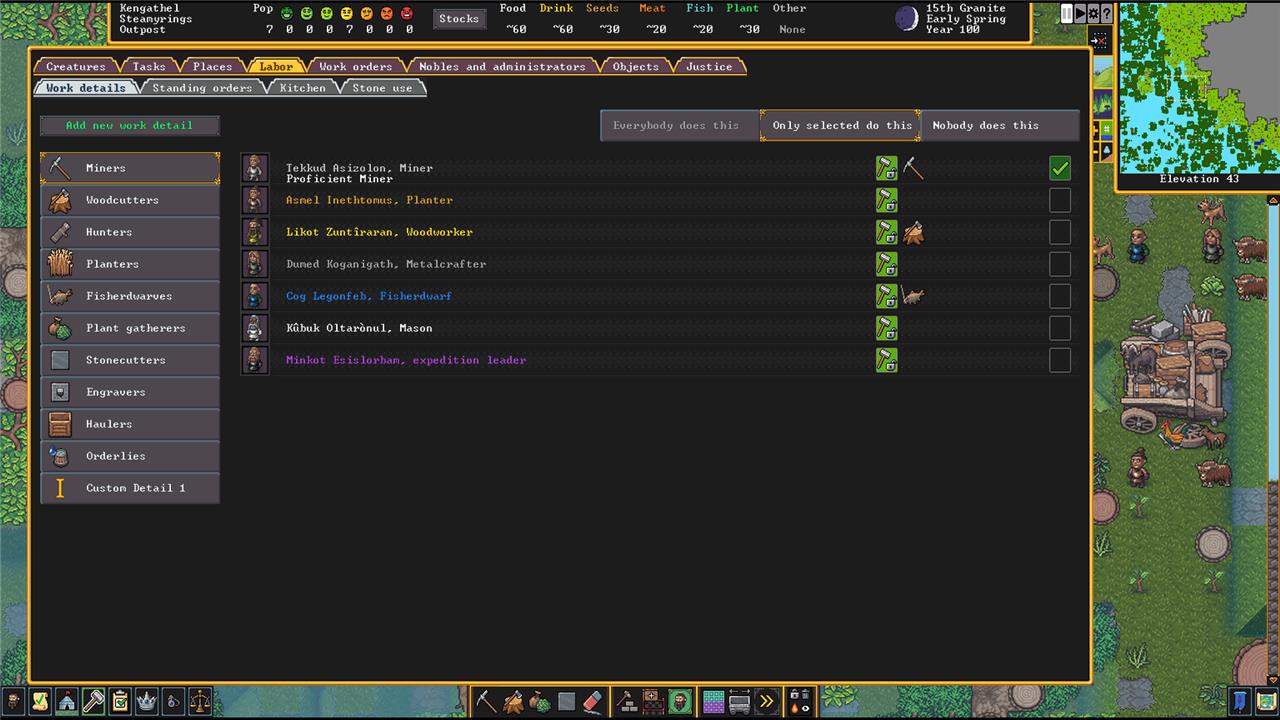
Labors are grouped in broad categories like Miners, Woodcutters, and Haulers. For each category, you’ve got the option to let anyone pick up a job (Everybody does this), select the dwarves that do it (Only selected do this), and forbid any dwarf from doing it (Nobody does this).
If you want to dig down deeper to control more specific tasks like who does Tanning, Gem Cutting, or Cleaning, you’ll have to Add a new work detail and handle it that way.
Announcements and reports have moved
Announcements and reports now have their own dedicated tabs, separating them from the main fortress interface. This change makes it easier to track messages, combat logs, and alerts without cluttering your screen. Players can review events at their own pace, pause updates, and filter by category, giving clearer insight into what’s happening across the fortress.
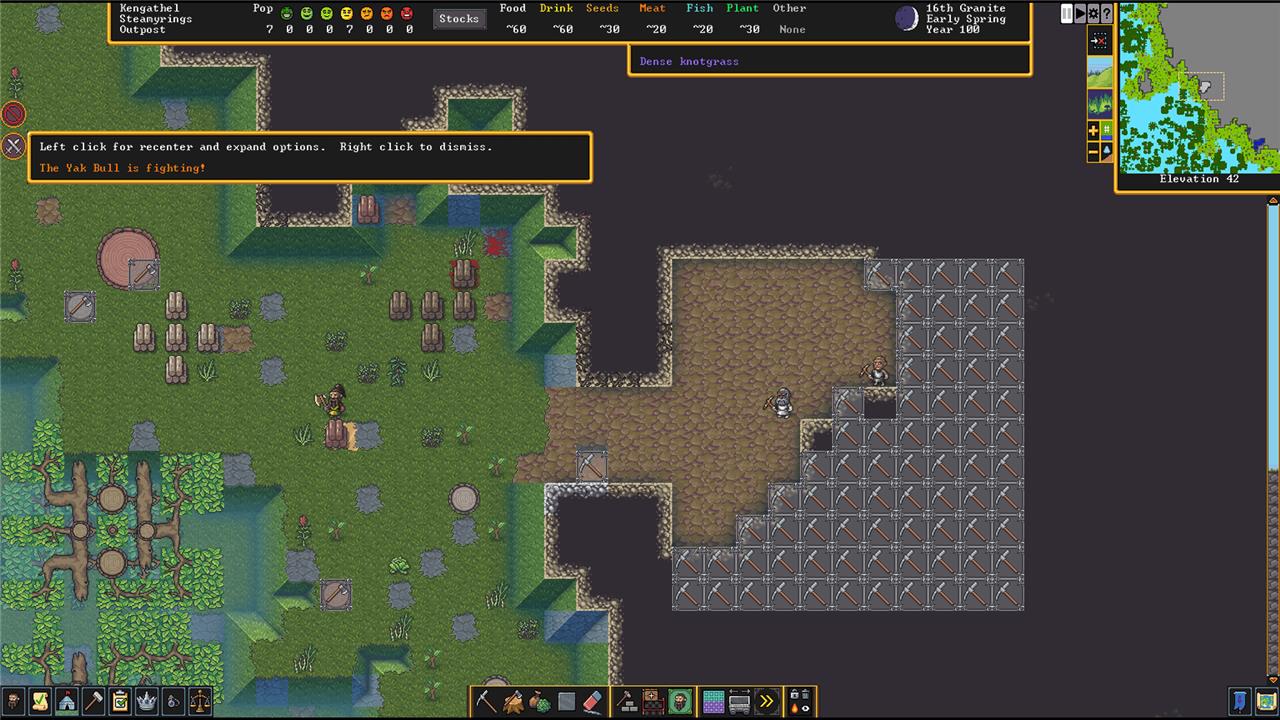
Announcements and Reports now pop up as alerts with icons in the upper left of your screen. They’re even grouped by category. This makes them work a lot more like any other RTS.
Using a mouse is not optional
Using a mouse is now the core way to play Dwarf Fortress on Steam. The new interface relies heavily on point-and-click actions, from managing dwarves to placing workshops and navigating menus. This change makes the game faster to control, but it also means traditional keyboard-only play is no longer practical. The streamlined UI and visual tilesets were built with mouse support in mind, making it an integral part of the modern experience.
While everything in vanilla Dwarf Fortress was handled via the keyboard, there are some commands and mechanics that just don’t have the option for keyboard input any more.
Some constructions – like Stockpiles – require you to click on the menu icon to create them. Similarly, you can’t place Stockpiles with the cursor and arrow keys. Creating Zones is the same – you’ll need to use the mouse to decide what kind of zone you’re making and to place it.
It’s not clear if this is a bug, not implemented yet, or a purposeful decision. On that note .
There are still some bugs to work out
Some parts of Dwarf Fortress still show their rough edges, despite the Steam release’s smoother interface and updates. Players have reported minor crashes, odd creature behavior, and UI quirks that interrupt the flow of play. Save corruption is rarer now but not gone, and certain features like military equipment management still confuse new players. The developers continue releasing small patches, so stability and polish should keep improving over time.
To be clear, we haven’t encountered any game-breaking bugs and the game actually runs better than ever, but some things just don’t quite work right. If you’re placing a floor or a bridge, for example, there’s no indication of where the floor is as you drag out the shape. It’s easy enough to work around it, but it’s a little awkward since you can’t actually see what you’re doing.
Detailed explanations of the 11 Steam changes
Dwarf Fortress’ Steam release in December 2022 introduced transformative changes from the classic ASCII version, emphasizing accessibility and modern controls. Guides like Polygon’s detailed the 11 biggest updates, crediting artists Mayday and Ironhand for visuals, with detailed mechanics explained below.
Comprehensive Tutorial
New players get an in-depth, interactive tutorial covering fortress basics like digging, building, and managing dwarves. It addresses the steep learning curve by walking through scenarios step-by-step, with options to replay or access anytime from the redesigned help menu, making onboarding far smoother than manual wiki dives.
Graphical Tilesets
ASCII symbols are replaced by high-fidelity sprites for creatures, items, buildings, and terrain, created by Mayday and Ironhand. Players can toggle between classic ASCII and premium graphics modes, vastly improving visual clarity while preserving the original aesthetic option.
Streamlined Designations
The ‘d’ menu for designations splits into intuitive submenus (now accessed via ‘m’): mining (‘m’), chopping (‘l’), gathering plants (‘p’), and more. Icons and previews reduce errors, speeding up large-scale fortress planning compared to the old cluttered interface.
Updated Keybinds
Core actions got simplified shortcuts-e.g., mining is ‘m > m’, tree cutting ‘d > l’, workshops via ‘b’ submenu (carpenter ‘p’). This cuts keystrokes for veterans and eases memorization for beginners, with full lists in the overhauled help system.
Single-Type Stairs
Stairs are unified into one designation type; drawing across multiple z-levels auto-generates up/down ramps as needed. This eliminates manual multi-level fiddling, preventing common pitfalls like incomplete staircases that trap dwarves.
Icon-Based Alerts
Critical events (migrants, sieges, tantrums) show as color-coded icons in the top-left panel, like RimWorld or Oxygen Not Included. Hovering reveals details, reducing missed notifications amid the game’s info overload.
Mouse Support
Mouse input is now essential for precise tasks: dragging stockpiles/zones, selecting in menus, and navigating trees. It pairs with keyboard for hybrid control, making the game viable on laptops without sacrificing depth.
Revamped Help System
Help is searchable, context-sensitive, and organized by topic with screenshots. It launches relevant sections automatically (e.g., right-click a creature for its page), turning the former wall of text into a practical reference tool.
Smoothing and Engraving Menus
New ‘v’ menu handles wall smoothing, floor engraving, and removal with icon previews and quality sliders. Dwarves prioritize based on skill, allowing artistic fortress customization without designation spam.
Workshop Profiles
Workshops gain profiles for hauler restrictions, task prioritization, and input/output settings. Bulk-editing multiple shops streamlines production chains, fixing classic micromanagement headaches.
Enhanced Stockpiles
Stockpiles use mouse-drag for shapes, with nested categories (e.g., food > booze > barrels) and gear-based filters. This optimizes storage flow, reducing pathing issues and item clutter.
Which of the 11 Steam changes had the biggest impact on gameplay
Among Dwarf Fortress’ 11 Steam changes, mouse support and unified stairs stand out for biggest gameplay impact by slashing micromanagement time. Graphical tilesets transformed accessibility for visuals-overload players.
Mouse Support
Requiring mouse for stockpiles, zones, and menus enabled precise dragging across large fortresses, cutting hours from pathing tweaks versus keyboard-only fumbling. Veterans report 30-50% faster building; newcomers avoid designation errors entirely.
Unified Stairs
One stair type auto-fills up/down across z-levels, fixing classic traps of incomplete access that doom dwarves to starvation or sieges. This alone revolutionized vertical expansion, preventing 80% of newbie collapses.
Graphical Tilesets
Mayday and Ironhand’s sprites clarified creature/item chaos, letting players spot threats (goblins amid mud) instantly versus ASCII guesswork. Toggle to classic preserves depth but hooked millions visually.
Streamlined Designations
Icon submenus (‘m’ for mining) sped multi-tasking by 2-3x, turning blob designations into surgical plans without menu spam.
