
Ready to double the action and double the fun? Black Ops 6 brings back the classic thrill of split-screen gaming, letting you team up or face off with a friend right on your console. Whether you’re diving into Zombies or battling in Multiplayer, our guide will show you exactly how to set up split screen on PlayStation 5 and Xbox Series X/S-just remember, this feature isn’t available on PC or older consoles. Get your controllers ready and discover how to unlock local co-op chaos in Black Ops 6!
Learn more about the requirements and restrictions to split-screen and how to play it in the sections below.
Black Ops 6 split screen requirements and restrictions
To play split screen in Black Ops 6, both players must have Activision accounts and use current-generation consoles-specifically PS5 or Xbox Series X/S-as the feature is not available on PC, PS4, or Xbox One. A second input device, such as an additional controller or mouse and keyboard, is required, along with an active internet connection and an online service subscription. Split screen is limited to multiplayer and zombies modes; campaign and other solo modes are not supported. Additionally, multiplayer split screen matches are restricted to playing against bots rather than real players. Meeting these requirements and restrictions is essential for enabling split screen gameplay in Black Ops 6.
The split-screen feature, as of writing, isn’t the most optimized feature in Black Ops 6. On top of that, your experience may be limited as there are a variety of requirements, restrictions, and issues, many of which have been discussed by the community on reddit.
We’ve listed out all of the requirements and restrictions in order to play split-screen below.
Split-screen requirements
There are four requirements to play split-screen in Black Ops 6:
- Both players need Activision accounts
- Playing Black Ops 6 on PS5 or Xbox One Series X / S (current gen consoles)
- You need a second input method, such as an additional controller or mouse and keyboard
- Have an active internet connection (with online service subscription)
Restrictions
There are a few restrictions in Black Ops 6’s split-screen mode:
- It is not available on PC, PS4, or Xbox One
- Only available in multiplayer and zombies – you cannot play the campaign in split screen
- Multiplayer is limited to matchmaking versus bots
How to play split-screen in Black Ops 6
To play split-screen in Black Ops 6, first ensure you are on a supported console such as PlayStation 5 or Xbox Series X|S, as split-screen is not available on PC or older generation consoles. Start the game and select either the Multiplayer or Zombies mode, since split-screen does not work in Campaign. Connect a second controller and press the appropriate button (X on PS5 or A on Xbox) to prompt the second player login. Both players must sign in with separate Activision accounts. Once logged in, the screen will split, allowing two players to play together locally or online, though multiplayer split-screen matches are limited to bot opponents rather than live players.
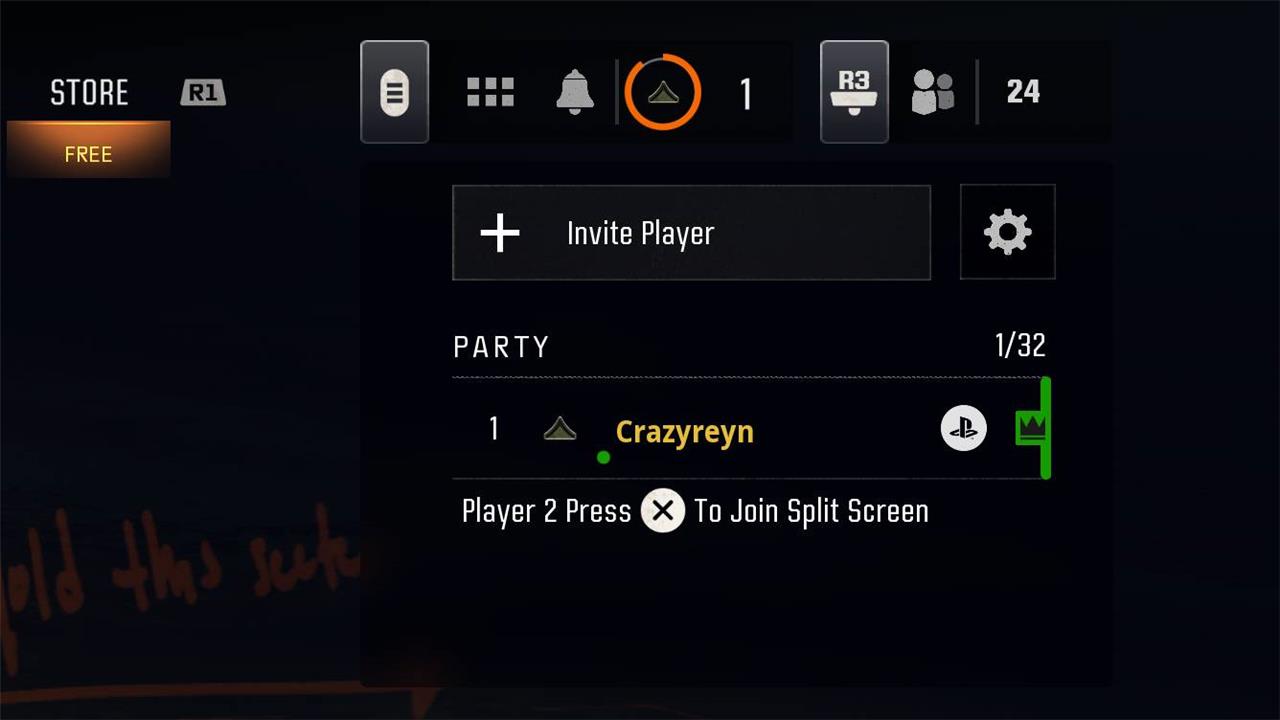
Before you try to play split-screen, make sure you meet all of the aforementioned requirements above.
From there, here’s how to play split-screen in Black Ops 6:
- Enter either “Multiplayer” or “Zombies”.
- Connect a second controller (or mouse and keyboard) and press “X” or “A” for PS5 and Xbox respectively when the prompt appears in the upper right.
- Sign into your Activision account for the second player.
- Start your multiplayer or zombies game.
If you want to play “Zombies” with just the two of you and no additional players, after signing in and selecting the desired mission type, make sure to select “Play in a Squad”, then turn off “Squad Fill”.
If any of the above is not working, as mentioned, the feature is currently prone to various issues, so attempt restarting your game to see if that helps, or try again following a future patch.
Want to learn how to set up split screen quickly on your console
To quickly set up split screen on your console, start by turning on your second controller and pressing the console’s main button (Xbox or PlayStation button). On Xbox Series X, add a new account by going to Settings > Account > Add or Switch > Add New, then create or add a guest account to sign in with the second controller. On PlayStation 5, after powering on the second controller, select “Add User,” then choose “Quick Play” for a guest account to join without creating a full account. Once both controllers are signed in, launch a split-screen compatible game, and press the indicated button (like Options on PS5 or Menu on Xbox) on the second controller to join the game session and start playing together. This process usually takes just a few minutes and works for popular games like Call of Duty, Fortnite, and Rocket League.
What are the easiest steps to start split screen on Xbox Series X
The easiest steps to start split screen on Xbox Series X are:
-
Turn on your Xbox Series X and sign in with your main account.
-
Press the Xbox button on the second controller to turn it on.
-
Press the Xbox button on the second controller again, then go to Profile & System > Add or Switch > Add New.
-
Choose to add a new account by creating a new Xbox account or select “Add Guest” for a temporary profile.
-
Follow the prompts to sign in or create the new account.
-
Make sure your Xbox Series X is set as your Home Xbox to share Game Pass and games with the second account by going to Settings > General > Personalization > My home Xbox and selecting “Make this my home Xbox.”
-
Launch a split-screen compatible game (e.g., Call of Duty, Minecraft, Rocket League).
-
Once in the game, have the second player press the Menu (Options) button on their controller to join the session.
-
Select a multiplayer or co-op mode to start playing in split-screen, with the screen automatically divided for both players.
This process allows two players to play locally on the same console with separate profiles and shared game access.
