
Want to declutter your Fortnite Locker or hide that controversial Cybertruck? Whether you want to archive your Cybertruck or stash away other items across all platforms-Mobile, Nintendo, PC, PlayStation, or Xbox-this guide reveals the simple steps to clean up your inventory without losing your prized cosmetics forever. Discover how to archive, unarchive, and manage your Fortnite items like a pro!
It’s all in response to an event on Monday, where Tesla CEO Elon Musk performed a gesture that many said looked remarkably like a Nazi salute twice while live on stage. Since then, people have been protesting Musk in all kinds of ways and Fortnite players have been discussing ways to remove the Tesla Cybertruck cosmetic item added to the game last July.
“Question, is it possible to message Epic support to remove something from your locker forever?” wrote one user in Reddit post upvoted more than 4,300 times. “After recent events I don’t even want this thing in my archives even. Looking for genuine help on the matter.”
Unfortunately for the Cybertruck-havers, the Archive feature in Fortnite doesn’t permanently delete an item from an account. It just hides it from the main Locker menu. But you can at least Archive it and forget it. So if you’re among the people who are now regretting having the Cybertruck, here’s how to Archive it (and other items) from your Fortnite Locker.
How to Archive items in Fortnite
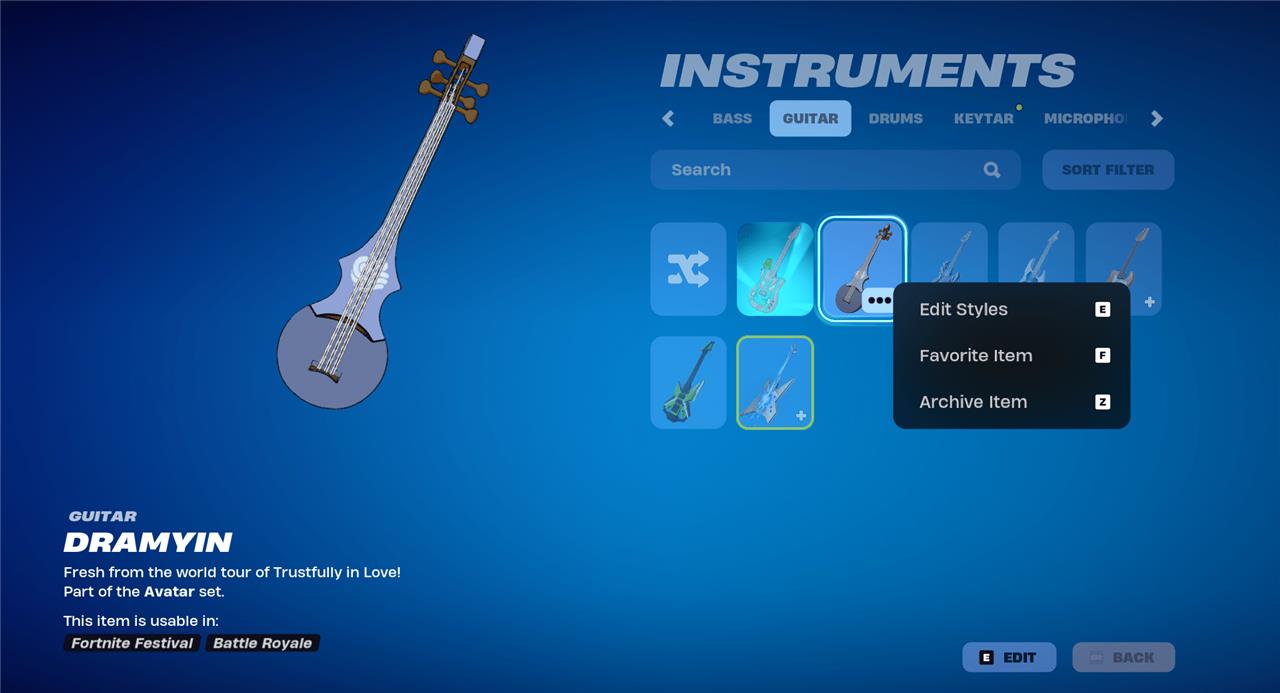
To archive items in Fortnite, first open the Locker and navigate to the cosmetic item you want to hide, such as the Cybertruck or any other skin, emote, or cosmetic. On consoles, press and hold the left stick; on PC, click the three dots (.) next to the item. Then select “Archive Item” to remove the item from your main Locker view without deleting it permanently. This feature helps you manage your Locker by hiding unwanted items while keeping them accessible if you want to unarchive them later. To unarchive, filter your Locker by “Archived,” select the item, and choose “Unarchive Item” to restore it to your main Locker.
- Launch Fortnite on your device.
- Look at the top left-hand corner of the screen and select the “Locker” option.
- From the Locker menu, navigate to the item that you would like to hide.
- Once your cursor is highlighting the correct item, pull up a submenu for it. You can do this in two ways depending on your platform. If you’re using a console, press and hold the left stick on your controller. If you’re using a PC, click the “.” button that pops up when you hover your mouse over it.
- Once you pull up the sub menu, select “Archive Item” and the item will disappear from your Locker.
Does Archiving delete items in Fortnite?
Archiving items in Fortnite does not delete them from your account; instead, it simply hides them from your main Locker view. This feature allows players to manage their Locker by temporarily removing unwanted cosmetics, such as skins or emotes, without permanently losing access to them. Archived items can be easily unarchived later if you decide to use them again, making it a useful tool for keeping your Locker organized without the risk of losing any items permanently.

Archiving an item in Fortnite does not permanently delete it from your account. It will just hide it from your main Locker menu screens. If you would like un-Archive an item, here is how to do that.
- Launch Fortnite on your device.
- Look at the top left-hand corner of the screen and select the “Locker” option.
- Within the Locker menu, navigate to the kind of cosmetic item you previously Arhived. For example, if you Archived a Guitar, go to the Guitar section within the Instruments menu.
- Select the “Sort Filter” button located near the top right-hand corner of the screen next to the search bar.
- This will pull up a menu to sort your cosmetic items. On there, scroll down to the “Filter” section and select “Archived” option. Once selected, click the “Apply” button.
- This will pull up the item(s) you previously Archived. Once your cursor is highlighting the correct item, you will need to pull up a submenu for it. You can do this in two ways depending on your platform. If you’re using a console, press and hold the left stick on your controller. If you’re using a PC, click the “.” button that pops up when you hover your mouse over it.
- Then click “Unarchive Item.” It will show up in your Locker as usual after that.
Some people online have wondered if the support team at Epic Games could remove a particular cosmetic item from their account. AELGAMES reached out to Epic Games to ask if this is a possible avenue for consumers to permanently delete items from their account, and we’ll update the article as we hear back.
How can I effectively archive my Cybertruck in Fortnite without losing access
To effectively archive your Cybertruck in Fortnite without losing access, follow these steps:
-
Open Fortnite and go to the Locker menu.
-
Locate the Cybertruck under the Cars section, specifically in the SUV/Truck category.
-
Highlight the Cybertruck and bring up the submenu:
-
On consoles, press and hold the left joystick.
-
On PC, hover over the item and click the three dots (.) button.
-
-
Select Archive Item to hide the Cybertruck from your main Locker view.
Archiving does not delete the Cybertruck from your account; it simply hides it from your active inventory, keeping your Locker uncluttered while preserving your ownership of the item.
If you want to access or use the Cybertruck again later, you can unarchive it by:
-
Going back to the Locker.
-
Navigating to the appropriate category (Cars > SUV/Truck).
-
Clicking the Sort Filter button near the search bar.
-
Selecting the Archived filter and applying it.
-
Highlighting the Cybertruck, opening the submenu, and choosing Unarchive Item.
This restores the Cybertruck to your main Locker display without any loss of ownership or progress.
How can I ensure my archived Cybertruck stays hidden from view
To ensure your archived Cybertruck stays hidden from view in Fortnite, make sure to use the Archive feature properly and apply the correct filters in your Locker:
-
After archiving the Cybertruck, it will be removed from your main Locker display.
-
To keep it hidden, avoid selecting the Archived filter in your Locker’s sorting options, as this filter reveals all archived items.
-
When browsing your Locker, use filters like Owned or All Items without including Archived to keep the Cybertruck out of sight.
-
This way, the Cybertruck remains safely archived and hidden until you choose to unarchive it.
This method effectively keeps your Cybertruck out of view without removing it from your account or losing access[Memory][Search results do not provide direct Fortnite archival details but align with general archiving principles].
