
Streaming PS5 titles on a handheld might sound like science fiction, but with a few tweaks, your Steam Deck can handle PlayStation Plus Cloud Streaming with ease. Here’s how to turn Valve’s portable PC into a gateway for Sony’s vast library of games.
A PlayStation Plus Premium subscription gets you access to a catalogue of more 400 PS4 and PS5 games, along with a few hundred more PS3 titles and about a hundred titles from the original PlayStation, the PS2, and the PSP. With your PS4, PS5, or PC, a Premium subscription lets you stream PS4 and older games through the PlayStation Plus app.
Getting the PlayStation Plus app running on your Steam Deck is not exactly easy – and it’s a lot more finicky than getting Xbox Cloud Gaming up and running. Reddit user PlanetSmasherN9 figured out the process, while folks in the comments figured out a few additional tweaks.
Our guide to installing PlayStation Plus on your Steam Deck will walk you through every step you need to follow to start streaming PlayStation games to your Steam Deck.
Switch to Desktop Mode
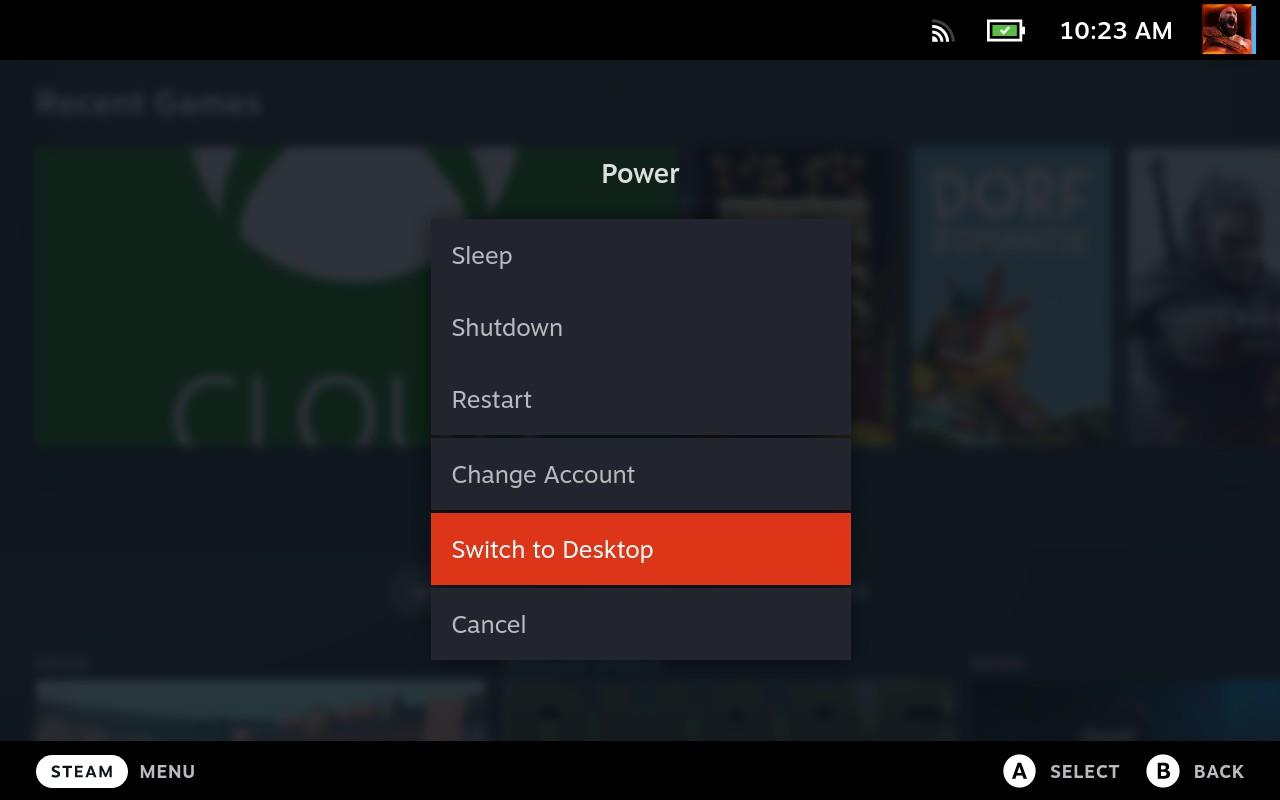
Switch your Steam Deck to Desktop Mode so you can access the full Linux interface. This allows you to use a web browser and install additional tools needed for PlayStation Plus streaming. Hold the power button, select “Switch to Desktop,” and wait for the interface to load. Once there, you’ll have the flexibility to manage settings, downloads, and browser extensions that make cloud streaming smoother.
Before anything else, you’ll need to switch over to the Steam Deck’s Desktop Mode to get at the underlying SteamOS. Hit the Steam button and scroll down to Power. In the next menu, choose Switch to Desktop Mode.
In Desktop Mode, you can use the touchscreen to interact with some things. More useful, though, is using the right trackpad to move the mouse, the right trigger to left-click, and the left trigger to right-click. Yes, the clicking is backward, but it kind of works once you get used to it.
Install Proton
Proton allows Windows-based applications and games to run on Linux systems like SteamOS. To install it, open the Steam Deck’s desktop mode, launch Steam, and enable “Steam Play” for all titles under the compatibility settings. Select the latest Proton version available, as it ensures better performance and broader support. Once activated, your Deck can run streaming tools that depend on Windows compatibility layers, paving the way for PlayStation Plus Cloud Streaming setup.
Unlike getting Xbox Cloud Gaming on the Steam Deck (which runs through a browser), Playstation Plus Cloud Steaming requires its own app – and that app is for Windows. To get around this, you’ll need to install Proton, an emulator that tricks the PS Plus app into running on Linux (the Steam Deck’s SteamOS).
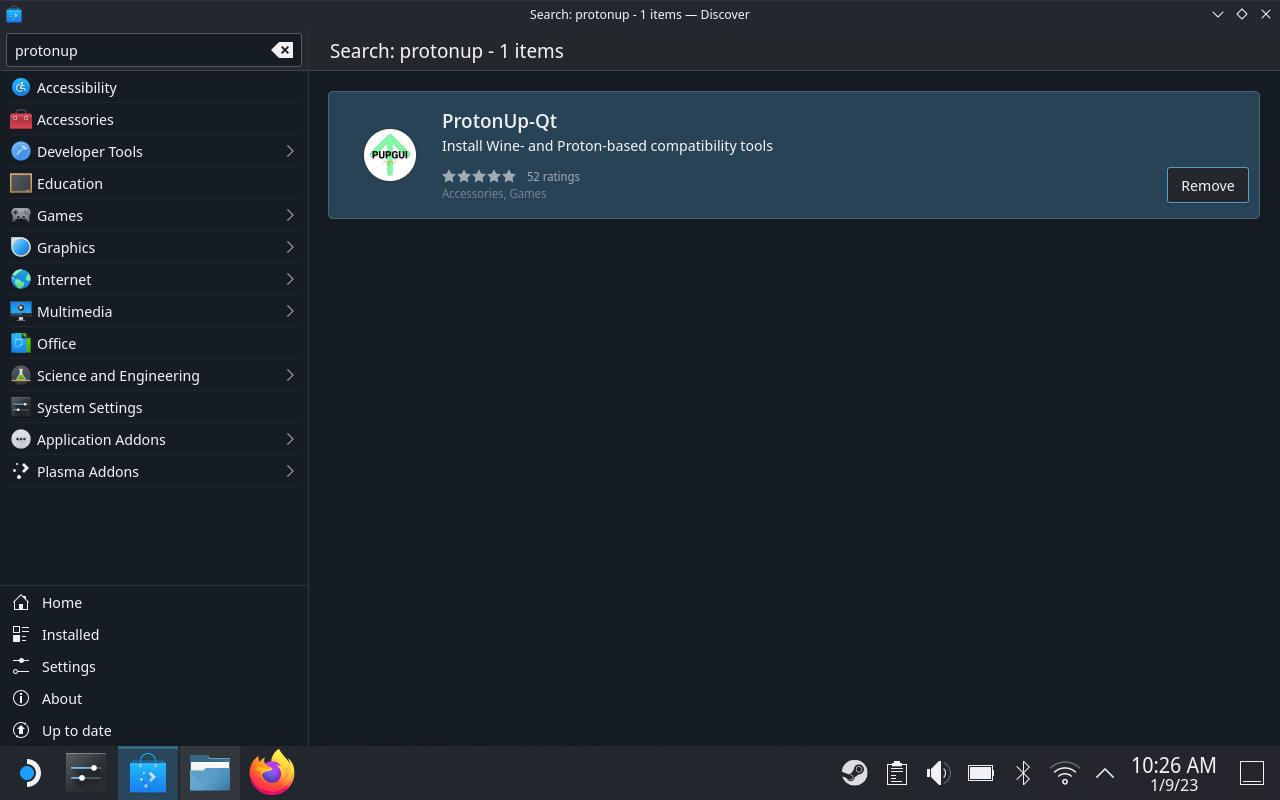
In Desktop Mode, click on Discover, the shopping bag icon on the left side of the taskbar. Hit Steam X to pull up the on-screen keyboard and type “ProtonUp” in the search bar. Click Install on ProtonUp-Qt.
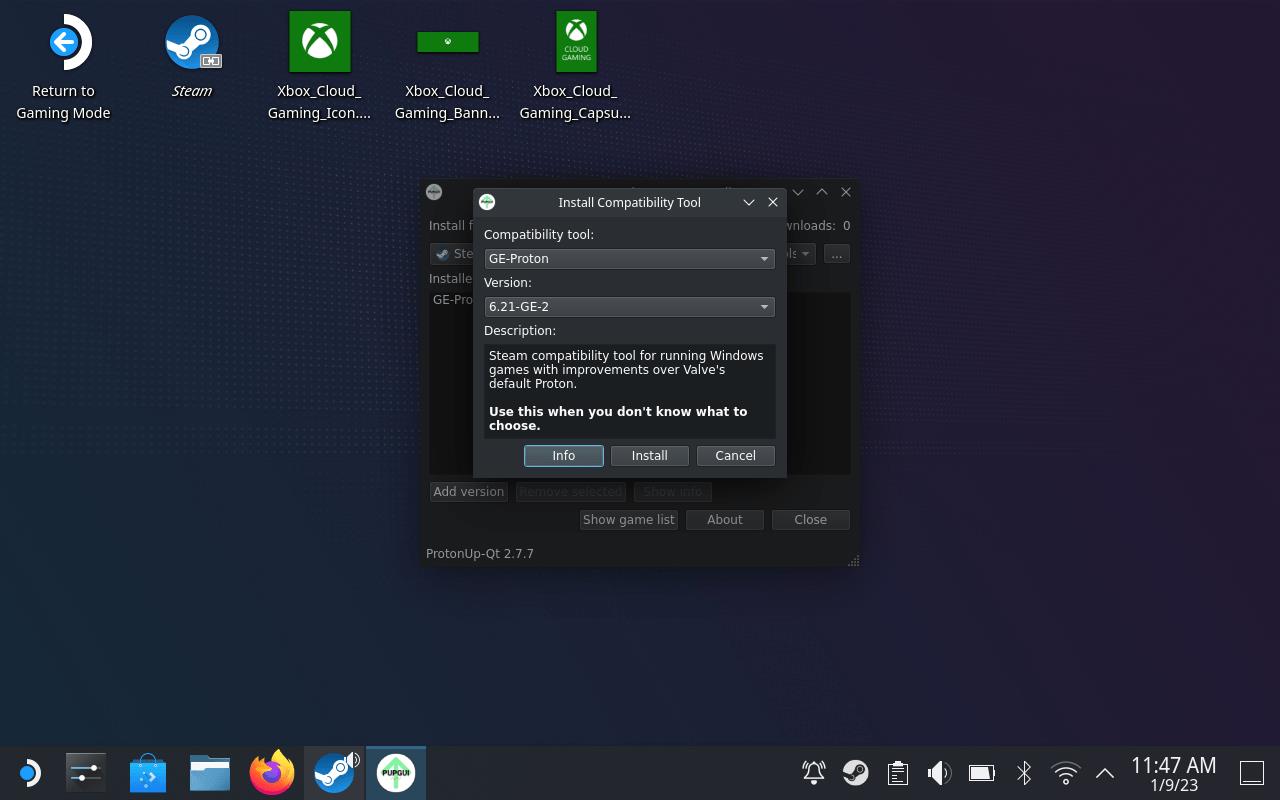
Hit the Application Launcher (the start button on the task bar), and go to Utilities to launch ProtonUP-Qt and Choose Add Version. Make sure the Compatibility Tool dropdown is set to GE-Proton, and then scroll down to choose 6.21-GE-2 from the version list. This isn’t the newest version, but it’s one patched specifically for the PlayStation Plus app (and the only one we got to work).
Once it’s installed, go to the taskbar and right-click on the Steam icon. Choose Exit, and then relaunch Steam – either with the desktop icon or by going to the Application Launcher > Games > Steam.
Install the PlayStation Plus app
Download the PlayStation Plus app from the PlayStation website or a trusted APK source and install it on your Steam Deck using Desktop Mode. Once installed, sign in with your PlayStation Network account to access your subscription. Make sure both your Steam Deck and the app are updated to the latest versions to ensure smooth performance during cloud streaming.
Open a browser from the desktop (like Firefox) and head to the Playstation Plus page. Scroll down to the Cloud Streaming section and download the Playstation Plus app – you can also just open this page in your Steam Deck’s browser and follow that link.
Don’t launch the installer, though. Instead, get ready to do some cajoling here.
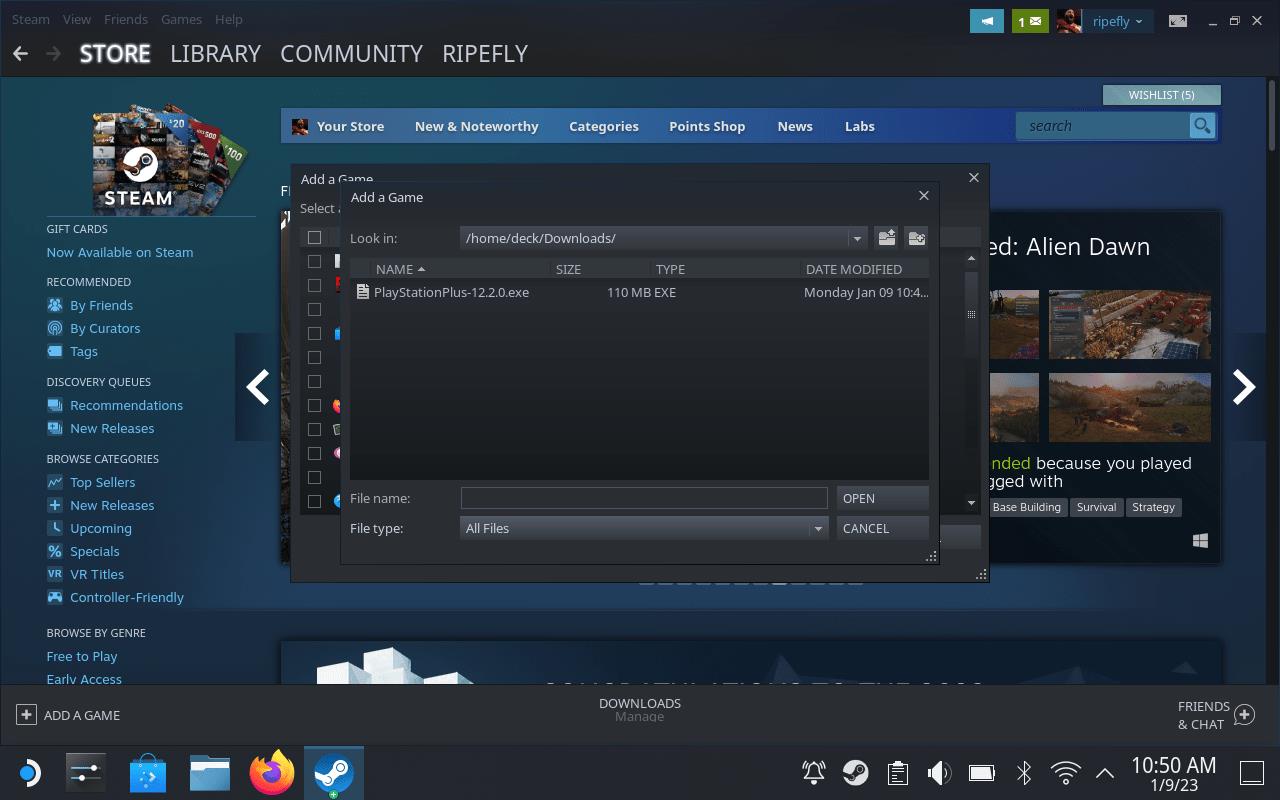
Open Steam. In the bottom left, click on Add Game > Add a Non-Steam Game. In the new window, hit Browse. Navigate to /home/deck/Downloads/ (or wherever you stored the installer) and change the file type to All Files. Pick the PlayStationPlus installer you just downloaded and hit open. Back in the first window, hit Add Selected Programs.
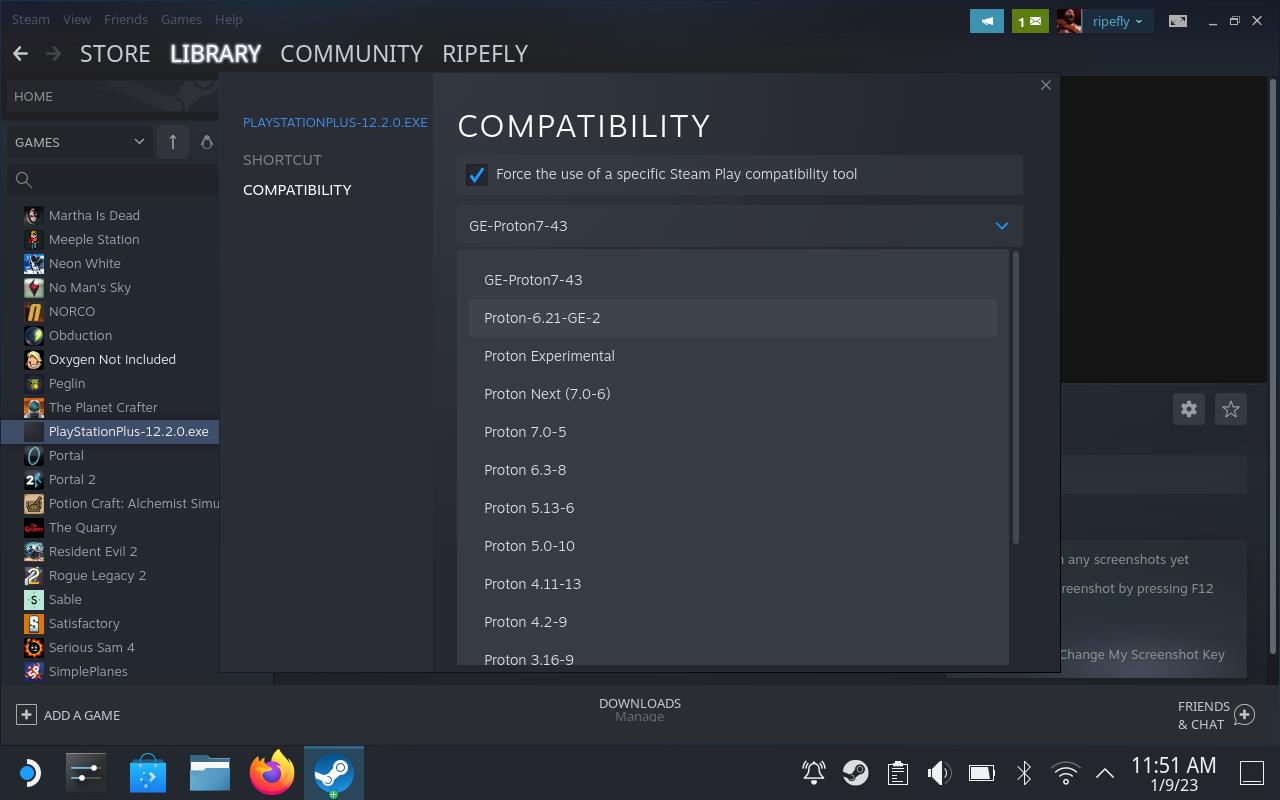
Open your Steam Library and scroll down to the new PlaystationPlus entry. Right-click on it with the left trigger and go to Properties > Compatibility. Check the box next to Force the use of a specific Steam Play compatibility tool. Select Proton-6.21-GE-2 from the dropdown.
Go back to your Steam Library and hit Play to launch the installer. Get through the PlayStation Plus Setup wizard and hit Install.
At the end, make sure you uncheck the box next to Launch PlayStation Plus.
Install a missing .dll file
If you see an error mentioning a missing .dll file while setting up PlayStation Plus Cloud Streaming on your Steam Deck, download the required file from a trusted source and place it in the directory where the program is installed. Sometimes, the missing file is related to system libraries like Visual C++ Redistributables, so installing or updating those packages through Protontricks or Steam’s compatibility tools can fix the issue. After adding the file, restart your Steam Deck and try launching the stream again to check if the error has been resolved.
This step is confusing and oddly crucial. There’s a file missing in the install that needs to be manually installed for the PlayStation Plus app to work – if it’s missing, the Plus app will launch and crash repeatedly until you freak out while desperately trying to figure out how to restart your Steam Deck. (That’s how it went for us anyway.)
First, you’ll need to get this file onto your Steam Deck. Either open this page in the Deck’s browser (Firefox) or transfer it to a microSD card. Once it’s downloaded, open the Dolphin File Manager by hitting the folder icon on the taskbar.
Right-click on file you just downloaded – it’s probably in Downloads under the Places bar on the left – and select Extract > Extract archive here. Right-click on the extracted file and choose Cut.
Now we have to find our way to the PlayStation Plus directory. Click on Home in the Places bar on the left. Over on the right side of the window, click the hamburger button to open the menu and select Show Hidden Files.
You’ll see new grayed-out folders in the Dolphin window – the ones with a . in front of their names. Drop into the folders by double-clicking on them and navigate to /.local/share/Steam/steamapps/compatdata. The folders here are just series of numbers, so you’re looking for the most recent (or only, if you’re lucky) one – that should be the Playstation Plus installer. If you need to look for it, use the hamburger button and Sort By > Modified.
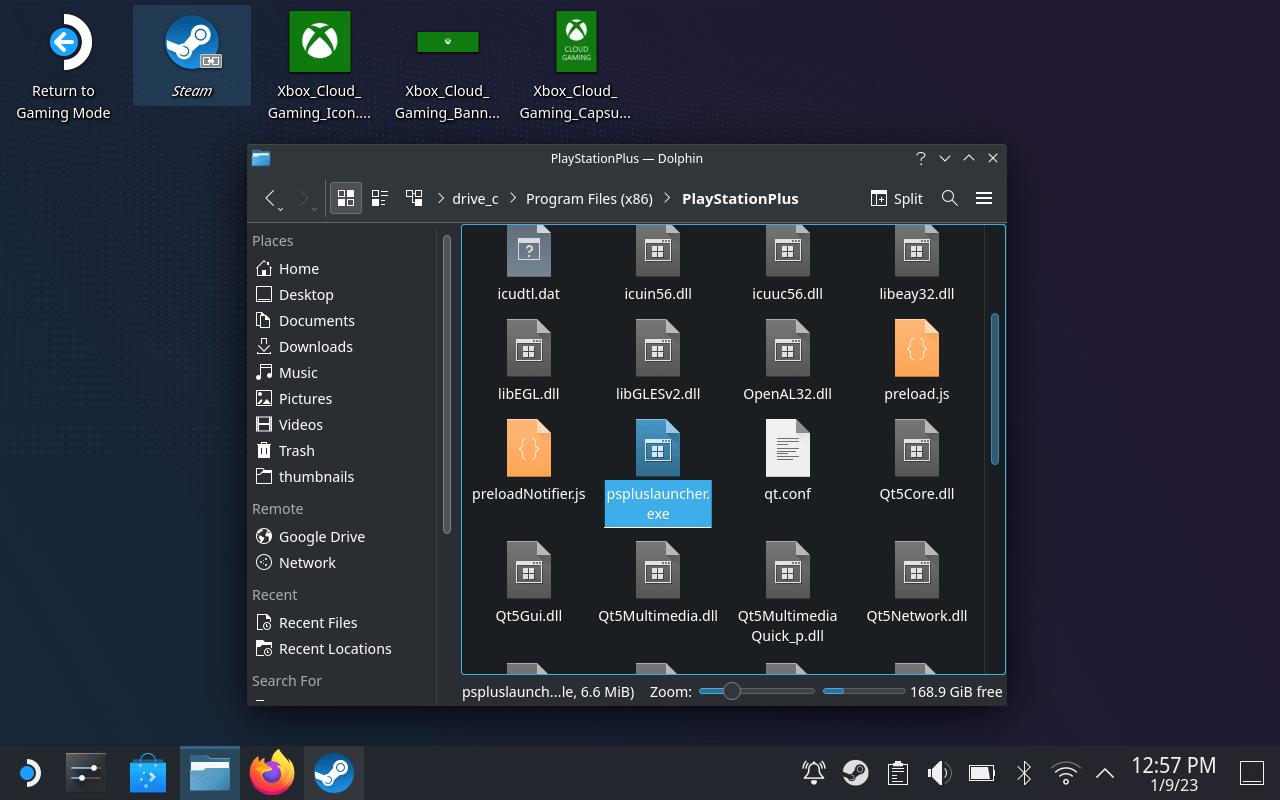
From there, you need to keep digging a little to /[series of numbers]/pfx/drive_c/Program Files (x86)/PlayStationPlus/.
When you arrive, right-click in the folder and choose Paste One File.
Copy the Playstation Plus launcher location
Find the PlayStation Plus launcher file path on your device and copy it to use later during setup. On Windows, this is usually located in the installation directory under Program Files or Program Files (x86). If you’re accessing it through desktop mode on the Steam Deck, open the file manager, navigate to that same directory, and note the full file path. You’ll need this path to add the launcher as a non-Steam shortcut in the next step.
In that same folder as above – /.local/share/Steam/steamapps/compatdata/[series of numbers]/pfx/drive_c/Program Files (x86)/PlayStationPlus/ – scroll down to pspluslauncher.exe – that’s the PlayStation Plus launcher. Right-click on it, and choose Copy Location.
Remove the unidater files
Before setting up PlayStation Plus Cloud Streaming on your Steam Deck, remove the unidater files that may cause connection issues or software conflicts. These leftover files often appear after previous installations or system updates. Open your file manager, search for “unidater,” and delete any related entries or folders. Once cleared, restart the system to ensure a clean environment for installing the new streaming setup.
Browsing the reddit for PlayStation Plus on Steam Deck, it looks like a number of people have a problem with the PlayStation Plus app wanting to – and being unable to – update. The workaround for this it to head to that same /PlayStationPlus/ folder and remove two files – unidater.exe and unidater.ini.
You can delete them or just move them somewhere else.
Edit the PlayStation Plus Library entry
Open the PlayStation Plus Library on your Steam Deck through a browser or Remote Play connection and select the game you want to stream. Check that it has the cloud streaming icon, which indicates it’s available for instant play without downloading. You can add or remove titles from the Library to organize your collection and quickly access your favorite games for streaming through PS Plus Premium.
Go back to your Steam Library (again) and right-click on the PlayStation Plus installer (again).
First, rename it to something friendlier like just PlayStationPlus.
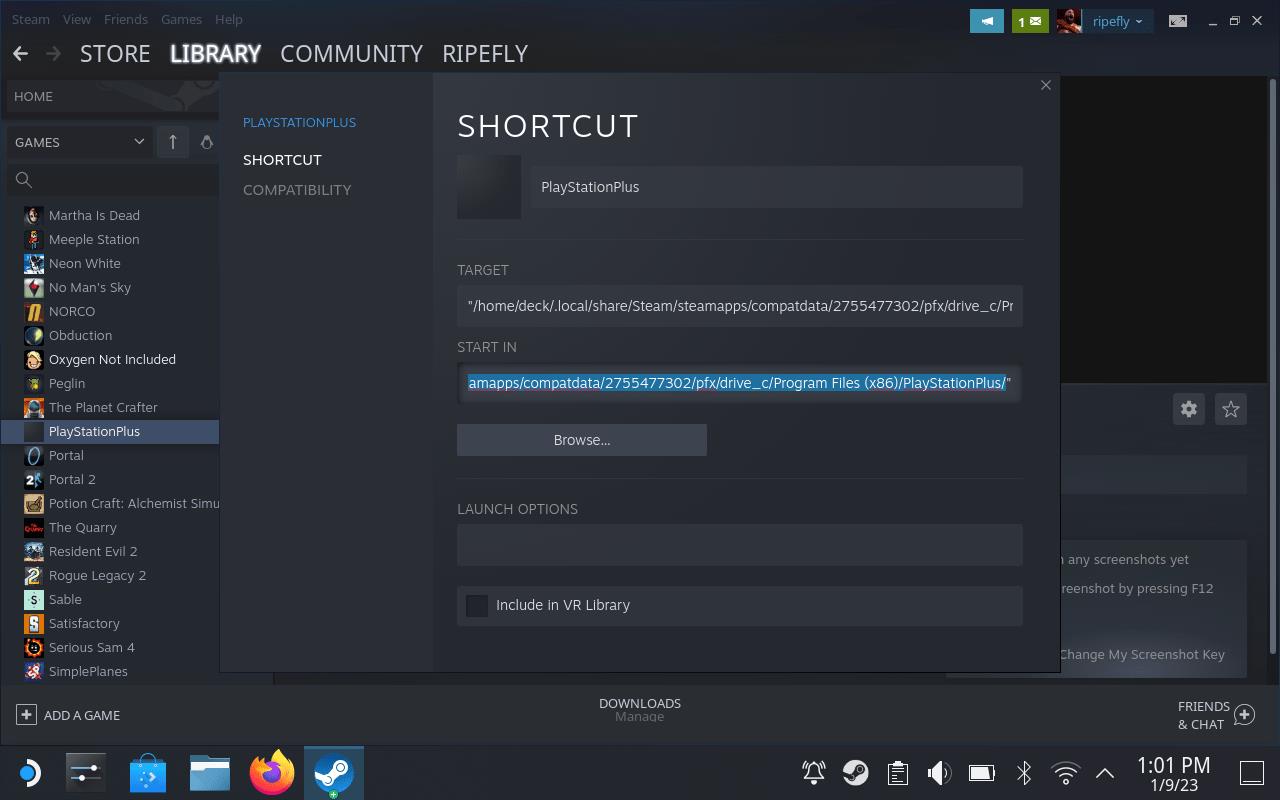
In the Target field, highlight everything except the quotes. Right-click on the highlighted text and paste in the address you just copied above.
Below that, highlight everything except the quotes in the Start In field. Right-click and paste again. Delete pspluslauncher.exe from the end – make sure the leave the quote.
Turn off Optimization
Some performance settings on the Steam Deck can interfere with streaming quality, introducing lag or stuttering. Open the Performance menu while running the streaming app and disable any active optimization features, such as frame rate limits, TDP adjustments, or GPU scaling. This ensures the app can use as many system resources as it needs for smooth playback and maintains a stable connection during PlayStation Plus Cloud Streaming.
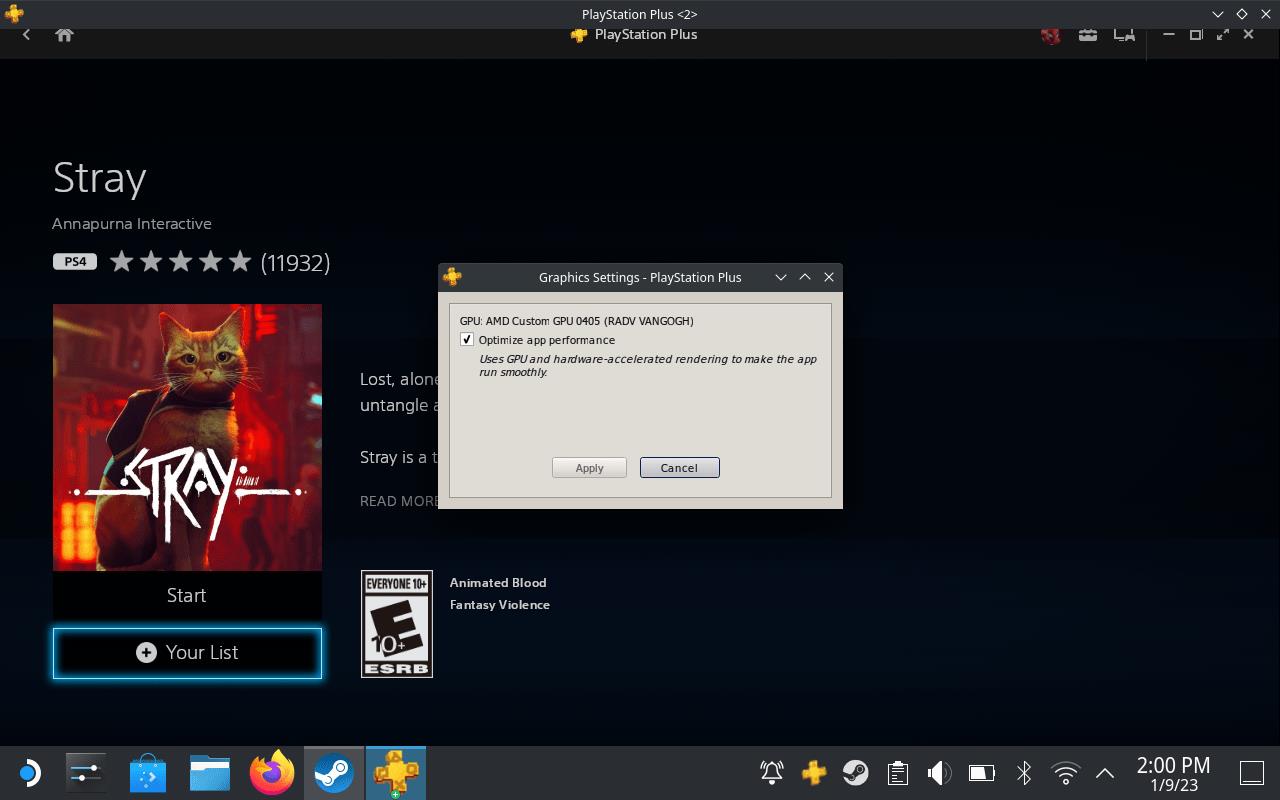
Stay in Desktop mode and launch the PlayStationPlus entry in your Steam Library. Once it’s launched, right-click on the PlayStation Plus icon in the taskbar – the one over to the right. Chose Graphics Options and then uncheck the box next to Optimize app performance.
Once that’s done, close the window and Stop the program through Steam.
Switch back to Gaming Mode
After finishing setup, switch your Steam Deck back to Gaming Mode from the desktop view. Press the Steam button, select “Power,” and choose “Switch to Gaming Mode.” Once the interface reloads, open your browser or a shortcut pointing to PlayStation Plus Cloud Streaming. You can now stream your PlayStation games directly within the Steam Deck’s familiar interface, using your connected DualSense or another compatible controller.
Get back to the desktop and double-click on the Return to Gaming Mode icon.
Launch PlayStation Plus and switch to Controller Mode
After installing the PlayStation Plus app through your chosen method, launch it on your Steam Deck. Once it starts, press the Steam button, go to the controller settings, and switch to Controller Mode to ensure Steam Deck inputs act like a PlayStation controller. This setup gives you smooth navigation through menus and proper control during gameplay, matching the experience you’d have on a console.
You’ll find your new PlayStation Plus app in the Non-Steam Games tab of your Library. The first time you launch it, you’ll have to sign into your account.
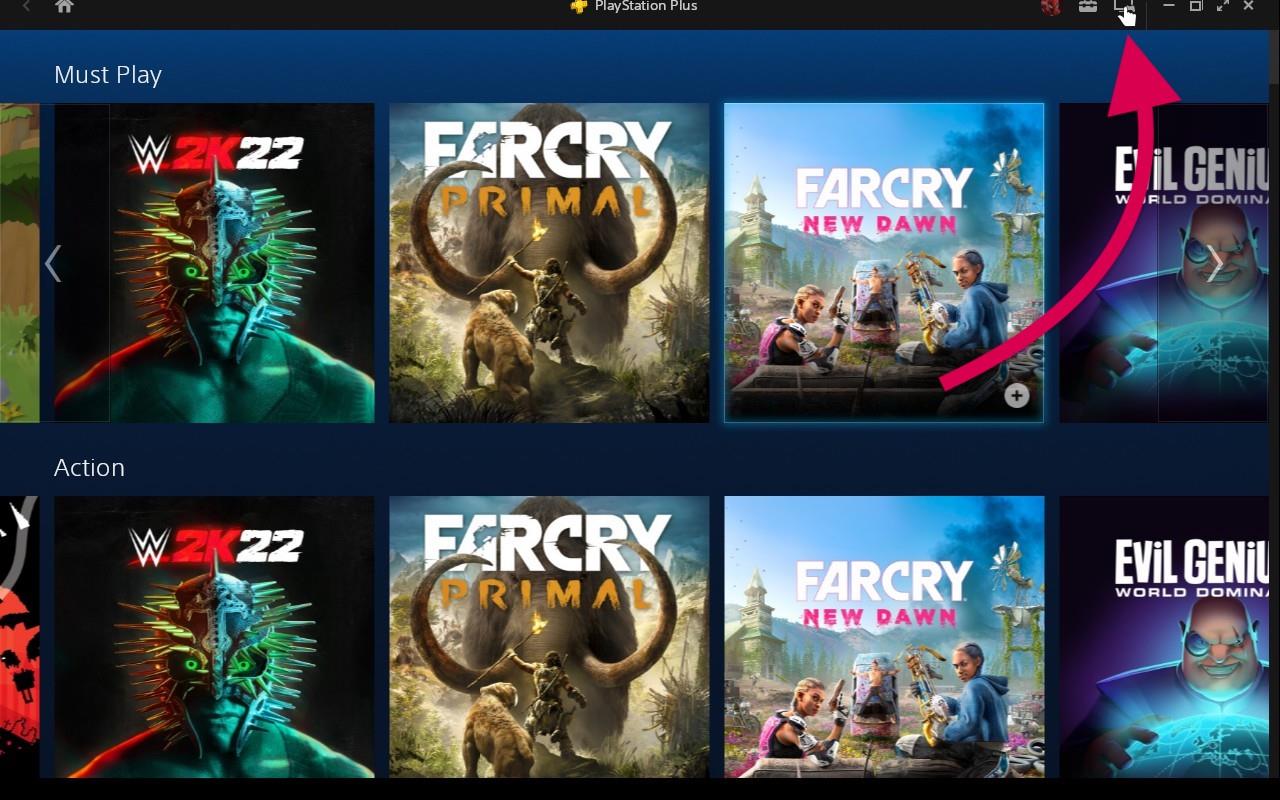
Once everything’s up and running, look for the Controller Mode button along the top of the screen – it’s the one that looks like a monitor and controller. You need to press that, but there doesn’t seem to be any way to do it with the Steam Deck’s buttons. (We tested it by remapping everything, to no avail.) Instead, use the touchscreen and your finger. In our experience, this takes a few tries and some stabbing.
If you can’t get it, try hitting the Steam button to open the menu and then hit it again to close the menu. At that point, try the finger mashing again. You’ll know you got it when the screen reloads and you get a pop-up saying you’ve switched over.
When you’re finally in Controller Mode, you’ll be able to use the D-pad to navigate and the A button launch games.
Some big caveats
Getting PlayStation Plus Cloud Streaming running on the Steam Deck isn’t straightforward, and there are a few things to be aware of before trying it. The feature is limited to certain regions, and you’ll need a Premium PlayStation Plus subscription to access it. Performance depends heavily on your internet connection and latency, so a stable, high-speed network is key for smooth gameplay. Some users also report occasional compatibility issues with SteamOS updates or controller mapping, so expect to spend some time tweaking settings to keep everything running properly.
You’ll need to use the touchscreen and hit the maximize button once your game launches. Otherwise, you’ll have that menu bar at the top the whole time.
Similarly, to close a game, you’ll need to tap the touchscreen (with your finger) once to pull up that menu bar, and then hit the close button.
You’ll also need to remember the layout of the PlayStation controller – the buttons don’t match, so the onscreen prompts won’t show the Steam Deck’s buttons. The buttons work like you’d expect, though, with one big exception.
What PlayStation Plus Premium games are available for cloud streaming
PlayStation does not publish one simple, static list of “all” cloud-streamable games for PlayStation Plus Premium, and the catalog changes frequently as titles are added and removed. Instead, there are a few key categories of games that can be streamed and an official way to see the current list on your own device.
What types of games you can stream
With PlayStation Plus Premium, you can cloud stream:
-
Many PS5 games you own digitally from your library (look for a “Stream” option on the game tile).
-
Many PS5 games in the PlayStation Plus Game Catalog (Extra/Premium) that are marked as streamable.
-
Many PS4 and “Classics Catalog” titles that have cloud streaming enabled.
Because new games are added monthly and some expire, any static list you see online will go out of date quickly.
How to see the current streamable games list
The only accurate way to see what’s available at any given moment is:
-
On a PS5 or PlayStation Portal:
-
Open the PlayStation Plus section.
-
Browse the Game Catalog and your library, and look for a “Stream” button on a game’s page.
-
Sony also exposes a “Cloud Streaming Game Finder”/filter in the PS Plus interface in some regions, which lets you filter to only titles that support streaming.
-
-
On the web:
-
Go to the official PlayStation Plus games catalog page for your region (the same site where Sony lists “Game Catalog” and “Classics Catalog”).
-
Use any “Cloud Streaming” or “Streaming” filters if available to narrow to streamable games.
-
Examples of games commonly available for streaming
These are examples (not a complete list) that have been highlighted by Sony or community lists as cloud-streamable with PS Plus Premium at various points:
-
First-party / big Sony titles: God of War Ragnarök, Ghost of Tsushima, The Last of Us Part I and Part II Remastered, Horizon Forbidden West.
-
Third-party AAA: Cyberpunk 2077, Hogwarts Legacy, Final Fantasy VII Remake / Rebirth, Resident Evil 4, Baldur’s Gate 3.
-
Live-service / popular online titles: Fortnite, Destiny 2, some large shooters and co-op games.
Exactly which of these are currently marked “Stream” for you may vary by region and over time.
If you tell me your region (e.g., US, EU, etc.) and whether you’re using PS5, PS Portal, or PC/other, I can walk you through the exact steps and filters on the interface you have so you can see the up-to-date cloud-streamable list yourself.
How to start cloud streaming PS Plus Premium games on PS5
On PS5, cloud streaming is built into the normal PS Plus menus, so once you’ve set up Premium it’s just a matter of picking a game and choosing “Stream” instead of downloading.
1. Check you meet the requirements
-
Make sure you’re signed into the adult PSN account that has an active PlayStation Plus Premium subscription.
-
Confirm your internet is at least around 5 Mbps up and down (more like 15-25 Mbps or better is recommended for 1080p and stability).
-
Update your PS5 system software to the latest version.
2. Turn on and sign in on your PS5
-
Power on your PS5 and sign into your main account.
-
From the top of the home screen, make sure you see the PlayStation Plus tile; if not, scroll to find it.
-
If prompted, confirm your PS Plus Premium status or upgrade.
3. Open the PS Plus Game Catalog
-
From the PS5 home screen, go to “PlayStation Plus.”
-
Go to the “Game Catalog” (and “Classics Catalog” if you want older titles).
-
You can also browse your own Library: some PS5/PS4 games you own digitally will also support cloud streaming.
4. Find games that support cloud streaming
-
In the Game Catalog or your Library, open a game’s product page.
-
Look for a “Stream” button (usually with the PS Plus cloud icon) alongside the usual “Download” or “Add to Library” options.
-
Some regions have a “Cloud Streaming” or similar filter in the PS Plus area that shows only stream-eligible titles.
5. Start streaming a game
-
Highlight the game you want, open its page, and select “Stream” (or “Play via Streaming”) instead of downloading.
-
The PS5 will test your connection briefly, then launch the game from the cloud.
-
Your saves for streamed PS Plus games are stored in the cloud, so you can pick up where you left off later without manual uploads.
6. Adjust quality and connection if needed
-
If the stream feels laggy or blurry, switch to a wired Ethernet connection or move closer to your router on 5 GHz Wi-Fi.
-
In the PS5 settings, under “Network” and “Screen and Video,” you can tweak resolution and performance-related options to favor stability.
-
Avoid other heavy downloads/streams on your network while playing.
7. Quick recap (what you actually do)
-
Make sure you have PS Plus Premium and a decent connection.
-
On PS5, open PlayStation Plus → Game Catalog.
-
Pick a supported game and press “Stream” instead of “Download.”
If you tell me your region and whether you mainly want PS5 blockbusters or classics, I can suggest where to look first and what streaming quality settings to try.
