
Struggling to get your starship battle-ready in Starfield? The key to unleashing devastating firepower lies in mastering weapon groups – but assigning them can be tricky without guidance. Whether you’re on PC or Xbox, our concise guide will show you exactly how to assign your ship’s weapons to groups, fix those frustrating “Unassigned Weapon” errors, and dominate the cosmos with ease.
Our Starfield guide to weapon groups and assigning weapons will show you how to assign a weapon to a group – and teach you how to fix any errors that pop up.
If you’re after more ship essentials, we run through how to dock your ship at a space station.
What are weapon assignments and groups?
Weapon assignments and groups in Starfield refer to the process of mapping your spaceship’s weapons to specific firing buttons or hotkeys. This system allows you to organize your ship’s armaments into groups, enabling you to control and fire sets of weapons efficiently during combat. Assigning weapons to groups is essential because the game requires each weapon to be assigned to a group to avoid errors like “Unassigned Weapon” during ship building. Additionally, only weapons of the same type can be grouped together, and you cannot assign the same weapon to multiple groups. This system helps optimize your ship’s combat capabilities by allowing quick switching between weapon sets with a single button press.
Basically, a weapon assignment – and assigning weapons to groups – just means mapping your ship’s weapons to the buttons that fire them. The most common way you’ll learn about this is when there’s an error in the Ship Builder’s Flight Check.

Just like the other aspects of building a custom spaceship in the Ship Builder, there are a couple restrictions on arming your spaceship. First, your ship technically doesn’t have to have any weapons. But once you start adding them, they have to be assigned to a group.
But you can’t just keep adding guns. You’re limited to only three types of weapons – like lasers, cannons, and missile launchers. Type is basically the name of the weapon – two different brands of laser, for example, counts as two types. You can have as many instances of each type as you can fit on your ship, but you’re limited to three types.
How to fix weapon assignment
To fix the weapon assignment issue in Starfield, first open the Shipbuilding menu and add your desired weapons to your ship. If you encounter an “Unassigned Weapon” error, enter the Flight Check mode by pressing the C key on PC or the corresponding button on Xbox. Then, navigate to the Weapons tab within Flight Check, where you will see a list of unassigned weapons. Simply click on each unassigned weapon and assign it to one of the available weapon groups. Remember, you can only assign up to three different weapon types, such as lasers, cannons, or missile launchers, and weapons of the same type must be grouped together. Once all weapons are assigned to groups, the error will disappear, allowing you to proceed with your ship modifications smoothly.
When you add or remove weapons in the Ship Builder, the Flight Check might throw an error about unassigned weapons or missing weapon assignment. This means that your ship has weapons that aren’t mapped to a button or key.

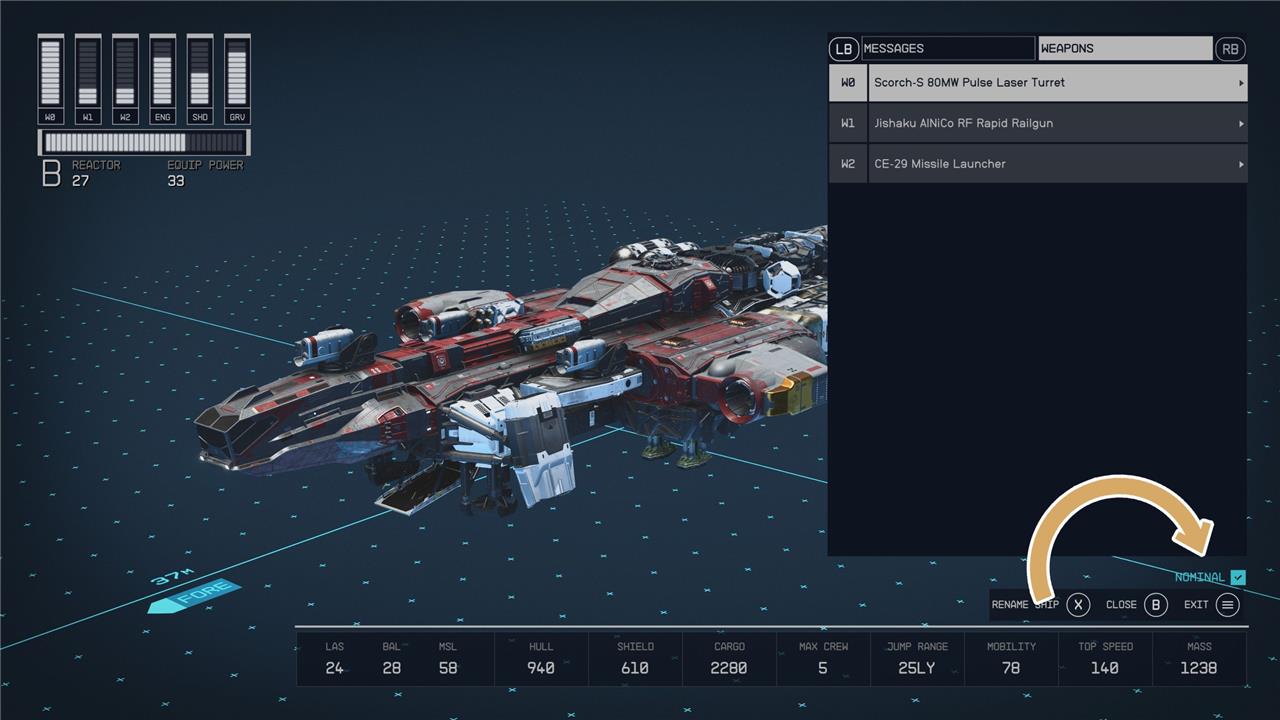
To fix this, open the Flight Check menu and tab over to the Weapons tab. Here, you’ll see a list of the three weapon groups – W0, W1, and W2 – your ship can have. On consoles, these map to left trigger, right trigger, and the Y button respectively.
Each group entry is a dropdown that lists the types of weapons you have attached to your ship. You’ll need to assign as many weapon groups (buttons) as you have types of weapons by pressing the A button (on Xbox) over what you want to assign.
Want to learn the secret to quick weapon switching in Starfield
To quickly switch weapons in Starfield, you need to use the quickslot system by first “favoriting” your preferred weapons in the inventory. On PC, hover over a weapon and press B; on Xbox, press Y to favorite it. Once favorited, press Q on PC or the D-Pad on Xbox to open the quickslot menu and select your weapon instantly without opening the full inventory. This allows seamless weapon swapping during combat, enhancing your gameplay efficiency.
How do I favorite weapons for quick switching in Starfield
To favorite weapons for quick switching in Starfield, open your inventory (press “I” on PC or the Menu button on Xbox), navigate to the weapons tab, and highlight the weapon you want to add. Then press B on PC or Y on Xbox to add it to your favorites wheel, which places a heart icon next to the weapon and assigns it to a quick slot.
Once weapons are favorited, you can quickly switch between them by pressing Q on PC or using the D-pad on Xbox to bring up the weapon wheel, then selecting the desired weapon. You can also press the number keys (0-9) on PC to directly switch to a favorite weapon without opening the wheel. This system allows fast weapon swapping in combat without opening the full inventory.
