
Steam Deck owners know storage runs dry fast. A SanDisk microSD card changes that-here’s how to install and format it right.
Luckily, the Steam Deck comes with a slot for a microSD card to expand your storage options. Our Steam Deck microSD card guide will walk you through how you can format an SD card and how you can pick out a size, alongside an explanation of various speed classifications.
Why use a microSD card with your Steam Deck?
A microSD card expands your Steam Deck’s storage, giving you plenty of room for large games, updates, and media without deleting older titles. It’s an affordable way to boost capacity beyond the built-in drive and keeps game load times quick when using a high-speed card. This flexibility lets you organize your library better-installing frequently played games internally while storing others on the SD card for easy access.
Quite simply, a microSD card expands the storage of your Steam Deck as another place to store your downloaded games. With a bit of work, you could store your screenshots on it as well if you really wanted to.
How to format a microSD card on the Steam Deck
Insert the microSD card into the slot at the bottom of the Steam Deck, then press the Steam button and open Settings. Go to System, scroll down to Format SD Card, and select it. The device will prepare the card for use by erasing its current data and configuring it with the correct file system. Wait until the process finishes and the status changes to indicate the card is ready. Once formatted, it will appear as available storage for games and downloads.
The Steam Deck wants a microSD card in the ext4 format – a Linux format, which makes sense, since SteamOS runs on Linux.
The fastest way to get it formatted for you Steam Deck is to use the Steam Deck itself to format the card. Plug the microSD card into the slot on the bottom of the Deck – it’s on the bottom below the lower right corner of the screen. The card goes in face up. You might have to use a fingernail to get it to click into place.
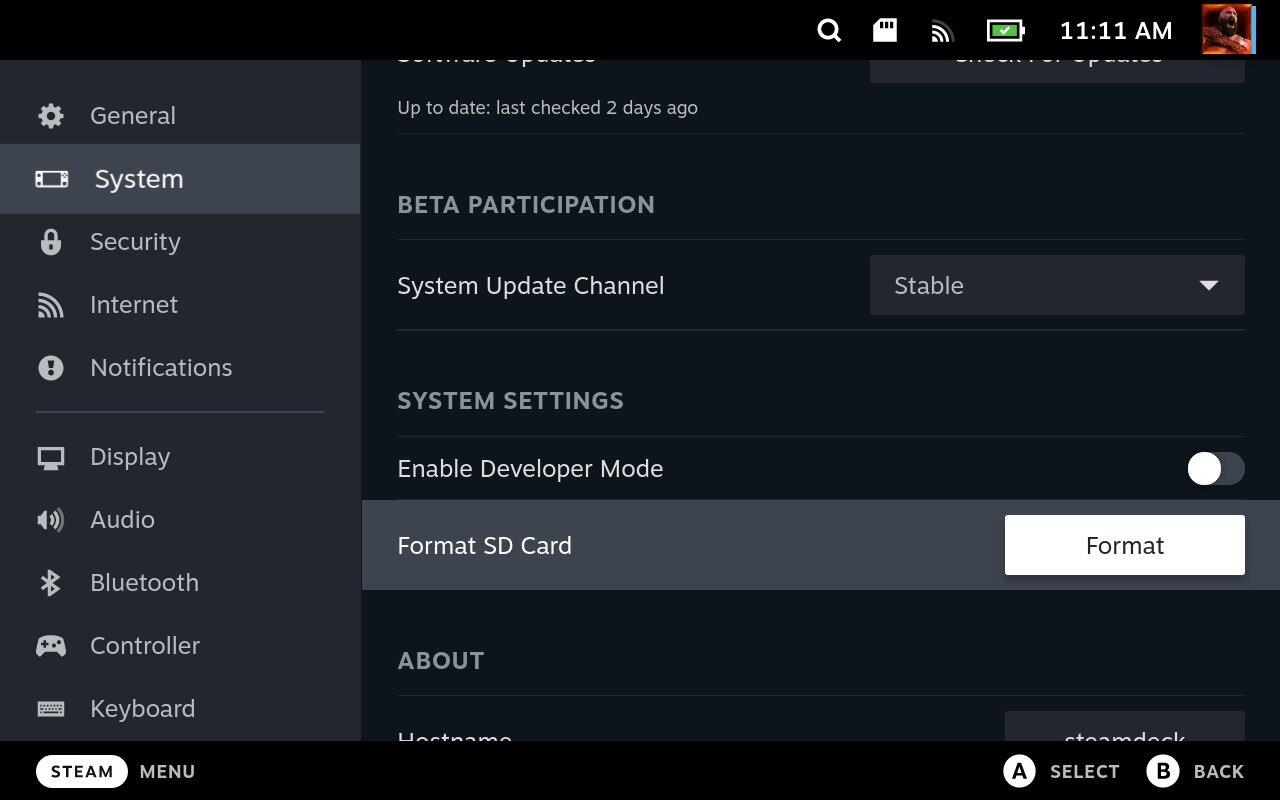
Hit the Steam button, go to Settings > System and then scroll down to System Settings. Under Format SD Card, hit Format. Formatting will erase the card and you’ll get a warning saying as much. After a few minutes, your card will be good to go.
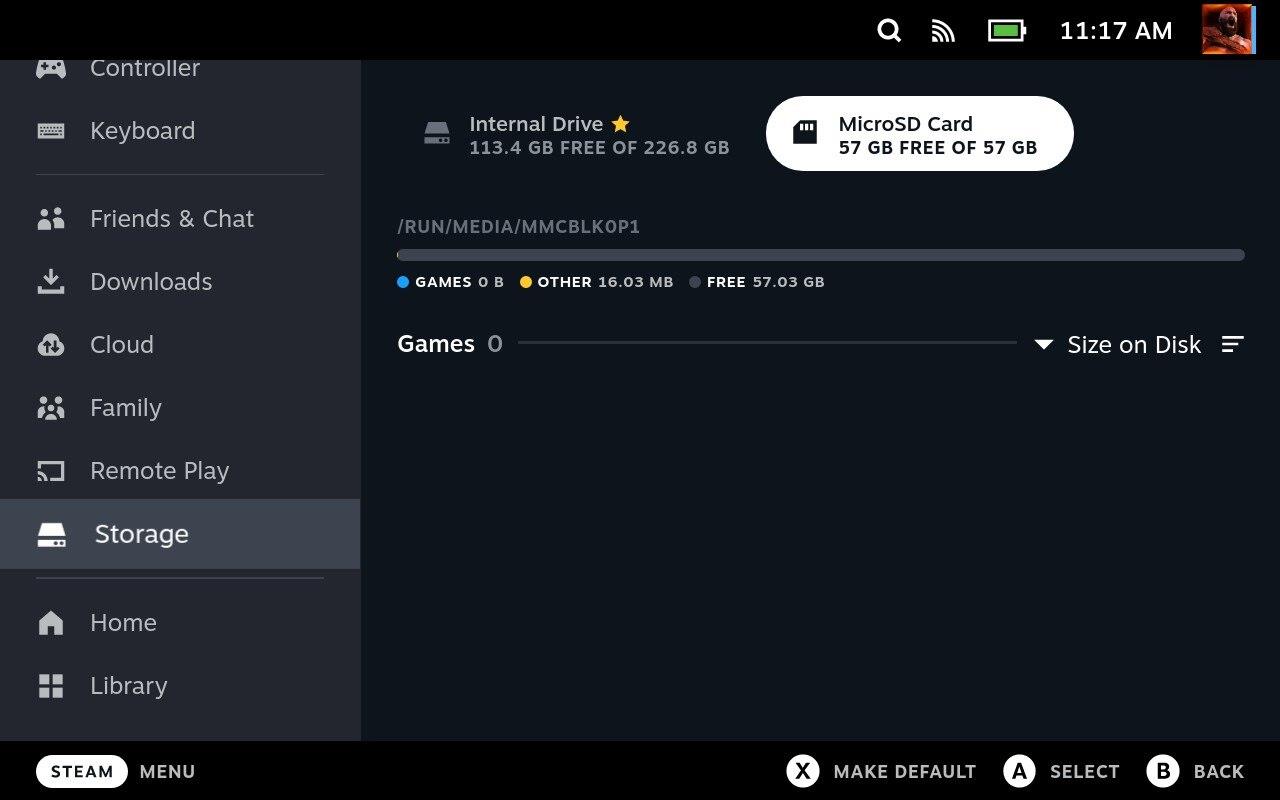
To set microSD card as the default storage, go to Settings again and scroll down to Storage. At the top, you’ll see your Internal Drive and the new MicroSD Card. If this is the first time you’ve used an SD card, you’ll have to move over to highlight the Internal Storage and hit X to Make Default and set the default storage. Then you can move over to MicroSD Card and Make Default on that one.
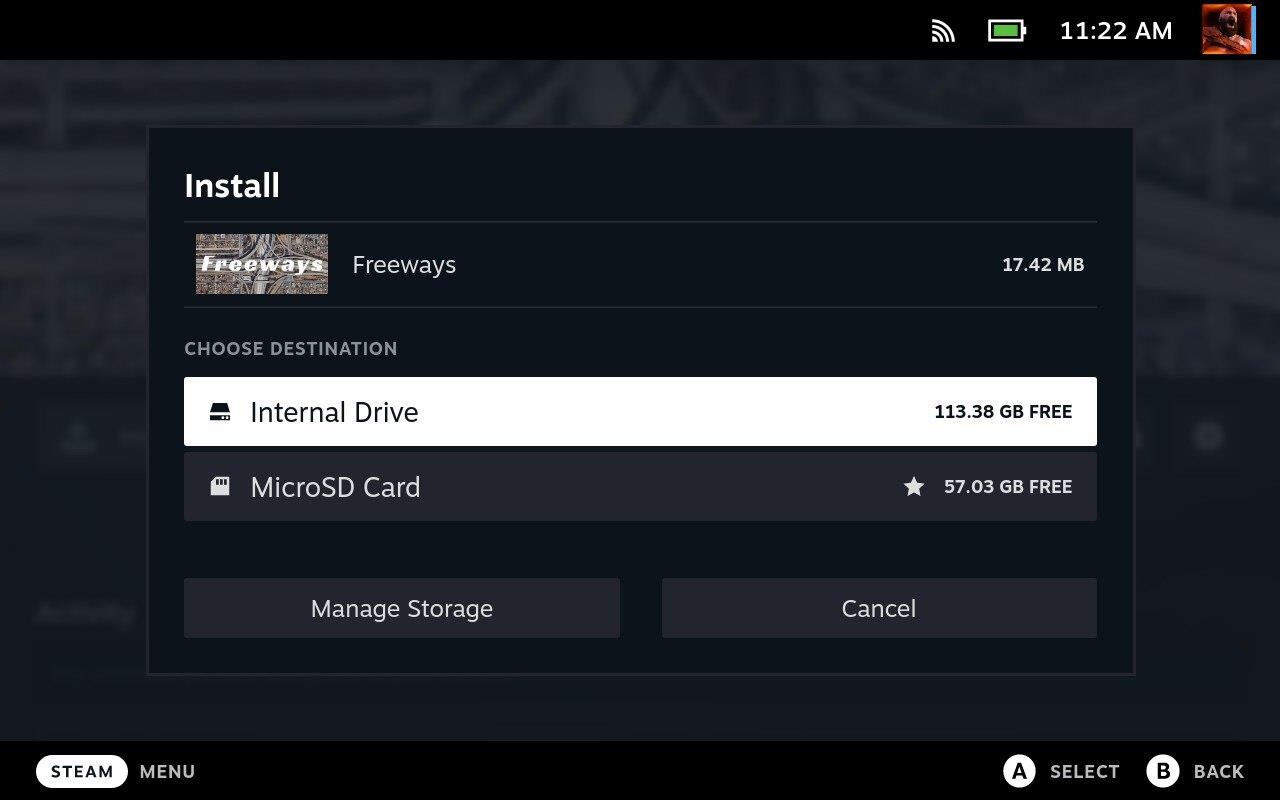
Regardless of whether or not you’ve set it as default, the next time you Install a game, you’ll get the option of saving it to the Internal Drive or the MicroSD Card.
What’s the best microSD card for the Steam Deck?
For the Steam Deck, the SanDisk Extreme 1TB microSDXC card stands out with read speeds up to 190MB/s and write speeds up to 130MB/s, matching the device’s UHS-I interface without wasting money on faster A2-rated options. It handles large game libraries smoothly, resists water, shock, and X-rays for travel durability, and costs around $80. Users report reliable performance after formatting to ext4, making it a solid pick over cheaper cards that stutter during transfers.
The short answer here is: the biggest storage size you want to spend the money on. As you’d expect, bigger storage sizes cost more.
They’ll vary a little in their data transfer (and read and write) speeds – we’ll talk more about that below, if you’re really interested.
As the price of microSD cards continues to drop, you’ll have a lot of options here with everything from two 32GB cards for under $10 all the way up to a 1TB card for about $175. The main criteria here are what you want to spend and how big the games you want to store are.
As some quick examples from Amazon, here is a selection of the microSD cards you can find:
- 32GB: $7.99 – Micro Center 32GB microSDHC (2-pack)
- 64GB: $9.69 – SanDisk 64GB microSDHC
- 128GB: $13.93 – Amazon Basics 128GB microSDXC
- 256GB: $26.32 – SanDisk 256GB microSDXC
- 512GB: $59.99 – SanDisk 512GB microSDXC
- 1TB: $176.15 – SanDisk 1TB Extreme microSDXC
What microSD cards can Steam Deck use?
Steam Deck supports microSD, microSDHC, and microSDXC cards, allowing a wide range of capacities up to 1TB or more. For the best performance, use a UHS-I card with high read and write speeds, such as SanDisk Extreme or Samsung EVO models. The Deck’s microSD slot supports cards formatted in exFAT or ext4, depending on your setup, making it simple to expand storage for games and media without affecting system performance.
The Steam Deck supports SD, SDXC and SDHC microSD cards. Those letters after SD represent the storage size – a regular old microSD card stores up to 2GB, microSDHC (High Capacity) cards hold up to 32GB, and microSDXC (Extended Capacity) cards hold over 64GB. Even if the listing doesn’t say XC or HD, it’ll probably be stamped on the card itself as a logo. And, realistically, if you’re looking to meaningfully expand your Steam Deck’s storage, it’ll be an XC.
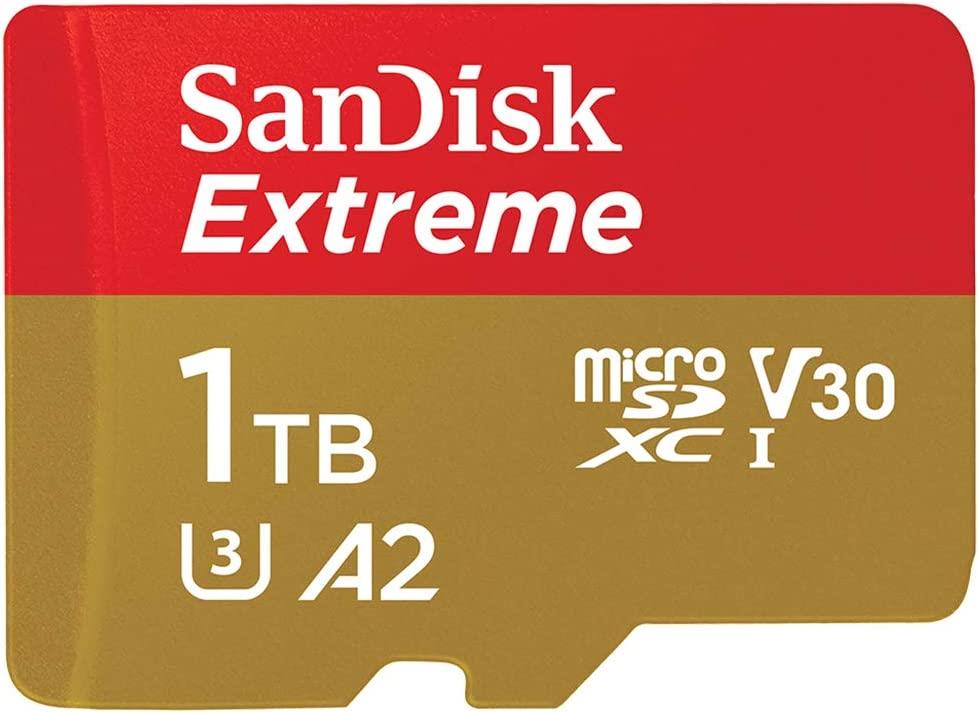
Any microSD card you find is going to have some combination of a bunch of other gibberish numbers and letters stamped on it as well. There are Roman numerals, As, Cs, Us, or Vs next to various numbers. These all indicate the speed standards that card follows. The standards involve words like “bus” and “non-fragmented” and “sequential.” They’re all generally about data speeds, though, and bigger numbers are better.
Nothing about the classifications are mutually exclusive – they’re just different ways of measuring data speed. Generally speaking, the microSD cards for Steam Decks that you’re looking for will have classifications like either A1 or A2 (A2 is better), C10, or U1 or U3 (U3 is better), and those are all (super roughly) equivalent for your purposes.
Cards with a V number (the V is for video) will have the (roughly) highest speeds – that standard is for reading and writing 4K video – but they’re also going to be the most expensive. V30 seems to be the most readily available, but you may also find V60 or V90.
If you’re lucky, it might also simply list the speed (or indicate it in the listing). That’s, you know, the speed – probably between 100 and 160MB per second. Yes, faster is better, but you’re probably not going to notice much difference.
The Roman numeral is the only one that is limited on a Steam Deck. The Roman numeral – I, II, or III – indicates the card’s Ultra High Speed (UHS) spec. This is another speed-related classification, but UHS-II and -III also have a different physical layout with a second row of pins on the back. UHS-II and -III are backward-compatible, but that means you’ll be limited by the speed of what you plug it into. All of which is to say that anything over UHS-I will be limited by the Steam Deck itself which maxes out at 170MB/s (or, occasionally, 180MB/s).
What to do if Format SD Card is greyed out or fails
If the “Format SD Card” option is greyed out or fails on your Steam Deck, it often stems from detection issues, power problems, or card errors. Common fixes involve basic checks and switching to Desktop Mode for manual handling.
Quick Checks
-
Power cycle the Steam Deck fully (hold power button 10+ seconds to shut down, then restart) and reinsert the SD card firmly-ensure it’s seated correctly with contacts facing up.
-
Verify the device is plugged in and charging sufficiently, as low power can disable formatting.
-
Test the card in another device (like a PC) to rule out damage; if faulty, repair bad sectors using tools like CHKDSK or Disk Utility first.
Desktop Mode Fix
Switch to Desktop Mode via Steam button > Power > Switch to Desktop.
-
Open Konsole (terminal) and run lsblk to identify the SD card (e.g., /dev/mmcblk0p1).
-
Format manually: sudo mkfs.ext4 -O casefold /dev/sdX1 (replace sdX1 with your device; warning: erases data).[ from prior]
-
Or use KDE Partition Manager (install if needed via Discover): Delete partitions, create new GPT table, and format to ext4.
PC-Based Alternative
On a Windows/Linux PC, use tools like EaseUS Partition Master, GParted, or DiskPart to format to ext4/FAT32 first (diskpart > select disk X > clean > create primary > format fs=ext4).
Reinsert into Steam Deck afterward; this bypasses native issues with SanDisk or incompatible cards.
When to Replace
If persistent, the card may have bad sectors or be incompatible-opt for UHS-I SanDisk models. Contact Steam support if hardware-related.
How to recover data from unreadable Steam Deck SD card
Recovering data from an unreadable Steam Deck SD card requires careful steps to avoid overwriting files, often using a PC or the Deck’s Desktop Mode. Prioritize non-destructive methods like repair scans before formatting, and always work from a read-only image if possible.
Initial Checks
Remove the SD card after powering off the Steam Deck completely. Insert it into a PC via an SD card reader-do not use the Deck if it’s failing to detect. Check if the card mounts; if not, avoid writing to it and proceed to recovery tools.
Repair Filesystem
On Steam Deck in Desktop Mode (Steam button > Power > Switch to Desktop), open Konsole terminal.
-
Run lsblk to identify the card (e.g., /dev/sdb1).
-
Repair with sudo fsck.ext4 -y /dev/sdX1 (replace sdX1; answer yes to fixes). This often recovers corrupted ext4 partitions from sleep/reboot issues without data loss.
On Windows PC, use CHKDSK: Open Command Prompt as admin, then chkdsk X: /f /r (X is drive letter).
Data Recovery Software
Use free tools like TestDisk/PhotoRec (cross-platform) or Disk Drill for scanning.
-
Install on PC, select the SD card, run deep scan for lost files (supports ext4/FAT32).
-
Preview and recover to a different drive-e.g., PhotoRec ignores filesystem for raw recovery.
Avoid formatting until data is safely copied.
Advanced Recovery
If failing hardware, create disk image first: On Linux/PC, sudo ddrescue /dev/sdX image.img log.txt. Recover from the image file using tools above. For SanDisk cards, test on another device like a Switch before Deck-specific formats.
Prevention Note
Back up games via Desktop Mode > Dolphin file manager to PC. If unrecoverable, data may be lost due to wear-replace with high-endurance UHS-I cards.
