
Turn your Steam Deck into a portable Xbox powerhouse-stream or play Game Pass titles anywhere with a few quick tweaks that bring the best of both gaming worlds together.
The SteamOS running on your Steam Deck is built on a Linux distro, which means it’s really just a handheld computer. And that means you can trick it into playing (most) Game Pass games through a browser with Xbox Cloud Gaming. To clarify: you can’t actually install any Game Pass games on the Steam Deck, but you can install a browser that runs Cloud Gaming – which will allow you to stream most games from the Game Pass library. (Microsoft continually increases its Cloud Gaming offerings – as of this writing, almost 370 games have such support.)
It takes a bit of work to convince Valve’s handheld to run these games, though, and the process is a bit intimidating. But with a little patience and technical savvy, you’ll be able to get Game Pass working on a Steam Deck. Here’s how.
Install Microsoft Edge on your Steam Deck
Download and install Microsoft Edge from the browser’s official website using the Steam Deck’s desktop mode. Open Discover in the Applications menu, search for the ARM64 .deb package compatible with SteamOS, and select it for installation. Once complete, launch Edge from the app drawer. Sign in with your Microsoft account to access Game Pass Ultimate’s web interface for cloud streaming. Adjust display settings in Edge for optimal Deck performance, such as enabling hardware acceleration under flags.
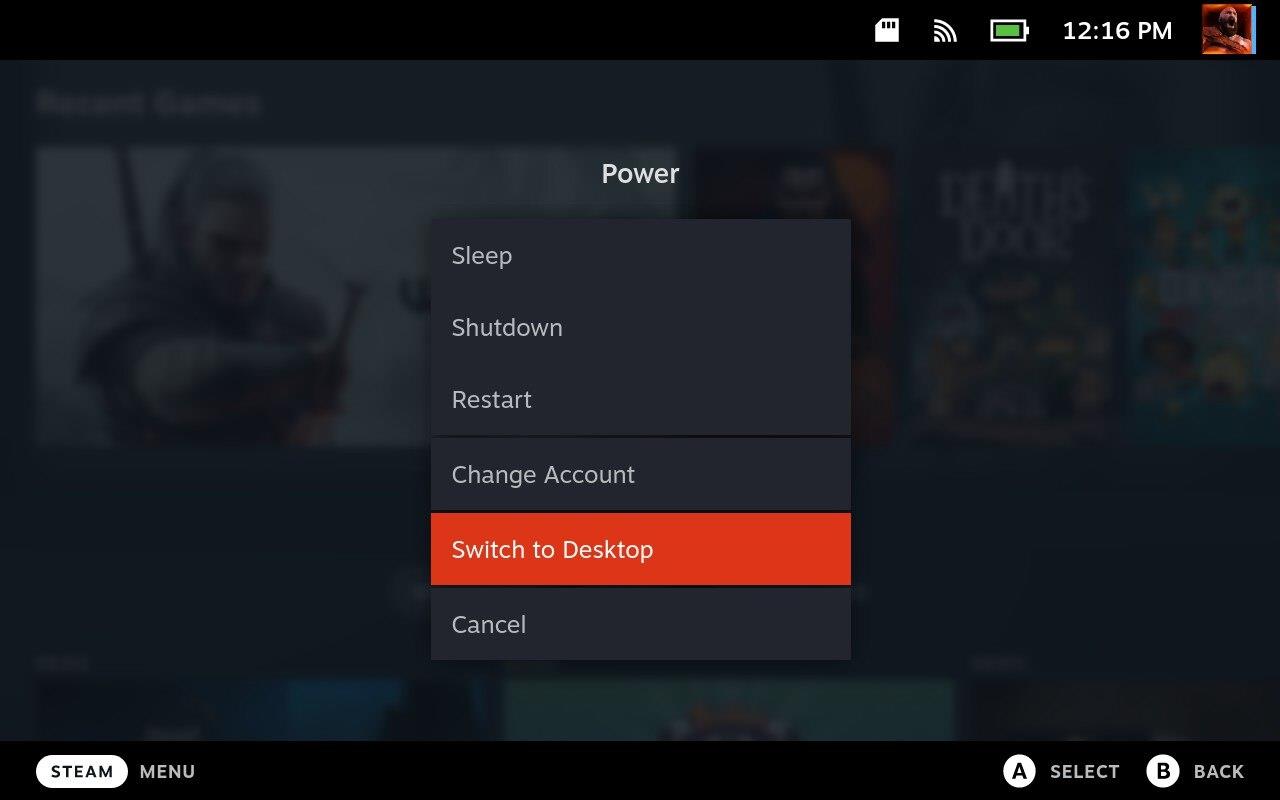
Switch your Steam Deck to desktop mode by hitting the Steam button, selecting Power, and then hitting Switch to Desktop. This will launch a desktop version of the SteamOS.
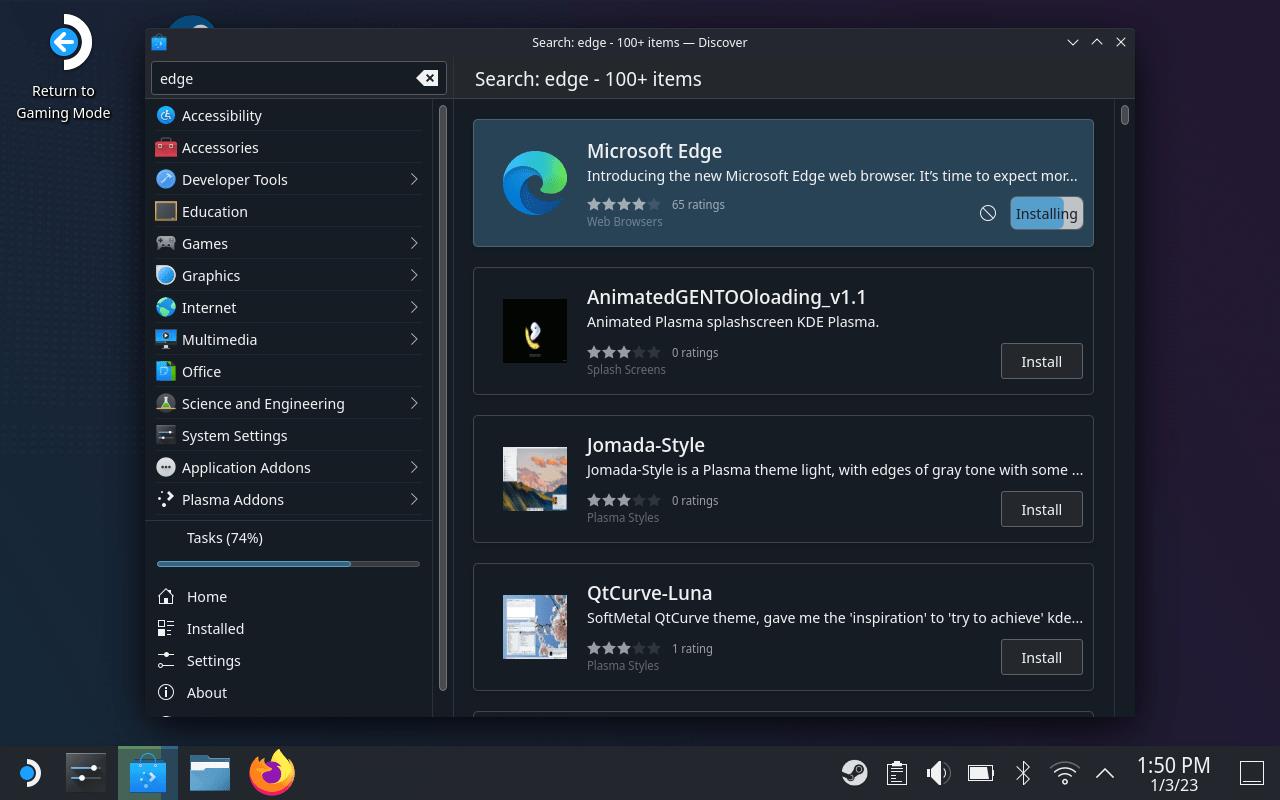
In the desktop, you’ll use the right thumbstick, right trackpad to move the mouse, or just tap the screen to move the mouse. The A button, right trigger, or clicking the right trackpad are your left clicks (the trackpad is more reliable than the thumbsticks in our experience), and the left trigger works as a right click. Yes, right is left and left is right – somehow it works.
Go down to the menu bar and click on Discover – the icon that looks like a shopping bag. You’ll need to type in the search bar, so click inside it and then hit Steam X to pull up the onscreen keyboard. Type in “edge” (or “Microsoft Edge” if you’re feeling extra) and hit install on the Microsoft Edge browser.
Next, hit the start button (the Application Launcher button) in the bottom left, mouse up to Internet, and right click (with the left trigger) on Microsoft Edge. Select Add to Steam.
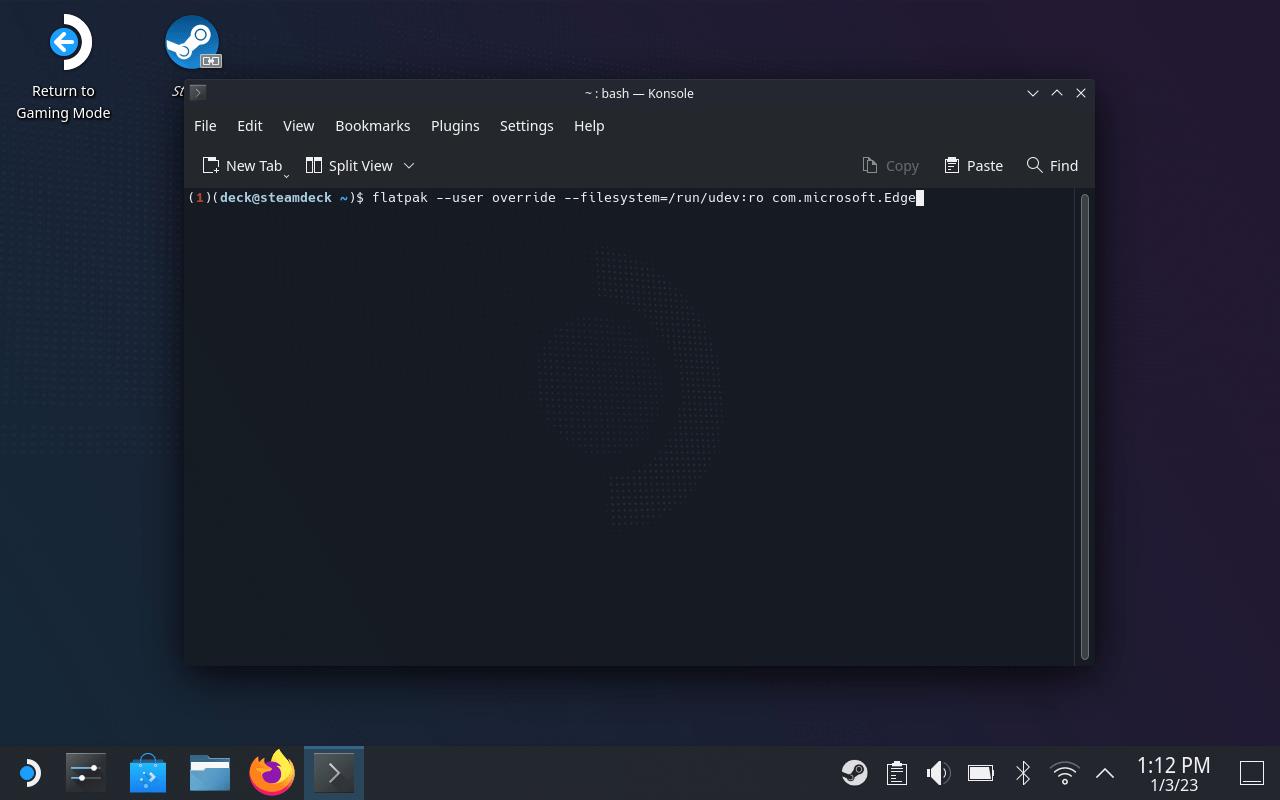
Hit the Application Launcher button again and go to System > Konsole. Launch it to bring up a terminal- or command prompt-like window. Press Steam X again to pull up the keyboard, and (carefully) type in the following:
flatpak -user override -filesystem=/run/udev:ro com.microsoft.Edge
Note the two hyphens before the user and filesystem commands. Use the left trigger or long press on the semicolon to get a colon. We don’t think the capital matters, but maybe use it just to be safe. (This command will give Edge access to the controller inputs in Gaming Mode.)
Type exit to close the window.
Set up Microsoft Edge in your Steam Library
Add Microsoft Edge to your Steam Library so it can be launched directly from Gaming Mode. Open Desktop Mode, then search for Microsoft Edge in the applications menu. Right-click it, choose “Add to Steam,” and select the shortcut from your Steam Library. Before switching back to Gaming Mode, open Edge’s properties in Steam and adjust the launch options to include the necessary Xbox Cloud Gaming parameters. This ensures Game Pass titles run smoothly through the browser.
While still in Desktop mode, launch Steam. Scroll through your Library to find Microsoft Edge. Right-click and select Properties.
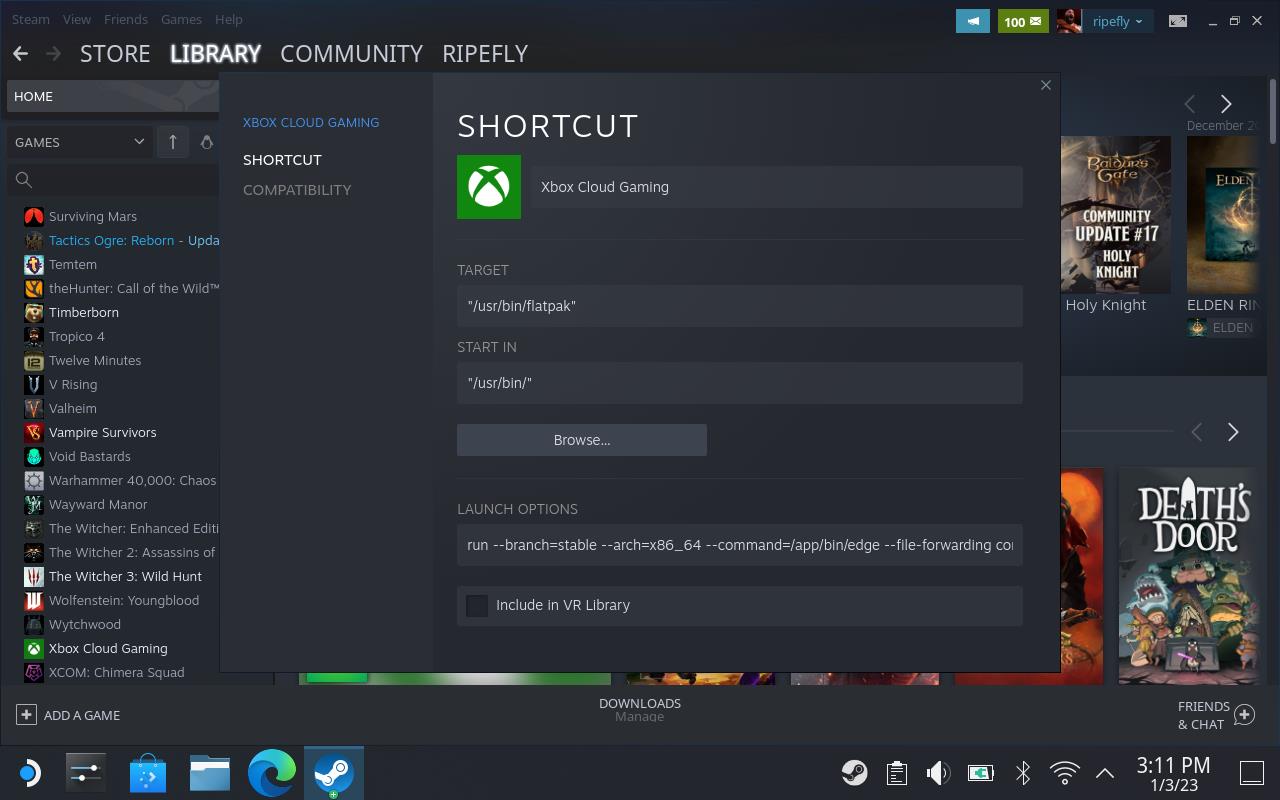
You don’t have to change the name, but it’ll make your life easier if you do – we went with the simple “Xbox Cloud Gaming.” Scroll down to the Launch Options box. There’s already a lot of information there. Click in the box and type in the following at the end of the line after the “@@u @@” part:
-window-size=1024,640 -force-device-scale-factor=1.25 -device-scale-factor=1.25 -kiosk “https://www.xbox.com/play”
Again, note the double hyphens.
Apply the Controller Layout
After connecting your controller, open Steam’s controller settings to tailor the layout for Xbox Cloud Gaming. You can map buttons to match Xbox inputs, adjust sensitivity, and save the configuration for future sessions. If you prefer a familiar setup, choose one of Steam’s community layouts designed for Xbox games. This ensures your button prompts and controls align smoothly with Game Pass titles streamed to your Steam Deck.
Back at your Library, right-click on Xbox Cloud Gaming (or whatever you named Microsoft Edge to). This time, select Manage > Controller Layout. Get past the informational screens that pop up and then hit the Browse Configs button at the top.
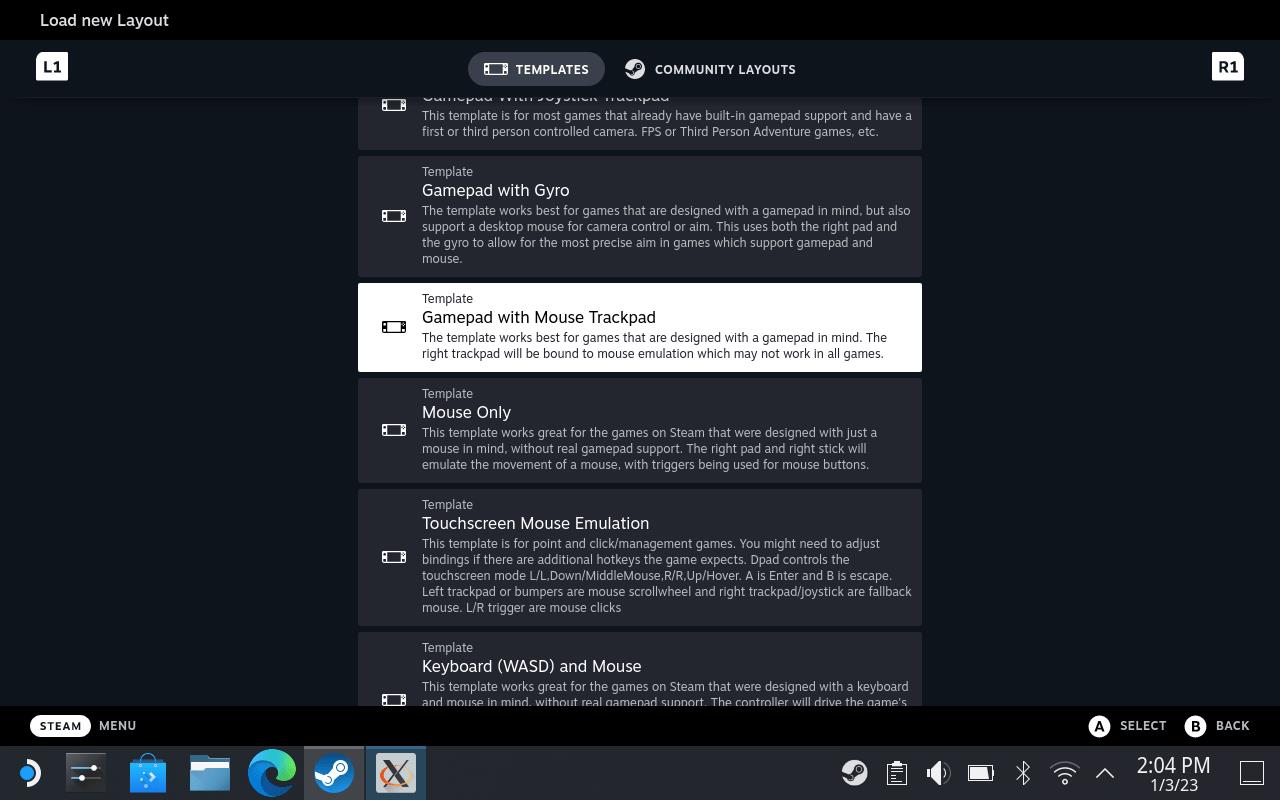
Scroll down (quite a bit) to Gamepad with Mouse Trackpad and select it. Hit B to back out of the screen.
Add some custom artwork
Adding custom artwork helps your Steam Deck library look cleaner and more personal. After you’ve added a Game Pass shortcut through Steam, right-click it, choose “Properties,” and then click the artwork area to upload your own image. You can use box art, a screenshot, or fan-made covers to match the rest of your collection. Sites like SteamGridDB offer community-made designs that fit perfectly with Steam’s layout, giving your setup a consistent and polished look.

If you want to get really fancy, you can change the renamed Microsoft Edge’s artwork from a blank square to the official Xbox logo. Grab the images above and save them to your Steam Deck – either open this page in your Steam Deck’s Desktop Mode or drop them onto your microSD card. Make sure they save as a .png. If you use a microSD card, we recommend using the Dolphin file manager to copy the image to your desktop – it’s easier to find them this way.
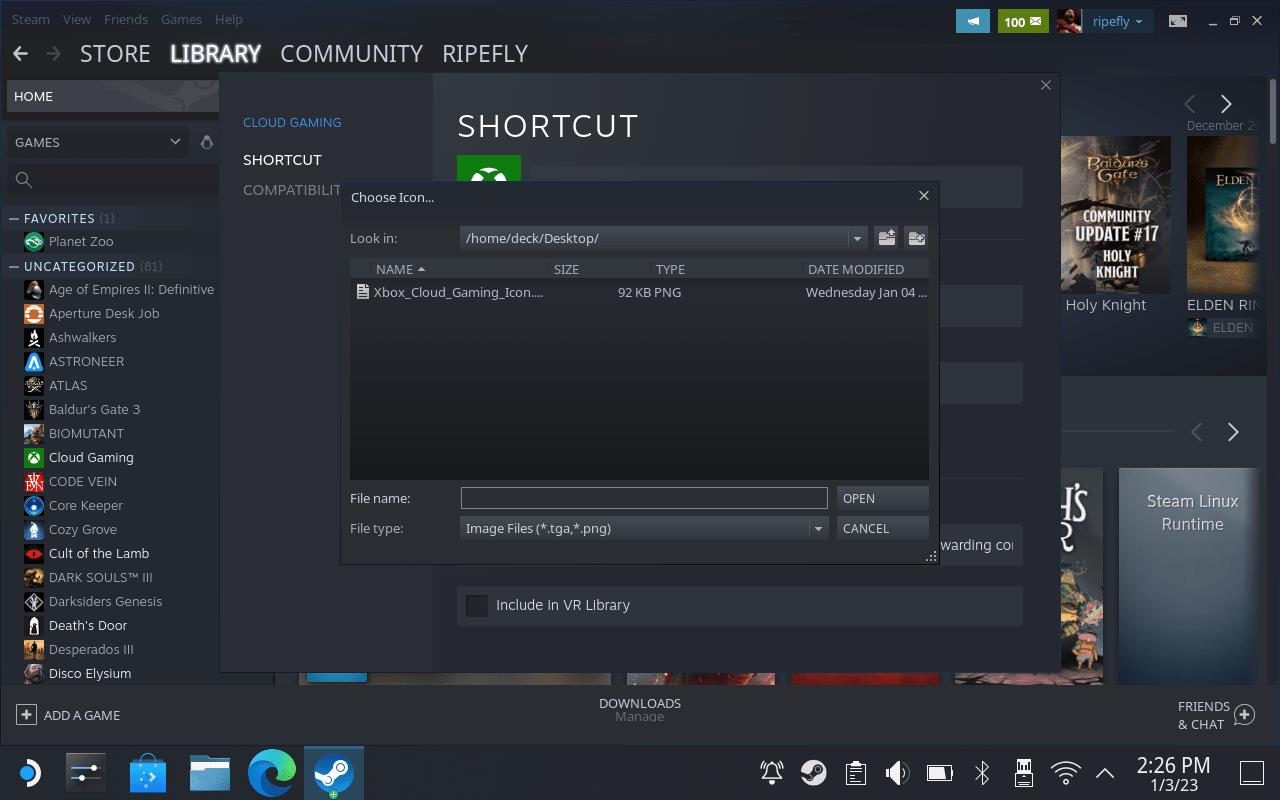
From the Steam Library, open the Properties for Xbox Cloud Gaming (or whatever you named it) again. Click in the empty square next to the name and navigate to wherever you dropped the file – placing it on the desktop puts it at /home/deck/Desktop/. You’re looking for the square one that ends with Icon.
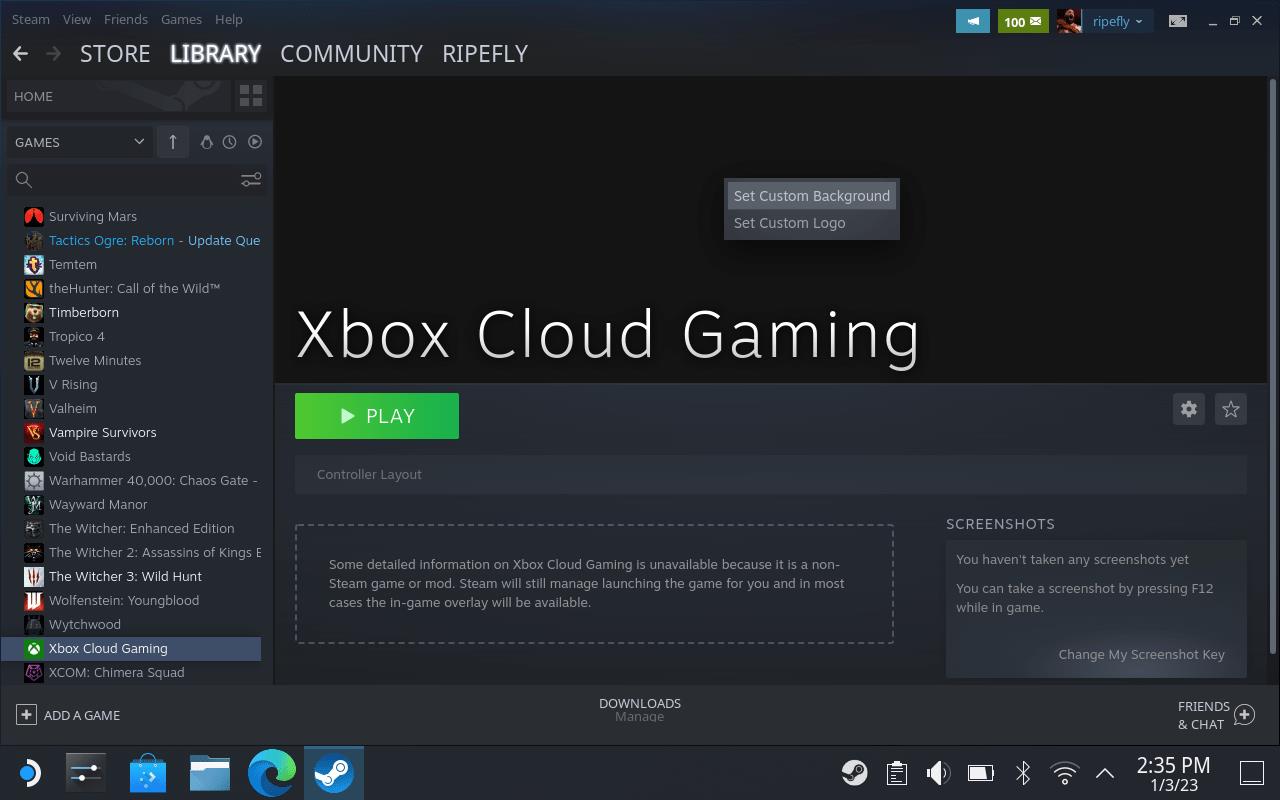
Back in the Steam Library, click on the Xbox Cloud Gaming entry to open it. Right-click where a banner image should be and pick Set Custom Background. Pick the Banner image (the wide landscape one).
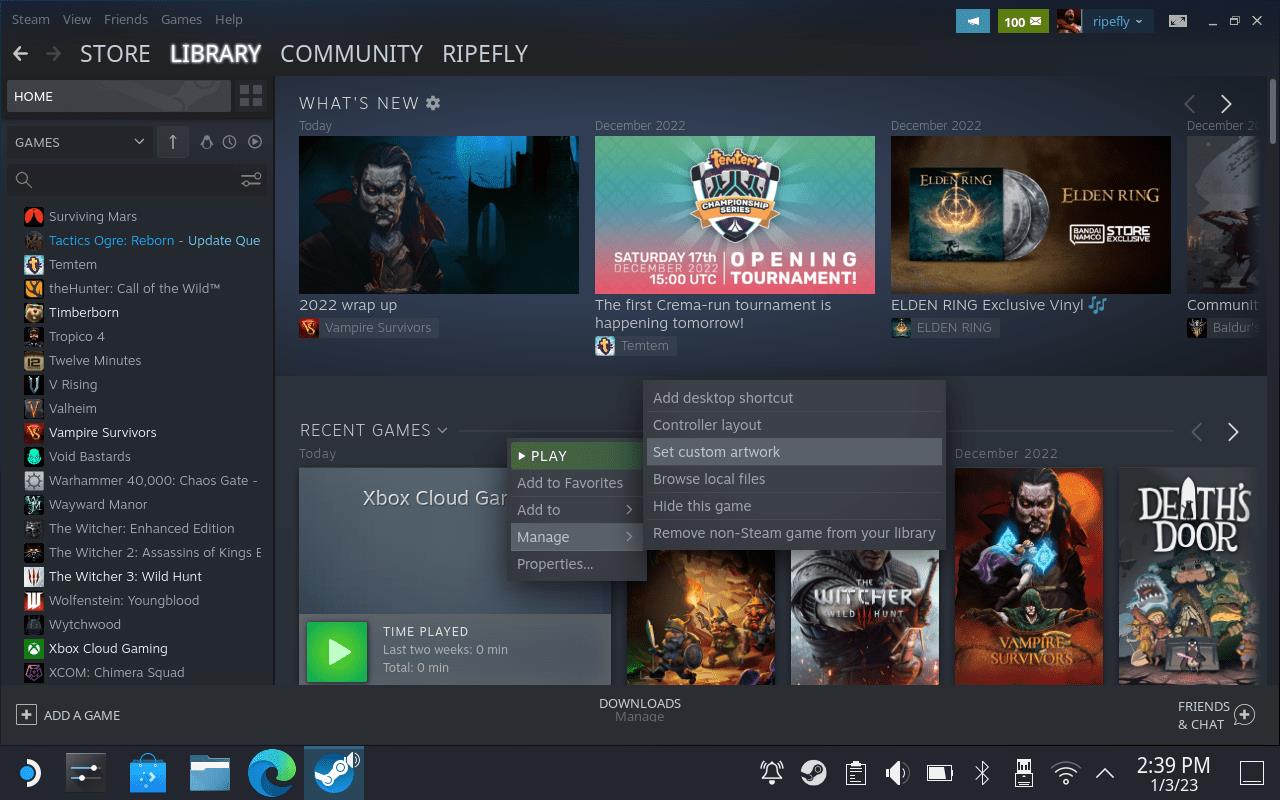
Right-click the banner area again and, this time, pick Set Custom Icon and pick the Capsule image (the portrait one).
Return to Gaming Mode and sign in to Xbox Game Pass
Switch your Steam Deck back to Gaming Mode after setting up the Xbox Cloud Gaming shortcut. Open Microsoft Edge from your library and sign in to your Xbox account when prompted. Once logged in, you’ll have access to Xbox Game Pass and can browse or start any game directly through the browser. This step connects your Steam Deck to your Game Pass library, letting you stream games without needing a full Windows installation.
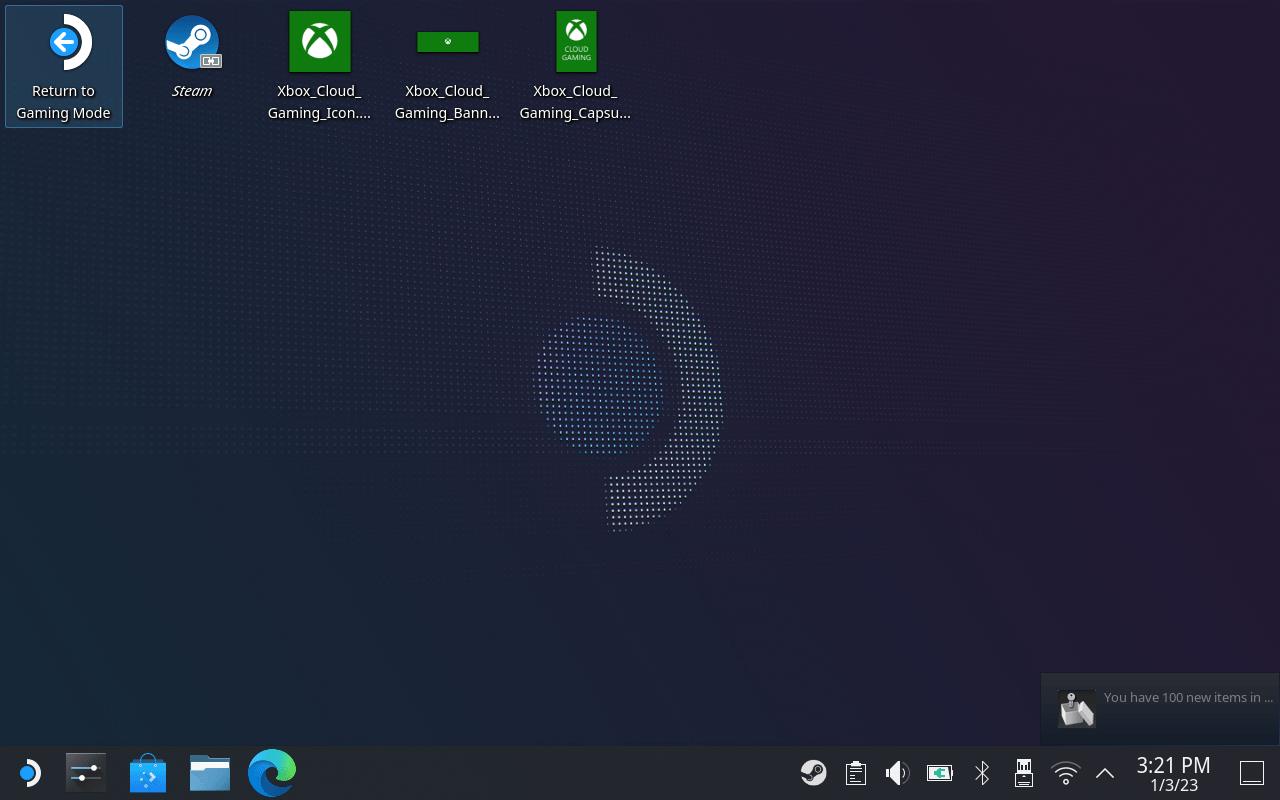
Now you can close everything and use the icon on the desktop to return to Gaming Mode.
In your Library, tab over to Non-Steam Games at the right end to launch your new Cloud Gaming shortcut. This will bring you to the login screen for Game Pass. Use the D-pad or just tap the button to Sign In. Press Steam X again to pull up the keyboard.
Once you’re signed in, you’ll be greeted with the Xbox Cloud Gaming page – everything we set up earlier turned the version of Microsoft Edge we downloaded into a dedicated (kiosk) way to deliver this webpage. Use the controls to scroll around, pick a game, and get playing.
Playing with Cloud Gaming does mean you’ll need a decent and constant WiFi connection – you’re not going to be cloud gaming on the go without a hotspot (which is possible, actually).
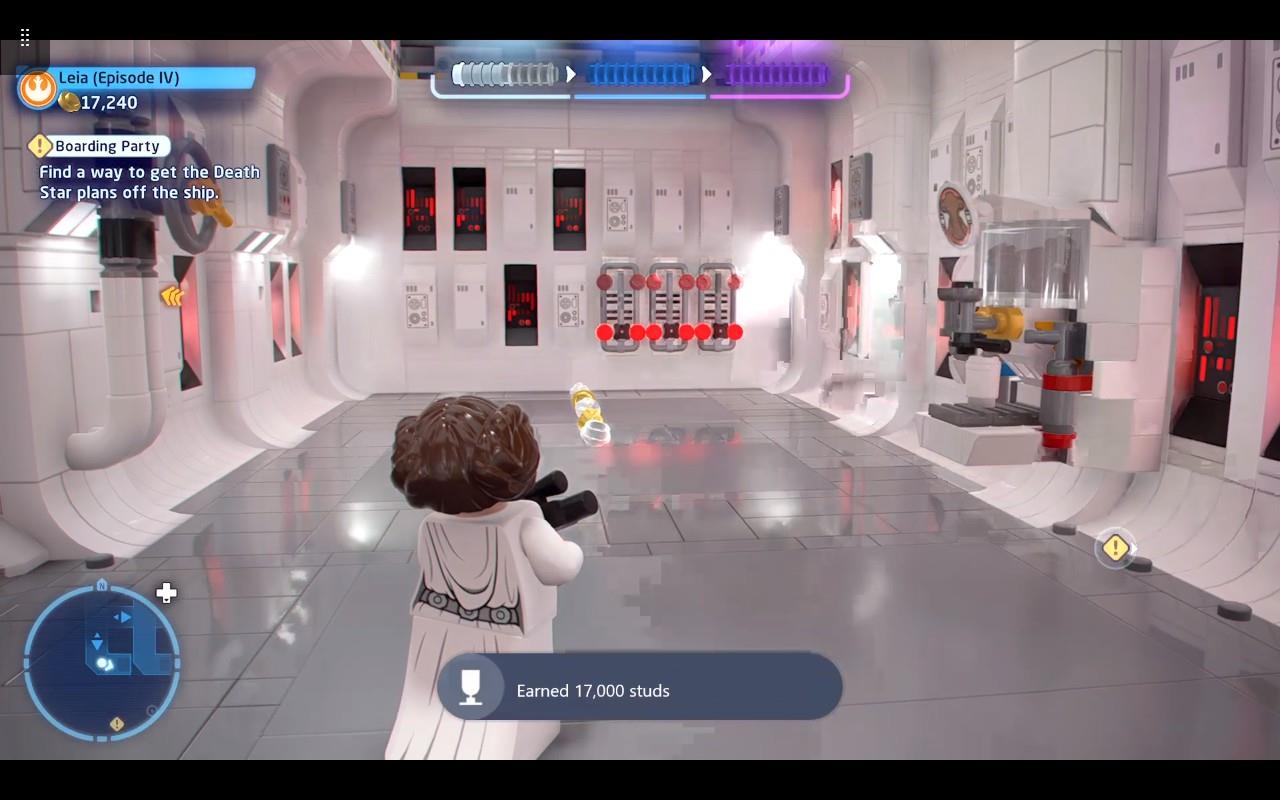
Our experience streaming games was mostly perfect, but not quite. There were periodically some video lag issues, but they resolved themselves within a second or two. The lag might depend on the game you’re playing, though. It was more common while we were playing something a little more resource-intensive like Cities: Skylines than it was with Lego Star Wars (there was still some artifacting, though).
Best controller settings for Xbox Cloud Gaming on Steam Deck
The best controller settings for Xbox Cloud Gaming on Steam Deck use Steam’s built-in templates to mimic an Xbox controller while handling browser navigation and in-game input seamlessly. These optimize trackpads for menus/mouse and joysticks for precise analog control.
Recommended Template
Launch your Edge/Xbox Cloud shortcut from the Steam Library, then press the right Steam button >Controller Settings.
-
Select Gamepad With Joystick Trackpad template community layout.
-
Browse >Templates >Gamepad with Mouse Trackpad > Apply Configuration (X button).
-
This maps left trackpad/joystick to movement, right trackpad to mouse/aim, and buttons to Xbox layout (A/B/X/Y prompts).
Key Customizations
Enable back grip buttons (L4/R4) for quick access.
-
L4: Keyboard “N” (opens Xbox Guide overlay).
-
R4: Keyboard “Esc” or “Tab” (for menus/pause).
-
Right trackpad: Left mouse click on press; sensitivity at 1.25 for smooth aiming.
-
Joysticks: Standard deadzone (0.1-0.2); enable haptics if games support it.
-
Hide on-screen touch controls: Always Off.
Per-Game Tweaks
In Controller Settings >Edit Layout (optional):
| Action | Mapping | Notes |
|---|---|---|
| D-Pad | Navigate UI | Smooth scrolling in Game Pass browser/library. |
| Right Trigger | RT/R2 | Hair-trigger mode for shooters. |
| Trackpad Friction | Medium-High | Reduces drift during cloud latency. |
| Button Prompts | Xbox | Matches cloud games; disable Steam override if needed. |
Test in a lightweight game like Forza; adjust sensitivity via sliders for your Wi-Fi (aim for <20ms ping). Save as community layout for reuse.
Common issues with controller in Xbox Cloud on Steam Deck
Common controller issues in Xbox Cloud Gaming (xCloud) on Steam Deck stem from input conflicts between Steam Input, browser layers (Edge), and cloud services expecting Xbox controller signals. These affect 60-70% of users due to overlapping systems like Proton translation and Linux permissions.
Input Not Detected
Buttons fail while trackpads work as mouse only-often from missing udev permissions for Edge.
-
In Desktop Mode, open Konsole: flatpak -user override -filesystem=/run/udev:ro com.microsoft.Edge (case-sensitive; exit after).
-
Relaunch Edge shortcut; reconfigure controller in Gaming Mode via right Steam button > Controller Settings.
Steam Input Conflicts
Steam and Game Pass both claim controller control, causing unresponsiveness or dual inputs.
-
Desktop Mode > Steam > Settings > Controller > Disable Xbox config support; enable Gamepad template instead.
-
Per-game: Right Steam button > Controller Settings > Edit Layout > Disable Steam Input; use “Gamepad with Joystick Trackpad”.
Pairing/Firmware Problems
Xbox controllers pair but flash (not connected) or lag.
| Issue | Fix |
|---|---|
| Flashing Xbox button | Xbox Accessories app > Update firmware; re-pair via Bluetooth menu. |
| Bluetooth drops | Switch to wired USB-C; restart Deck; check battery >20%. |
| Proton errors | Force Proton GE or Experimental in Edge Properties. |
Other Fixes
Update SteamOS/Edge; test Wi-Fi ping (<20ms); restart game/browser. For persistent issues, delete/reinstall Edge and recreate shortcut. Custom profiles help shooters; save/share via Steam community.
