
From transforming your weapons into blazing relics to adding entire new biomes, Hytale’s mod scene pushes creativity to wild heights. Here’s how to find the standout mods on CurseForge and install them without a hitch.
How to download Hytale mods
Downloading Hytale mods requires CurseForge. Create a free account on the CurseForge website if you lack one. Search for Hytale in the launcher or site, then pick mods from trusted creators. Click the download button next to each mod file, usually a .zip or compatible format. Save files to a dedicated folder on your computer for easy access during installation. Verify mod compatibility with your Hytale version before proceeding.
As Hytale is officially partnering with CurseForge, the best place to find Hytale mods is on the CurseForge website. There are currently more than 3,000 mods to choose from.
If you’ve found a mod you’d like to download, there are two ways to install it: Use the CurseForge mod manager application or download the mod directly into the game folder. We recommend downloading the CurseForge mod manager first, as it’ll enable easy, one-click mod downloads. Here’s how to do this:
- Download and install the CurseForge mod manager using this link. Unless you wish to download it on Overwolf, pick the “download standalone” option.
- Open the CurseForge app. On the top left, click on the Hytale icon, then go to the “browse” tab to find a list of available mods.
- Pick a mod and press the orange “install” button (if downloading from CurseForge’s website, press “install via app” instead).
- Launch the game. Before you enter a world, right-click on it (“edit world”) to see a list of all downloaded mods. You can toggle them on or off according to your preference (see picture below).
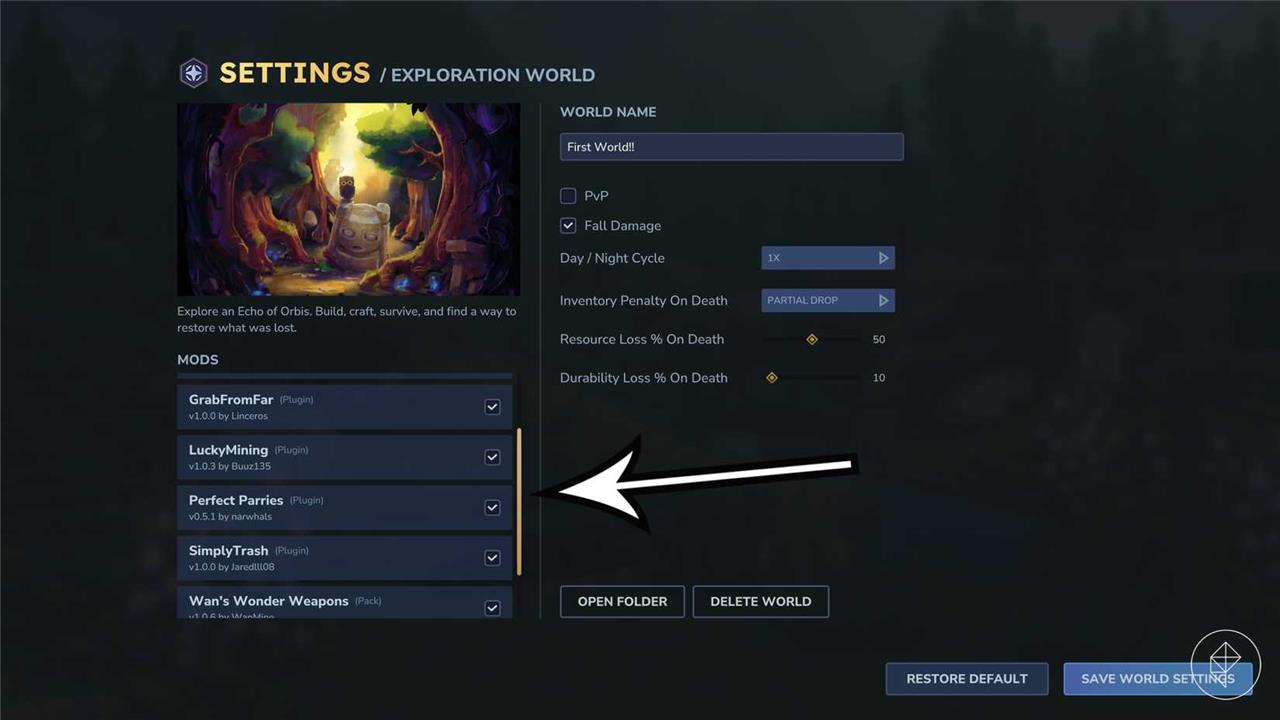
To manually install a Hytale mod, use the “download file manually” option on the CurseForge website and drop the mod in the correct folder. In most cases, this is the file path you’re looking for: Hytale > UserData > Mods. Be sure to check the mod’s description, though; some mods, specifically worlds, should use another file location (Hytale > UserData > Saves).
You can also download and drop a mod in a specific world folder (which each has its own “mods” folder too), but if you use the general folder as instructed, you can activate or deactivate any mods for any world, anytime you like.
Best mods in Hytale
Hytale’s standout mods transform gameplay with fresh biomes, custom weapons, and multiplayer tweaks. CurseForge hosts packs like Enhanced Worlds for denser exploration or Battle Royale for competitive arenas. Installation varies: drag .hyzip files into the mods folder via the launcher, or use the in-game mod manager for seamless updates. Community favorites include performance boosters that smooth out large worlds and texture overhauls for sharper visuals. Pair them with official guides to avoid crashes and maximize fun.
The best mods in Hytale either offer much-needed quality of life improvements or spruce up the gameplay. There are many Hytale mods to choose from, but these are the best we’ve found:
BetterMap
The BetterMap mod by Paralaxe does exactly what you’d expect; it improves Hytale‘s map. Instead of a large, circular map that “moves” along with your character without recording previously explored areas, BetterMap displays a small circular area around your initial spawn point while retaining all info on your discovered areas.
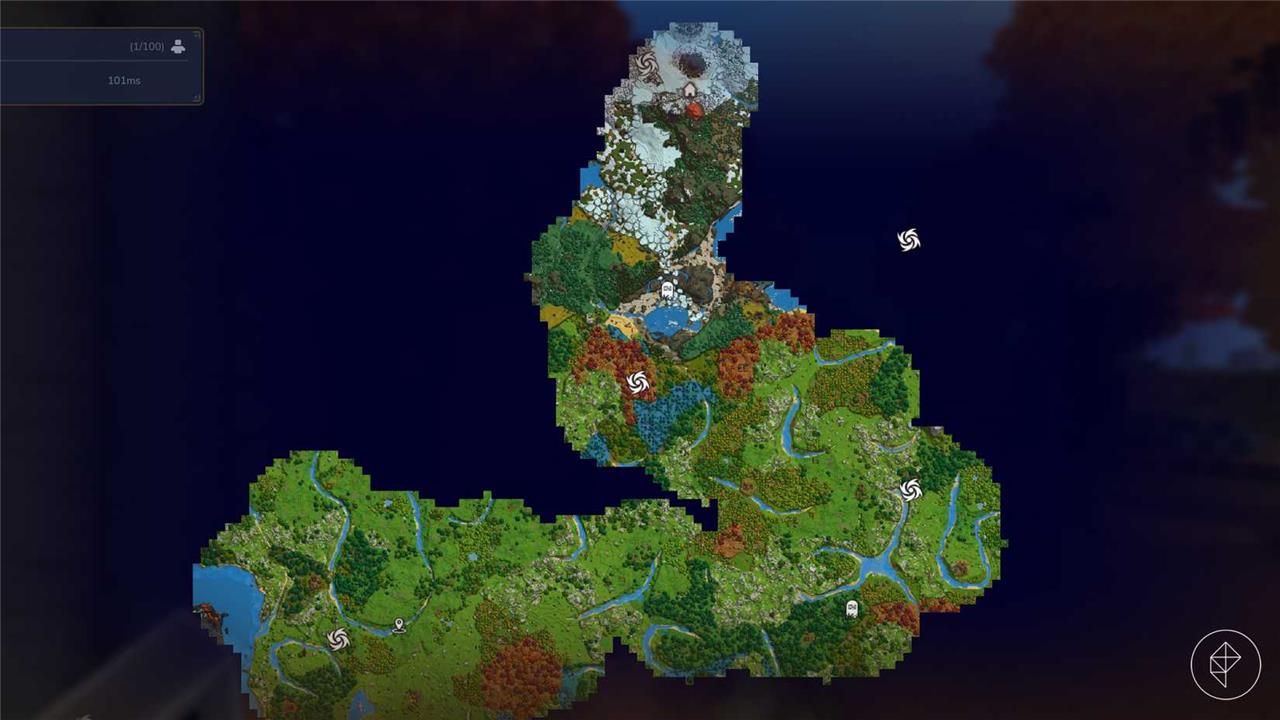
This is a small but brilliant change for Hytale explorers, as the obscurity creates a far stronger sense of discovery; you never know what lies ahead. Furthermore, by permanently adding every explored area to the map, your scouting trips are more useful and easier to replicate. This BetterMap mod comes with several commands listed in the mod’s description; for example, you can (de)activate the teleport ability in exploration mode, set waypoints, and change the zoom scale.
EyeSpy
One of the best quality of life mods in Hytale, EyeSpy by DarkhaxDev displays block names and icons in the top left corner of the screen while you’re looking at them. You always know which block you’re about to mine, what kind of flower you’ve just spotted, which enemy is blocking your path, etc. EyeSpy also displays enemy HP and item processing times (including ore smelting).
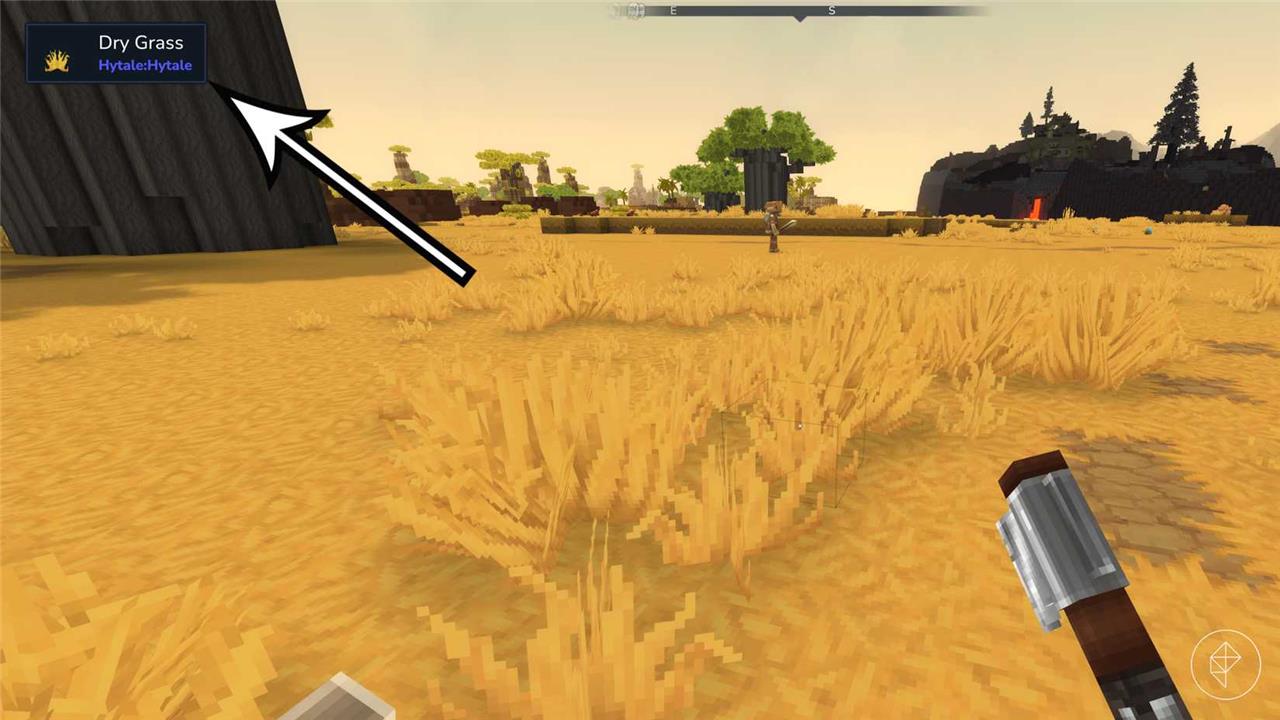
Perhaps its best feature, however, is the ability to see all items stored inside a chest without having to open it. Let’s say you placed several chests in a row and are looking for your thorium stack; instead of checking the contents of each chest, you only need to hover over them to see which one contains the thorium.
OreSight
Finding ore veins in Hytale is one challenge; not walking right past them is another. Although ore blocks in dark caves emanate a colorful light by default, it’s very faint and therefore easily missable. Especially in areas with lava, which emanates sparks of its own, it’s devilishly difficult to tell the difference between a fiery spark and an ore supply.
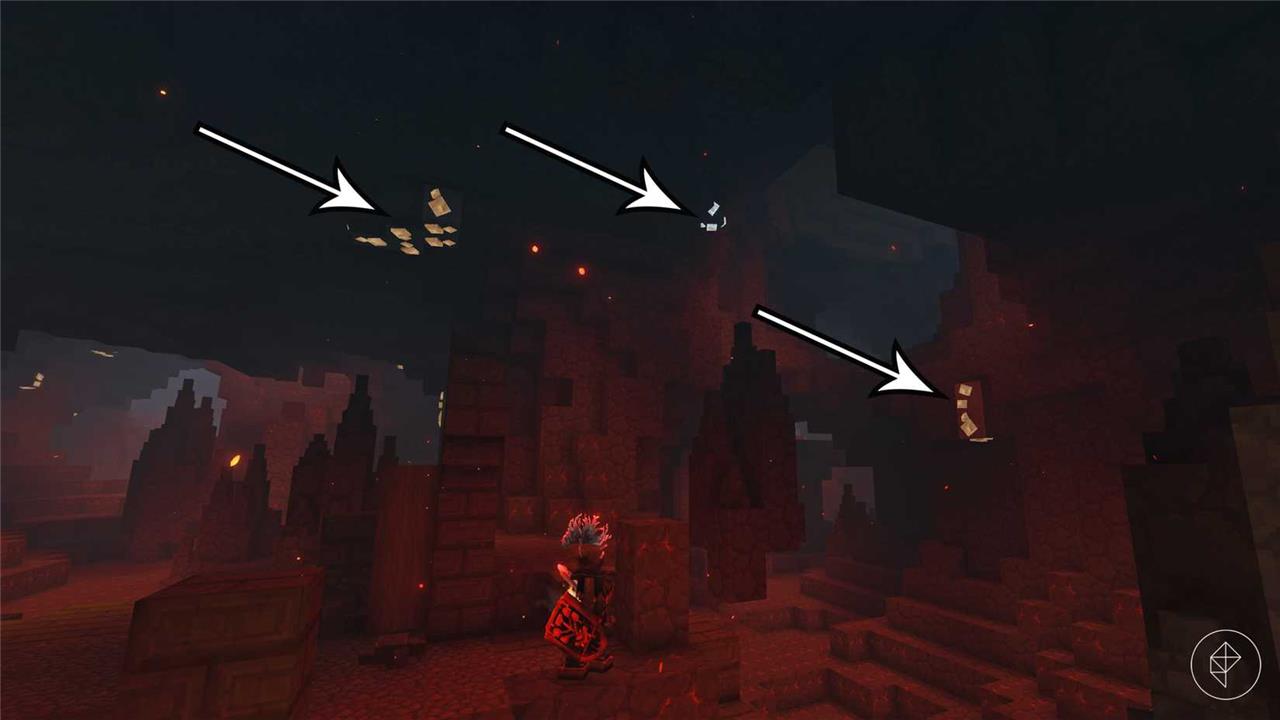
The OreSight mod by RickyRicardo is a lifesaver; by simply boosting their brightness, underground ores become much easier to spot. As an added bonus, the colorful disco caves look really cool.
Lucky Mining
If you’d like to obtain more ore without resorting to creative mode or commands, the Lucky Mining mod by Buuz135 is the best option. Upon breaking a block of ore, this mod adds a chance for the ore to respawn on a neighboring block, thus granting you the opportunity to mine it again. The more ore blocks of the same type you mine, the higher the respawn chance becomes.
You should get an ore respawn for every three or so blocks you’ve broken, but you may adjust these odds in the mod files. The respawn chance applies to all ore types in Hytale, from copper and iron to adamantite and gold. It’s not just handy, but also very satisfying to notice an ore respawn, which is always accompanied by a green visual and sound effect.
Simply Trash
Tired of dropping unwanted items on the ground, only to accidentally pick them up again? With the Simply Trash mod by Jaredlll08, that won’t be an issue anymore. This garbage mod should keep you from littering.
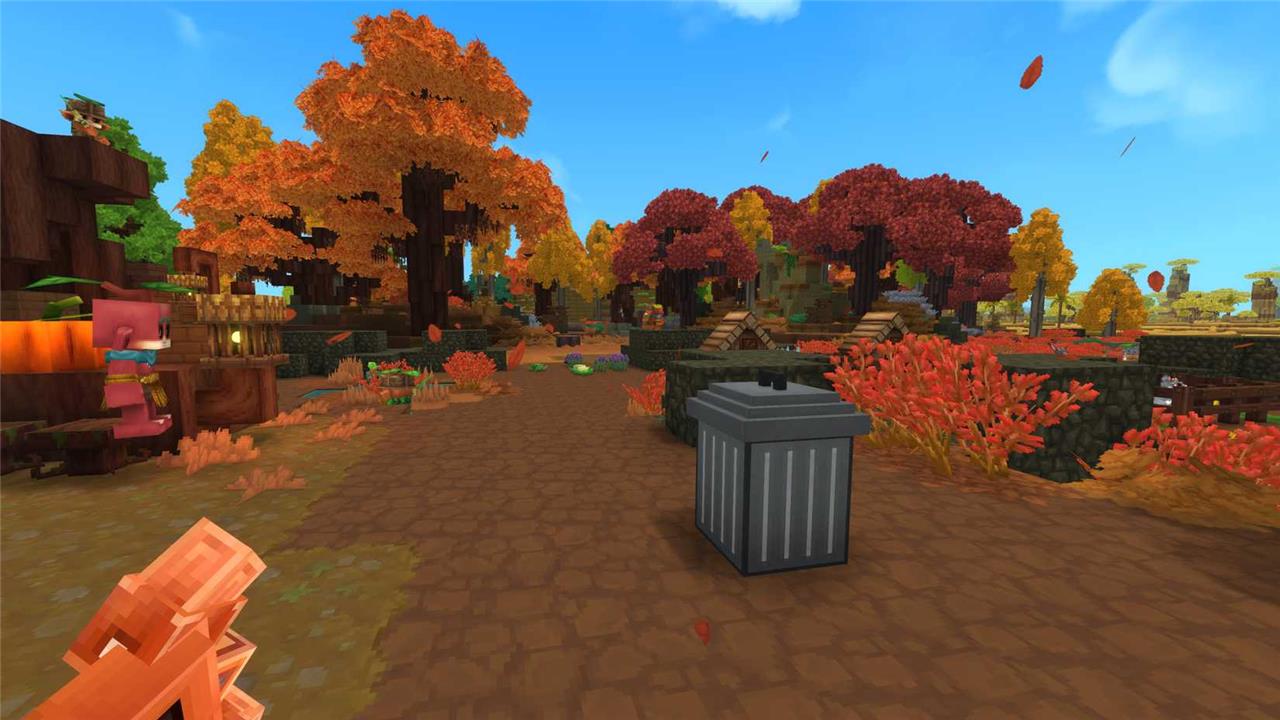
Once you’ve installed this mod, you can craft a trash can at the regular workbench using 20 iron ingots (so it’s not a bad idea to get the Lucky Mining mod too). Place it wherever you want. You can open the trash can like an ordinary chest, but every item placed inside will vanish as soon as the trash can closes. Of course, be careful not to add any valuable items inside!
Grab From Far
This Hytale mod makes resource management a breeze. While Hytale already allows you to craft using items stacked in a nearby chest (you can craft a copper axe using copper ingots from the nearby chest rather than your backpack, for example), the default range is very low. This is quite annoying if one chest contains resources needed by several different workbenches, or if you’d like to have the freedom to furnish your base any way you like.
Thanks to the Grab From Far mod by Linceros, you can use items from any chest, no matter how far away. You can configure the maximum distance between chest and workstation, as well as the maximum number of chests to grab from, in the mod folder.
Perfect Parries
This is by far the best Hytale combat mod at the moment of writing. Blocking, ultimate attacks, and a variety of fighting styles related to weapon type are already implemented in the game, but the opportunity to land perfect parries lifts Hytale into Elden Ring territory.
With Perfect Parries by narwhals installed, blocking right before an enemy’s attack would’ve hit you will reflect some damage and possibly stun them. Even better, you won’t lose any stamina and gain the opportunity to counterattack, thereby dealing more damage. Beware that perfect parries are tricky to pull off, but it feels amazing when they succeed.
Wan’s Wonder Weapons
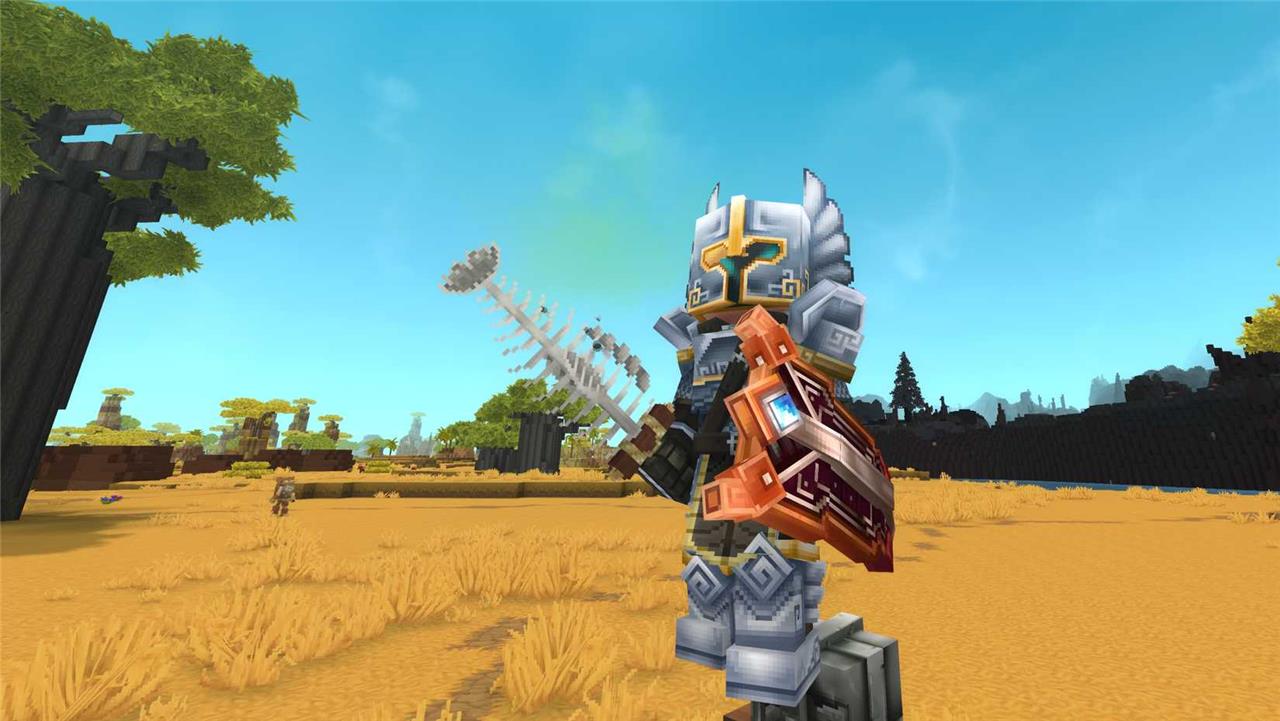
This wonderful Hytale mod isn’t something you need, but something you’ll definitely want. Wan’s Wonder Weapons mod by WanMine adds the coolest weapon designs you’ve ever laid eyes on, from Thor’s Hammer to smoldering blades – or a fish bone, if you want something less flashy.
Troubleshooting common Hytale mod installation errors
Here are the most common Hytale mod install problems and practical ways to fix them, for both solo/CurseForge and servers.
Mods not showing up in Hytale
Most of the time, the game can’t see the files, or they are in the wrong place.
Try this:
-
Confirm the mods folder path:
-
Client: use the official Hytale mods directory under your Hytale UserData (not a random “mods” folder elsewhere).
-
Server: put mods in the server’s mods folder (same level as the server executable/configs).
-
-
Check folder structure: the file should be …/mods/modfile.jar, not inside extra folders like …/mods/SomeMod/modfile.jar and not left as modfile.zip.
-
Ensure you unzipped archives: if the download is a .zip, extract it and move only the real mod file.
-
Match game version: use mods built for your current Hytale version or they may silently fail to load.
-
Restart the game fully and re-open world settings, then check the mod list per world.
Game or server won’t start after adding mods
If Hytale or your server crashes or hangs after you add mods, you likely have an incompatible or broken mod.
Do this:
-
Remove the last mod you added, then start again. If it boots, that mod was the problem.
-
Add mods back one by one until it breaks again to identify the culprit.
-
Check version compatibility and dependencies on the mod page; some require other libraries or a specific Hytale build.
-
Re-download the mod in case the file is corrupted.
-
Check logs: open the logs folder for crash or error messages pointing to a specific mod or missing dependency.
-
For hosted servers, always stop the server before changing the mods folder, then start it again.
CurseForge issues (mods “installed” but not in-game)
Sometimes the manager points to the wrong UserData or game folder, so Hytale doesn’t see installed mods.
You can:
-
Verify the game directory in the launcher settings and ensure it matches the real Hytale install / UserData path.
-
If the manager has created a separate UserData that is not linked to Hytale’s own folder, clean or relink it so both use the same directory.
-
If you changed folder links (for example by creating a symbolic link) and get “file already exists” errors, delete the conflicting UserData folder and recreate the link, then reinstall or move mods as needed.
-
As a fallback, manually copy the .jar mod files from the manager’s mods directory into Hytale’s actual mods folder.
Can’t join modded servers / connection errors
If you can’t connect to a modded server, it can be either network or mod mismatch.
Check:
-
Do you have the same mod pack and versions as the server (if they require client-side mods)? Many hosts list their exact CurseForge pack.
-
Time, language, firewall: misconfigured system language, wrong system time, or firewall blocking can stop modded connections.
-
Allow Hytale and Java in your firewall (both public and private networks).
-
See if the server runs fine in its console; if it crashes on start, fix server-side mods first.
Best practices to avoid mod errors
Following a few habits will prevent most problems.
-
Always back up your universe/ (worlds) and configs before changing lots of mods.
-
Start with a few mods, verify stability, then add more-don’t drop 20 at once.
-
Keep mods updated after Hytale patches; outdated ones are a common crash so
Best Hytale mods for servers compatible with latest version
Here are strong, server-oriented Hytale mods that are reported as working with the current Early Access build, plus how they fit different server types.
Core “essentials” for almost any server
These help with permissions, admin tools, and player safety/quality of life.
| Purpose | Recommended mods/plugins | Why they’re good on servers |
|---|---|---|
| Permissions & ranks | LuckPerms (Hytale edition) | Fine-grained permission groups (Admin/Mod/VIP), works like the well-known Minecraft plugin. |
| Admin control | AdminUI | GUI tools for teleports, bans, kicks, whitelists and player monitoring without complex commands. |
| General utilities | Essentials Core / EliteEssentials | Homes, warps, spawn protection, kits, chat formatting, TPA; EliteEssentials adds more staff-focused features. |
| Land protection | Simple Claims / EasyClaims | Chunk-based claim/protection so players’ builds can’t be griefed. |
| Logging & rollbacks | CoreProtect (Hytale edition) | Tracks block changes and lets you roll back griefing with database support. |
For a public or community server, a minimal reliable stack is LuckPerms, Essentials Core or EliteEssentials, a claim mod (Simple Claims/EasyClaims), and AdminUI.
PvP and factions servers
If you want competitive or faction-style gameplay, these are tailored for that.
-
Ultimate Factions: Full factions system with chunk claiming, power, overclaiming, alliances/enemies, safe/war zones, and an in-game map.
-
Party Info & Pings: Team HUD with member HP/stamina, compass pings, tactical markers, and team PvP toggles, integrates well with claim/protection mods.
-
Armor/gear QoL (such as armor-toggling or combat-info style mods where available in CurseForge): Used on PvP servers to reduce menu friction and keep fights readable.
Pair Ultimate Factions with Essentials-style utilities, LuckPerms, a claim mod, and Party Info & Pings to cover most PvP server needs.
RPG, survival, and exploration servers
These focus on dungeons, world content, and progression.
-
YUNG’s HyDungeons: Procedurally generated dungeon instances accessible via the Ancient Portal, with unique loot and bosses.
-
EyeSpy: Detailed HUD/inspection of blocks, entities, and mobs; very useful when players deal with lots of custom items and structures.
-
Advanced Item Info: Additional tooltip/data and better browsing of item stats; helps with custom loot and progression balancing.
-
Wan’s Wonder Weapons and similar combat-expansion packs: Adds new weapons and combat options, popular on RPG-style servers.
For an RPG survival server, combine HyDungeons, EyeSpy, Advanced Item Info, a claims/protection plugin, and core admin/utility tools.
Engagement, voting, and performance tools
Good for public servers that want players to stick around and keep numbers up.
-
Server List Voting & Player Count / HyVotifier-style tools: Integrate with external listing sites for real-time player counts and let players vote for in-game rewards.
-
Performance Saver (or similar performance plug-ins): Dynamically adjusts things like view distance based on server TPS to keep big, modded servers stable.
-
Better Modlist (on the server/host side): Enhances mod sorting and searching when you manage many mods via CurseForge or a host’s panel.
These are especially useful if you expect many players and frequent peaks.
Compatibility with the latest version
Recent server-hosting and modding guides emphasize that:
-
Most of the mods listed above are explicitly described as built for the current Early Access version and distributed via CurseForge, which tracks compatible versions.
-
Hytale’s architecture is server-side mod first: the client remains unmodified, and content streams automatically when players join, greatly reducing traditional “wrong mod version” problems.
-
You should still check each mod’s page for the supported Hytale build number and update them when a new game patch releases.
If you tell me what kind of server you want to run (small friends’ SMP, public factions, hardcore RPG, etc.), I can suggest a concrete mod list and rough order of installation tailored to that.
