
Early Valley IV blueprints can decide whether your base thrives or stalls. Here’s how to identify the most promising patterns, pick function-specific favorites, and tap into what community creators are already perfecting for smoother expansion in Arknights: Endfield.
How to use blueprints in Arknights: Endfield
Blueprints let you save or import full factory layouts, so once you have a Valley IV setup you like (or a shared community design), you can quickly place it without rebuilding each structure by hand. Open the blueprint menu from the build interface, choose the layout you want, and preview how it fits your current terrain before confirming placement. Make sure you already have access to all facilities, recipes, and machines referenced in that blueprint; otherwise, you will need to fill in missing parts before the factory runs as intended.
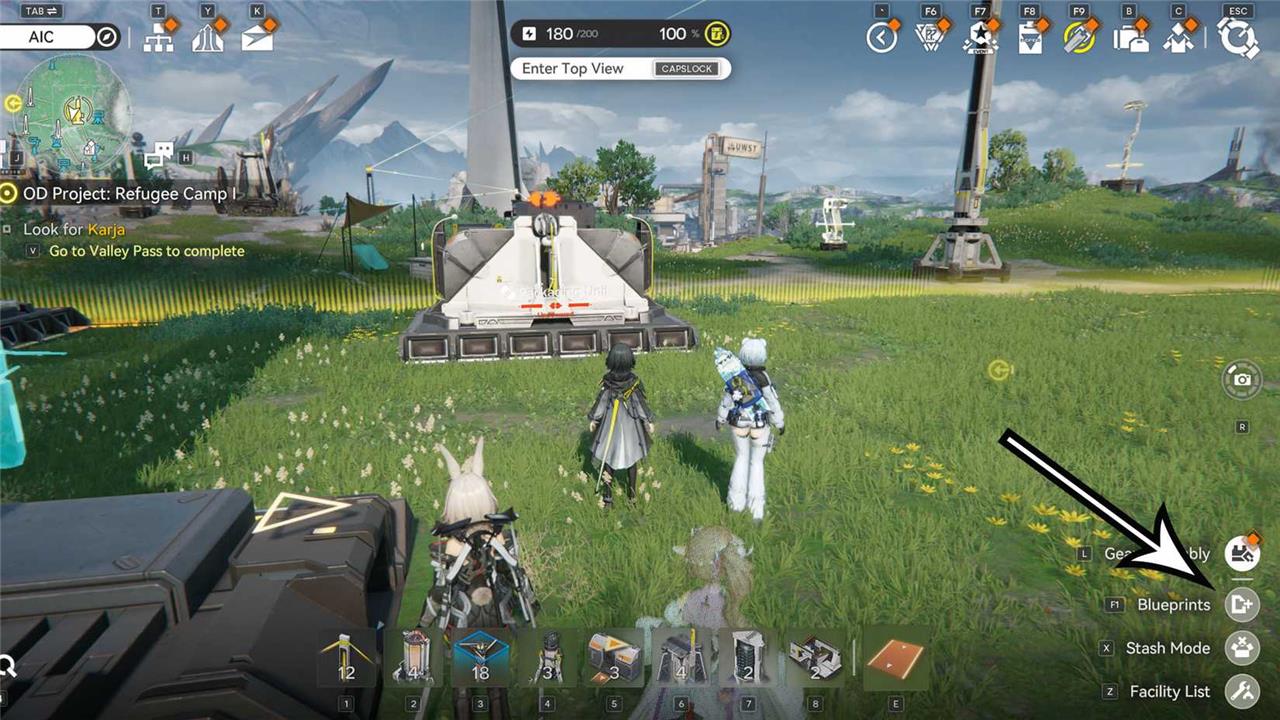
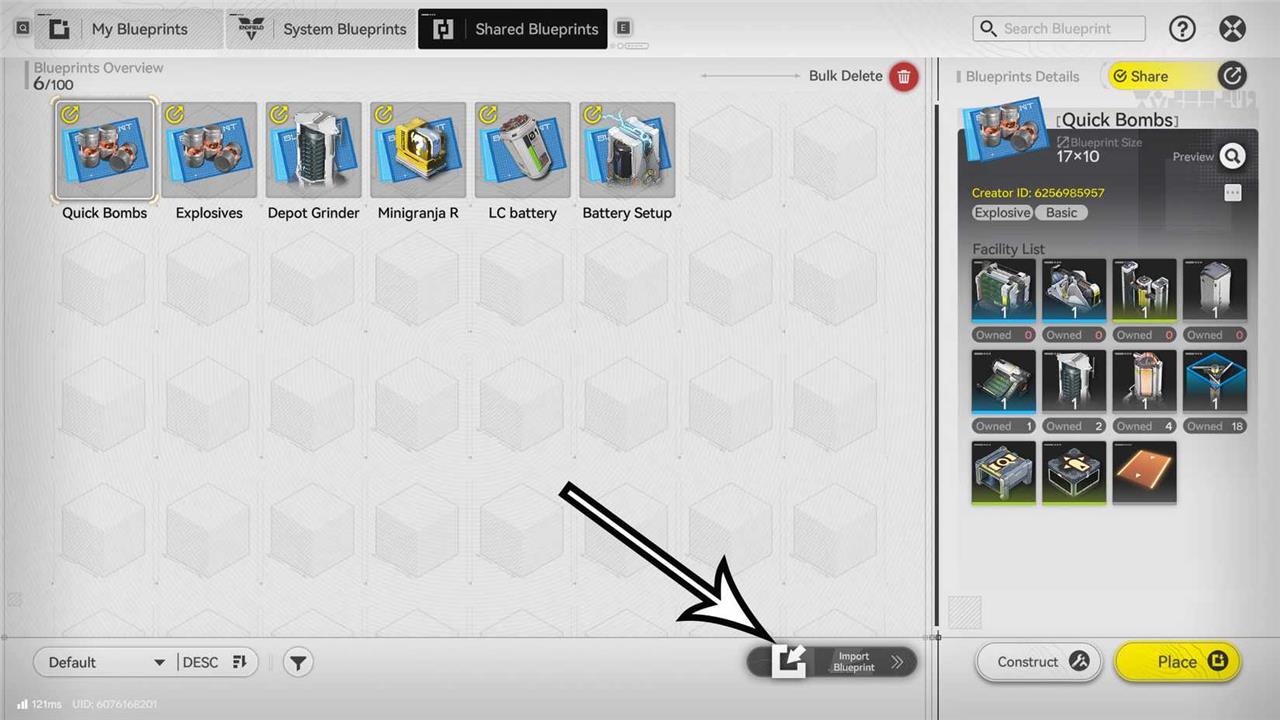
To import a blueprint created by other players, you must first access the “Blueprints” menu, located in the bottom-right corner of the screen, while in AIC mode. Next, go to the “Shared Blueprints” tab, where you have access to the “Import Blueprint” command.
You can only import blueprints by using codes from users in the same server region as yours. While it’s possible to find blueprints created by players on the Asia servers, it’s not possible to use them if you are playing on the America or Europe servers, for example. When you claim a valid code, the blueprint will appear in the “Shared Blueprints” screen. Then, you can select it and choose to place the blueprint inside the Core AIC area.
It’s important to keep in mind that you must have access to all the facilities and recipes used by a blueprint for the structures to function. Otherwise, although you can import and place the factory layout, you will need to supply the missing components for it to become fully operational.
As you begin developing your own factory, there are some extremely useful, but basic structures that you should build. Here’s a list of blueprints made by the community that can help you set up the facilities you need to thrive as an Endministrator. All blueprints listed here work on America/Europe servers.
Early- and mid-game battery blueprints in Arknights: Endfield
Early- and mid-game battery blueprints let you keep Valley IV squads supplied without stalling your progression, so you should prioritize stable trickle income over flashy boosts. Focus on low-cost, low-maintenance layouts that fit into cramped, low-risk tiles, then layer in higher-capacity batteries once you secure more territory and stronger automation units. Community creators often favor compact chains feeding a single storage node near your main logistics hub, as this shortens walking routes and reduces downtime between production cycles. As your roster and base modules grow, gradually transition those starter setups into specialized battery corridors that support heavier tech builds, rather than tearing everything down and rebuilding from scratch.
As your factory grows, you’ll inevitably need to worry about power output. The base power output is 200, which is enough for the first hours in the game, but you will need more. The most efficient way to increase power is to build batteries. In the early game, you can use Tunergi’s LC battery blueprint, which offers an effective and quite compact layout.
- Blueprint code: EFO01eE7U2EiE84aIoAi8
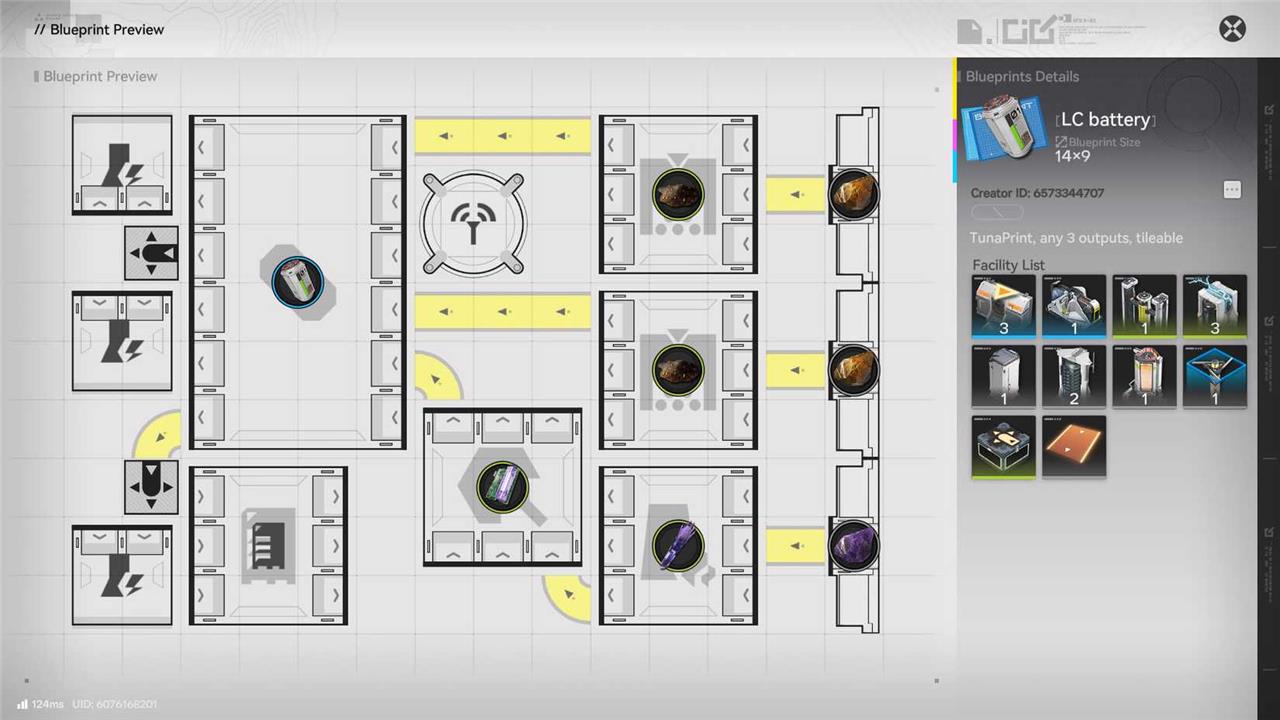
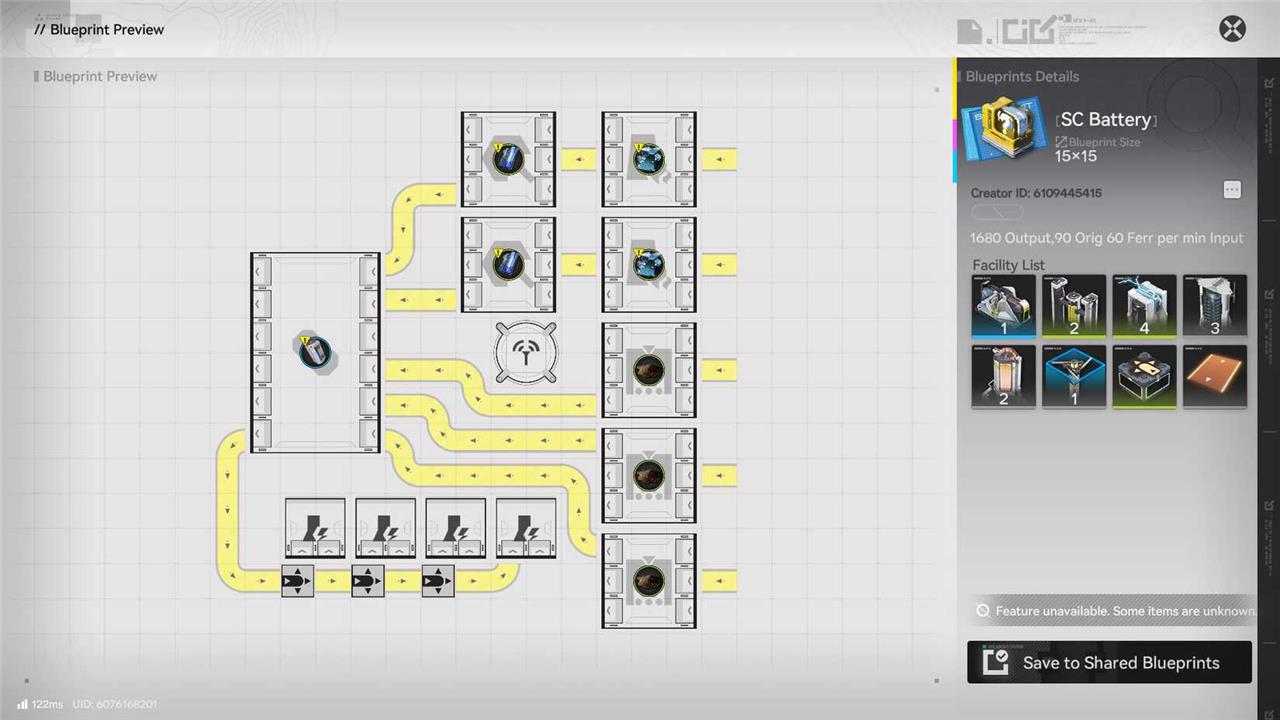
Once you reach the mid-game portion of Arknights: Endfield, you may want to consider upgrading your power supply system by crafting SC batteries. In this case, you can import the blueprint created by Reddit user JesusSandro. Their layout is slightly wider than the previous one, and it requires access to the third tier in the AIC Basic skill tree, but it’s a great option if you want to use SC batteries.
- Blueprint code: EFO01U4Ai8u7E8OO7Oa8
Early-game planting and seed-picking blueprint in Arknights: Endfield
Early planting in Valley IV focuses on building a steady crop rotation using quick-growing seeds to maintain material flow and support later upgrades. Players should prioritize soil quality improvements near water routes, pairing nutrient-rich zones with fast-yield plants like Fiber or Wheat. Early seed collection favors variety-gathering from multiple biomes ensures sustainable replanting cycles and consistent crafting supplies. Timing harvests with production needs prevents storage overloads while keeping construction lines active.
In Arknights: Endfield, you can collect specific materials, such as plants and fruits, to craft special medicine that you use during combat. The problem is that farming plants is boring and time-consuming. Fortunately, you can automate the process. This is exactly what user Xyzccords achieved by creating a blueprint capable of producing infinite seeds and plants.
- Blueprint code: EFO01893u6a9u31AUI73
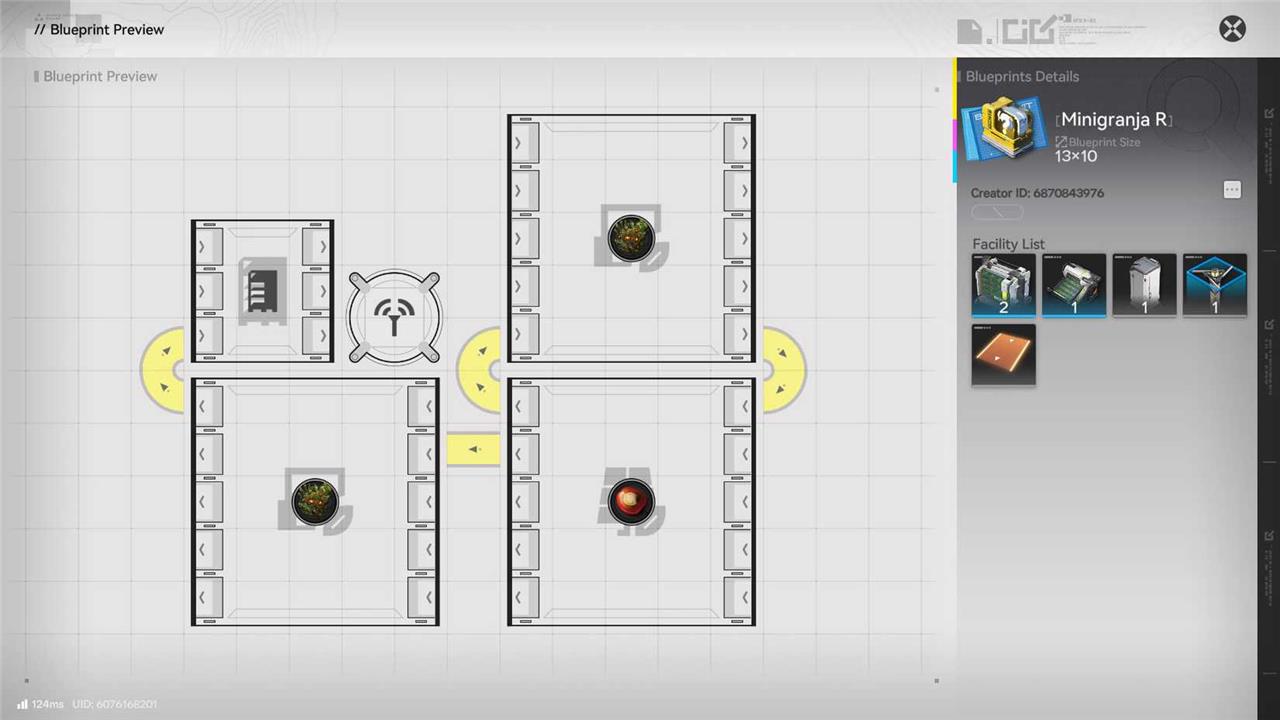
The idea is simple: you place a plant (Buckflower or Citrome for example) in the Seed-Picking unit, which will transport the seed to the Planting unit, where new plants will grow. Although this blueprint can handle only one seed at a time, putting two production lines side-by-side won’t require much space.
Early-game Industrial Explosives blueprint
The Early-game Industrial Explosives blueprint provides a fast production route for mining-focused squads in Valley IV. It simplifies ore extraction by speeding up material breakdown and resource yield, giving players an early advantage in processing operations. Its compact structure fits easily into smaller bases, making it practical for early-stage facility setups where space and power remain limited.
While most of your time in the game is spent progressing in the main story and managing your factory, exploration is extremely rewarding in Arknights: Endfield. You can find chests or encounter the little tricky floating Aurylene. However, more often than not, you will find yourself blocked by walls that you could destroy – if you had explosives! That’s why you should make them with the help of user tortoise-chan, who created a Compact Industrial Explosives layout to produce industrial explosives “at full speed.”
- Blueprint code: EFO0136uIOo429a40579
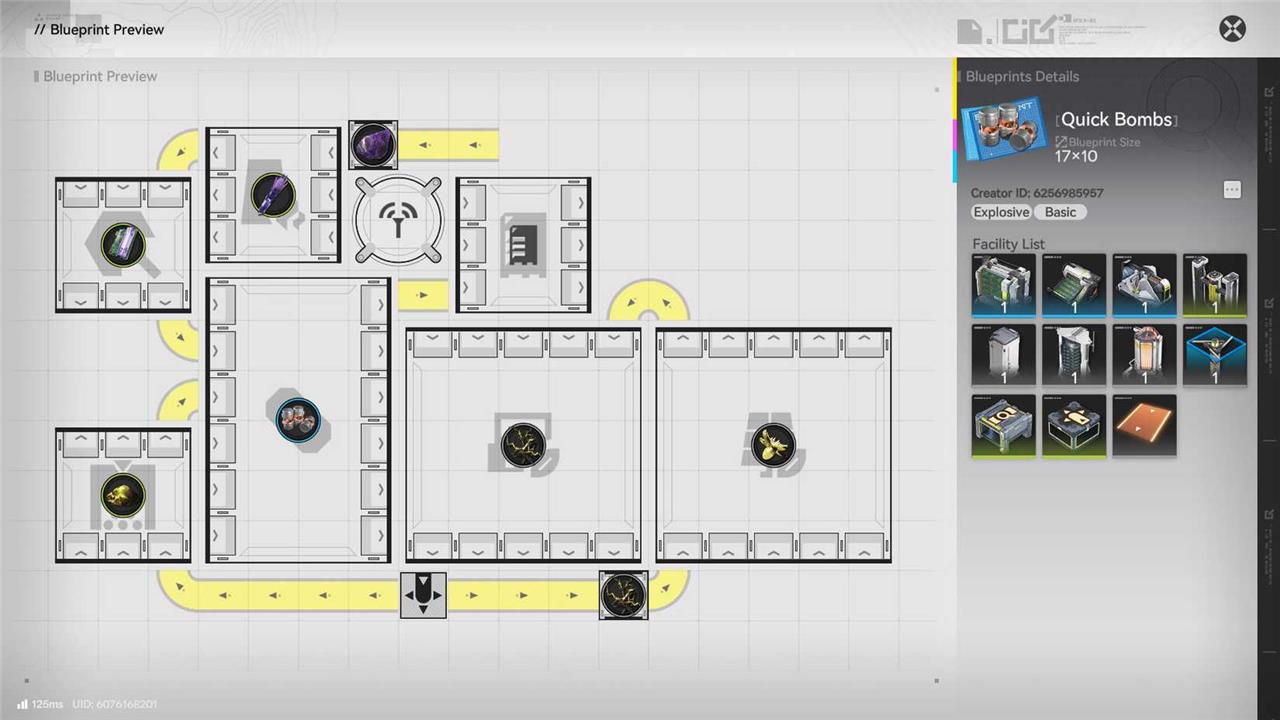
The main challenge in making Industrial Explosives is having enough aketine, a plant you can obtain near the Valley Transfer area. Manually collecting them would take forever. That’s why tortoise-chan included a Planting unit and a Seed-Picking unit in their Compact Industrial Explosives blueprint, making it a sustainable production of explosives.
How to import blueprint codes in Arknights Endfield
Here’s the quick step-by-step to import blueprint codes in Arknights: Endfield:
-
Copy the blueprint code
-
Outside the game (from a site, Discord, video description, etc.), select and copy the full alphanumeric blueprint code.
-
-
Go to your AIC base
-
Enter your Core AIC or an Outpost where you want to use the blueprint.
-
-
Enter Top View / Build screen
-
Switch to Top View (e.g., Q on keyboard or R3 on controller) so you can see the factory grid from above.
-
-
Open the Blueprints menu
-
Press the Blueprints hotkey (commonly F1 on PC) or click the Blueprints button on the build UI.
-
-
Go to the “Shared Blueprints” tab
-
Tabs are usually: My Blueprints / System / Shared. Choose Shared Blueprints.
-
-
Use “Import Blueprint”
-
Click the Import Blueprint button at the bottom of the screen.
-
Paste the code into the text box, then confirm.
-
-
Preview and save
-
The game will show a preview of the layout and its required machines.
-
Confirm/save so it’s added to your Shared Blueprints list.
-
-
Place the imported blueprint
-
Back in the Blueprints menu, select your imported layout.
-
Place the hologram on an empty area and confirm to build, as long as you have the required buildings unlocked and enough space.
-
Common pitfalls to avoid:
-
Codes are server-locked: a code from another region/server usually won’t work.
-
If “cannot place” appears, you may be missing required tech/buildings or don’t have enough contiguous space.
How to create and save your own AIC blueprints
Here’s the basic flow to create and save your own AIC blueprints in Arknights: Endfield:
1. Set up the layout you want to save
-
Build and connect the exact production line you want to turn into a blueprint (for example, a battery farm or Buck Capsule chain).
-
Make sure it’s working correctly first; blueprints copy the current configuration, not “ideas”.
2. Enter AIC Top View and selection mode
-
Go into your AIC base (Core AIC or Outpost) and switch to Top View so you see the grid from above.
-
Use Bulk Action (or the area-select tool) to drag a box around the facilities you want included in the blueprint; verify all key machines and belts are highlighted.
3. Save the blueprint
There are two equivalent ways, depending on what your UI shows:
-
Method A (Bulk Action shortcut):
-
With the area still selected, press the Save shortcut (commonly Ctrl + S on PC, Triangle on PS5) to open the blueprint save window.
-
-
Method B (Blueprints menu):
-
Open the Blueprints menu from the build screen.
-
Go to My Blueprints and choose New Blueprint, then select the buildings you want and confirm to save.
-
Not every building type can be included (some structures are auto-filtered), so double-check the preview list of included facilities before you confirm.
4. Name, tag, and describe it
In the save dialog you can:
-
Enter a name (e.g., “Early HC Battery v1”).
-
Add a description (inputs, outputs, any notes like “needs 2 buses”).
-
Set tags and an icon so you can recognize it later and so other players understand its purpose if you share it.
Once you confirm, the layout is stored under My Blueprints, and you can reuse it, replicate it, or later submit it for review to get a share code for friends or the community.
If you tell me your platform (PC, PS5, mobile), I can map these steps to the exact buttons you’ll see on your UI.
