
Unlock the hidden mechanics of Nioh 3 as you chase elusive set bonuses, learn where they hide in the UI, and master the quick-navigation steps that reveal their true power.
How to see set bonuses in Nioh 3
Open the pause menu with Esc on PC or Start on controller, then select the Equipment tab. Hover over any set gear piece and press L2 plus left D-Pad on PS5 or C on PC to reveal active set bonuses and their piece thresholds. Enable tooltips with G key or lower touchpad for bonus details.
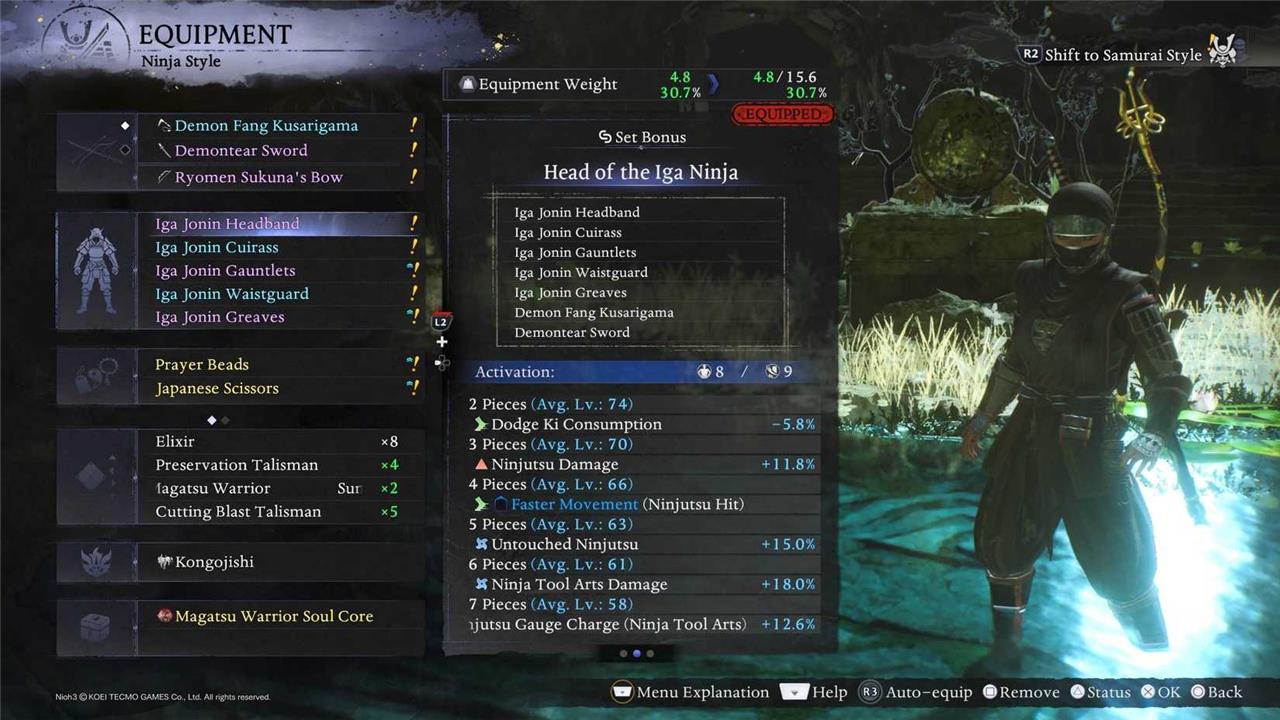
To see set bonuses in Nioh 3, you must head to the equipment screen, then find any piece of equipment that is part of a set. This is denoted on the stat screen for that item by green text that will likely have the set name, followed by a number indicating how many of that set you currently have equipped.
With that piece selected, hold L2 and press left on the D-pad on your controller or press C on the keyboard to navigate to the next stat screen, which should show the full set bonuses. This will indicate the perks you get for having just two pieces equipped, all the way through to six.
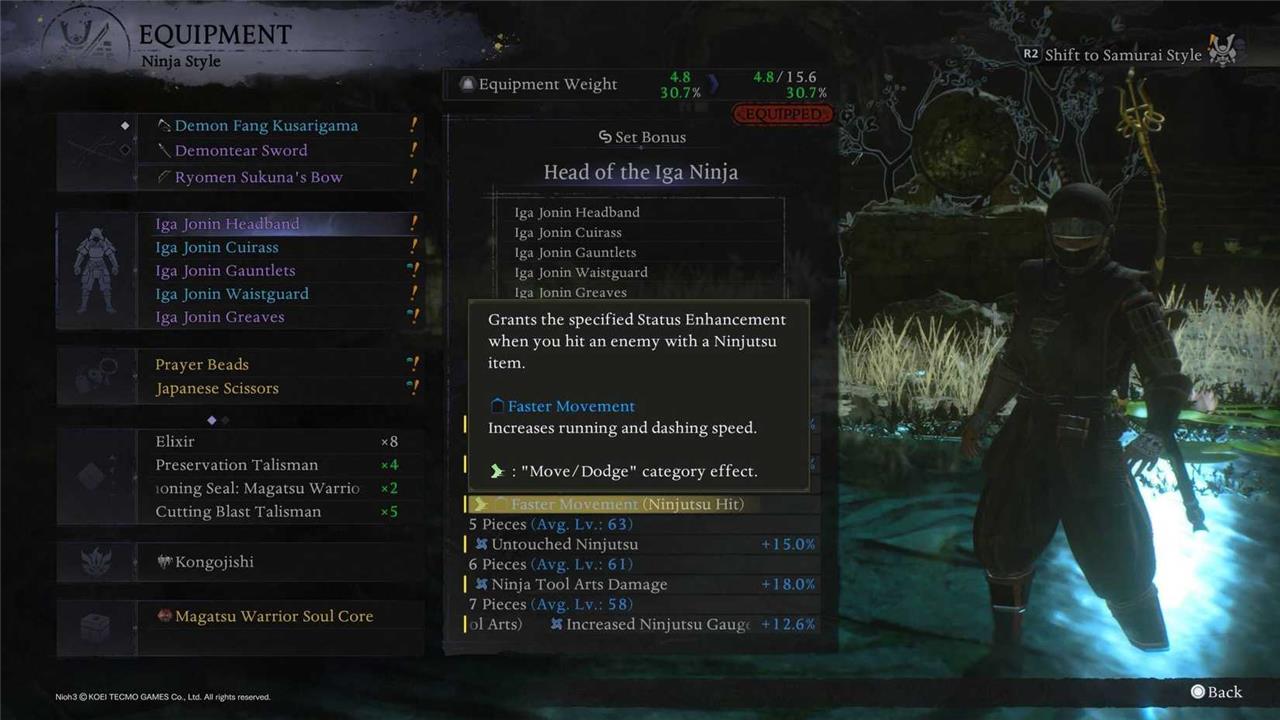
Press the lower half of the touch pad on the PS5 controller or press G on the keyboard to enable tooltips for each bonus too, as you can then navigate through each one using the D-pad or your mouse. Some of the stat bonuses are a little confusing by name alone, so this does a great job at explaining how each one works and what it does to your build.
POLY Report: Subscribe and never miss what matters
Enter your email to get the best of AELGAMES sent straight to your inbox, packed with news, reviews, and insights from the gaming world.
Subscribe By subscribing, you agree to receive newsletter and marketing emails, and accept our Terms of Use and Privacy Policy. You can unsubscribe anytime.
Where to find set bonuses in the Nioh 3 UI guide
In the official-style Nioh 3 UI guides and in-game interface, set bonuses live on a secondary detail screen for each item, not on the main stat card.
Where they appear in the UI
-
Open the pause menu, then go to the Equipment (or Items) tab.
-
Highlight a weapon or armor piece that is part of a set (you’ll see green set-name text or a white chain/link icon next to the item name).
-
Open the item’s detail view, then toggle to the Set Bonus screen:
-
PS5 / controller: L2 + Left on the D-Pad (LT + Left on Xbox-style pads).
-
PC keyboard: press C while the item is highlighted in the equipment screen.
-
This secondary panel is what UI guides refer to when they talk about “set bonus display” or “set bonus tab.”
What the Set Bonus panel shows
-
The set name and a piece counter (for example, “4/6 pieces”).
-
A list of bonuses tied to 2-piece, 3-piece, 4-piece, etc., thresholds, with currently active bonuses highlighted and future ones grayed out.
-
Stat requirements for activating those bonuses (blue if met, red if not).
If an item does not belong to any set, that extra Set Bonus screen simply does not appear when you toggle, which is why UI guides emphasize using a known set piece as your starting point.
What do white vs gray set bonuses mean in Nioh 3
White vs gray in the Nioh 3 set-bonus screen is all about what is currently active or equipped.
Meaning of white vs gray
-
White set bonuses (text/highlight): These bonuses are active right now. That means:
-
You have enough pieces of that set equipped to meet the piece requirement for that bonus, and
-
You meet the stat requirements (shown below the list, usually in blue when OK).
-
-
Gray set bonuses (text/highlight): These bonuses are not active. This can be because:
-
You don’t have enough pieces of the set equipped yet, or
-
You do have enough pieces, but your stats don’t meet the minimum requirement (those requirements show in red).
-
On the same screen, the individual set pieces are also listed: pieces shown in white are ones you currently have equipped, while gray pieces are ones you own but do not have equipped.
